8-8
In the example shown in the illustration for Screen 12, moving the joystick down would move the
cursor down over 01 (or Waypoint 1) but would leave the “LEG” arrow positioned as it was. The
distance shown next to the word LEG also would remain unchanged, showing the leg distance from
the flight plan start point to Waypoint 01 (01). Moving the joystick down again would move the cursor
down to 02, move the leg arrow down so that it is pointing between 01 and 02 and the figures next to
the word LEG would then show the distance from 01 to 02 and so on. The number next to the word
FPLN is the total flight plan length from start to finish.
In addition, as the cursor is moved up and down the flight plan, the MSA for that leg is shown in a box
below the LEG and FPLN info box as [LEG MSA: XXXX]. This value is the highest Grid MORA found
along a ten mile wide corridor (including five miles past the waypoint) centred along each leg. Also
shown is the [FPLN MSA: XXXX], which is the highest value leg MSA for the entire flight plan.
An extra waypoint can be inserted at any place in the flight plan (assuming the flight plan is not full). To
do this, you position the cursor over the appropriate point in the flight plan and press Key 2, INSERT
ITEM. For example, if you placed the cursor over 02, the new item would become 02 and the existing
02 would become 03, etc. In a similar manner items may be deleted from the flight plan by positioning
the cursor and pressing Key 3, DELETE ITEM. Key 4 inverts or reverses the flight plan. Key 5, FLY
FPLN, throws the unit into Map Mode (Screen 47) with the selected flight plan active.
Manually Inserting a Waypoint into a Flight Plan and Manual DIRECT TO
A Waypoint can be inserted into a flight plan by using a two step process, which is started by pressing
Key 2, INSERT ITEM. The same process is followed when Key 5, DIRECT TO is selected in Screen
38, MAP Mode when the joystick is not active.
Step 1. Selecting data source
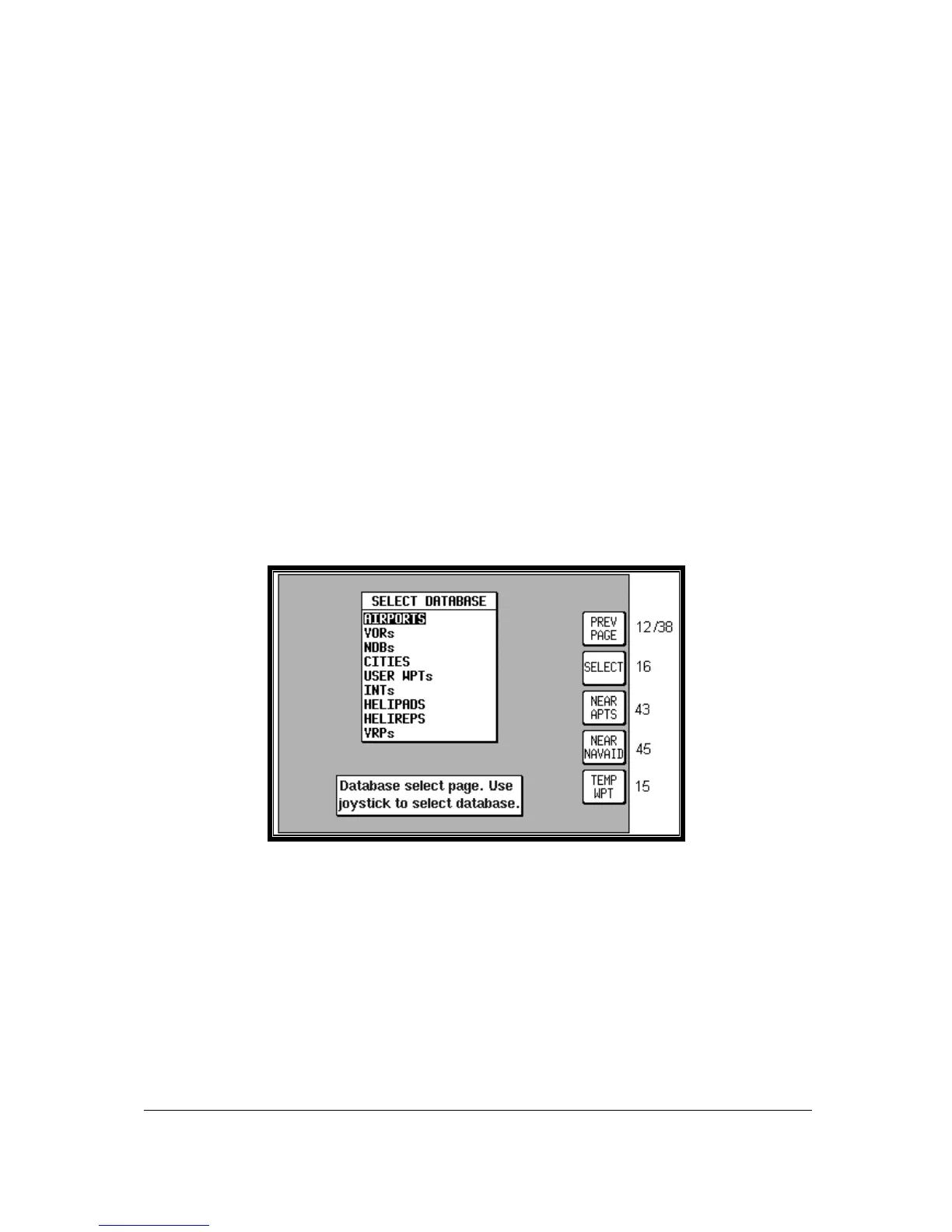
Screen 13: Database Selection Screen
This Screen shows a list of data libraries and you will find a cursor positioned over the word
AIRPORTS. You can use the joystick to move the cursor up and down the list of databases. Keys 3,4
and 5 only appear if this Screen is called from Screen 38, MAP Mode as a DIRECT TO.
By moving the cursor you select the database that contains the item you are looking for, whether to
insert into your flight plan or to use as a DIRECT TO destination. Once you have the cursor over the
correct database, pressing Key 2, SELECT, will move you onto the next selection process, which is
Screen 16, Item Selection.
As stated above, Key 3, NEAR APTS and Key 4, NEAR NAVAID, only appear if this Screen has been
entered after performing a DIRECT TO in Screen 38, Map Mode. For more information on the
function of these keys, please refer to the Ten Nearest under the NAV Menu Screens Section in this
Manual.


 To Next Page