8-4
Manual User Waypoint Editing
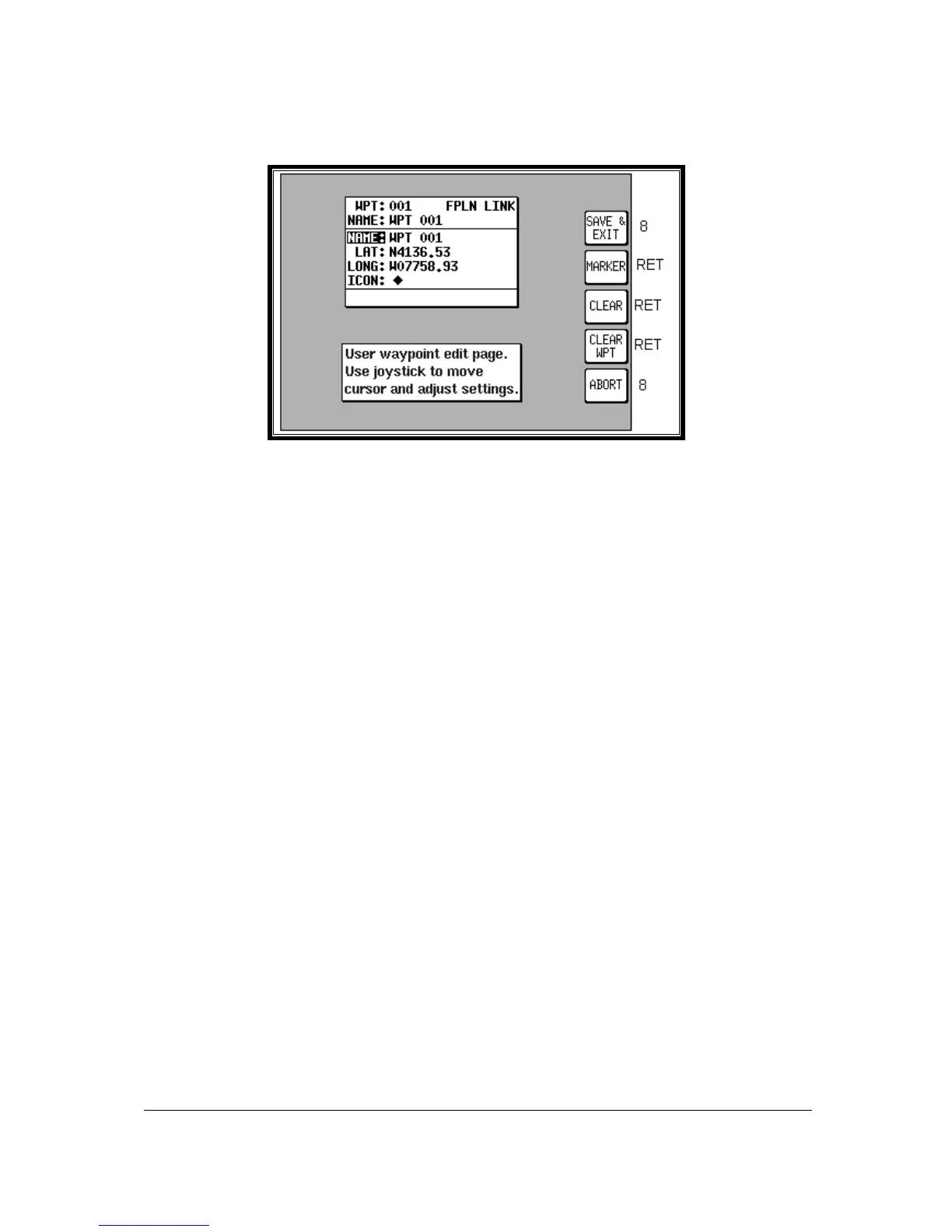
Screen 9: Manual User Waypoint Edit Screen
Pressing FLIGHT PLAN in Main Menu, followed by USER WPTS and EDIT, accesses this Screen.
On entry to this Screen a cursor appears over the word NAME. The cursor can be moved up and
down between NAME, LAT, LONG and ICON using the joystick. The joystick is again used to move
the cursor to the right so that the user waypoint name, latitude, longitude and icon type can be entered
or amended, again by using the joystick.
When the cursor is moved to the right after the last character in a line, the POS field will be updated
and the cursor will move to the next line heading. i.e. from the last character in the name, the cursor
will go to the word LAT and similarly from the last digit of the longitude it will go to the word ICON.
If you want to use the selected user waypoint as a marker as described previously, pressing Key 2,
MARKER, will automatically write the word MARKER1.0 into the name field. You can then move the
cursor across using the joystick and alter the distance and fill in the latitude and longitude. If you want
to delete an existing user waypoint, press Key 4. If you want to delete just the data entry field that the
cursor is positioned over, press Key 3, CLEAR.
When the desired alterations have all been made, touching Key 1, SAVE & EXIT, will enter the revised
data and return you to Screen 8, User Waypoint Viewer Screen. Alternatively, touching Key 5,
ABORT, will return you to Screen 8 without modifying the user waypoint information, cancelling all the
changes you have made.


 To Next Page