11-1
11 MAP MODE WITH NAV INFORMATION
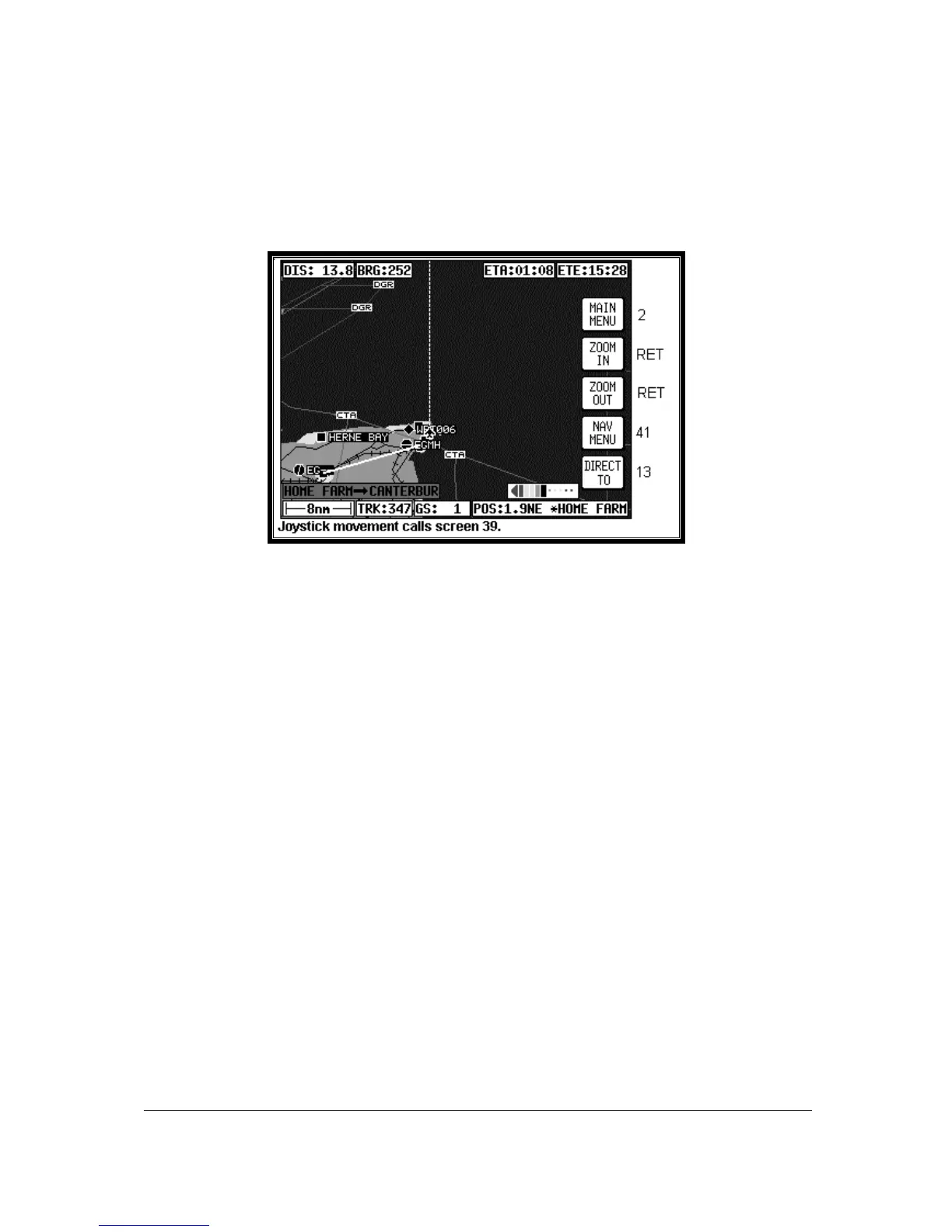
Whenever a flight plan is active or you have called for a DIRECT TO, the map will have extra navigation
information added to it and will resemble Screen 47 below. Alternatively you may have selected one of
the other Navigation Modes detailed in the NAV Menu Screens Section of this Manual. The same
navigation data is presented on all the alternative screens in different ways. The following text refers to
the standard Navigation Mode Screen setting (TOPO ON). Alternative Screens 47A and 47B are
discussed at the end of this section.
Screen 47: Map Mode with NAV Information Screen
If the TOPO OFF Large Map Mode is selected, the map will display aeronautical data only on a black
background.
The Course Deviation Indicator (CDI) at the bottom right of the map can be switched ON or OFF or be
set to work numerically and the Full Scale Deflection (FSD) selected on Screen 23, NAV Mode
Customisation Screen. If you have selected the CDI alarm ON, when the last element of the CDI bar
graph comes on (or when the full scale value as set on Screen 23 is reached) the internal and external
alarms (if switched on) will beep at a rate of 2Hz for 5 seconds.
Key 5 will change to ALARM OFF and if you press this before the 5 seconds are up this will silence the
alarm. When the alarm switches off automatically after 5 seconds, Key 5's label will go blank and
have no function for 2 seconds then revert to DIRECT TO (or DIRECT TO OFF). This is to make sure
you don't inadvertently select or cancel DIRECT TO mode if you press this Key just as it is cancelling
automatically. The CDI alarm resets itself as soon as you come back within the full scale set. It will
then be reactivated whenever the full scale is exceeded again.
The box at the bottom right of the map window shows the destination point when you are in DIRECT
TO Mode preceded by the “DIRECT TO” symbol or the FROM and TO waypoints when you are in
Flight Plan Mode.
A great deal of other navigation information is available to you above and below the map. (The
positioning of this data that is described in the following relates to when the screen is in Landscape
Mode. The position of some of the items is different when Portrait Mode is used.) Starting at the top of
the screen on the left hand side you will see DIS. This is the distance or range to run to the destination
point from your present position. This distance figure is given in whichever units you selected on
Screen 22, Map Customisation Screen. In the left centre of the screen at the top you can read BRG.
This is the magnetic heading to steer (assuming no wind) to the next turning point.


 To Next Page