9-1
9 MAP MODE SCREENS
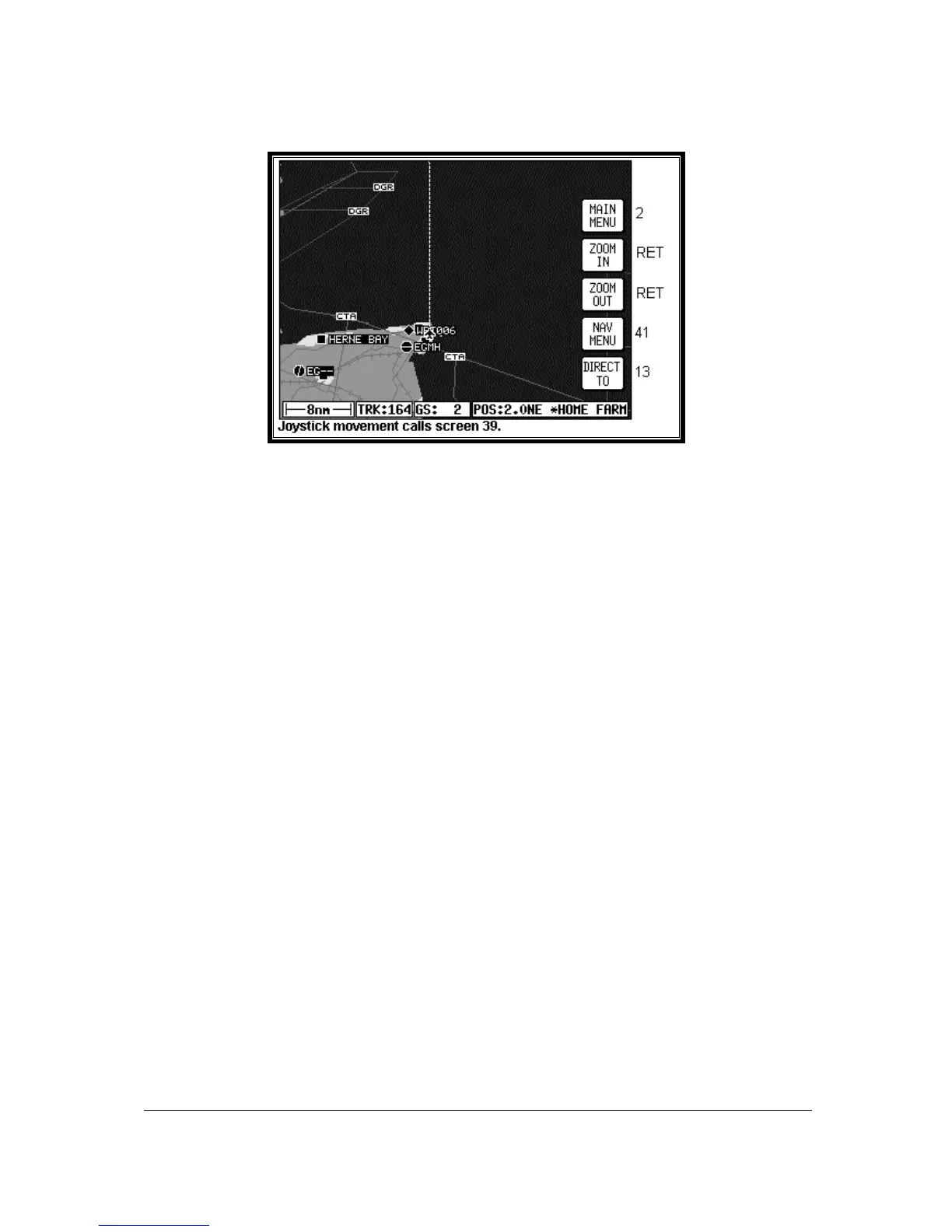
Screen 38: Basic Map Mode Screen
This Screen can be accessed by pressing MAP mode in Main Menu. When you enter this Screen, if
the Skymap IIIC's internal GPS receiver has been able to establish a fix or if the external GPS you are
using to feed your Tracker IIIC is sending valid data, a Screen similar to the above will be displayed.
The map is initially displayed at the Zoom Level where the Scale Bar represents 8nm. This is
approximately the same scale as a 1:500,000 chart. If there is no valid GPS fix data available, the
words NO FIX POSSIBLE will be shown across the centre of the screen in a box. If the fix is lost at
any time during normal operation of the unit, the same NO FIX POSSIBLE box will be overlaid on the
map. For an External GPS source the additional messages NO EXTERNAL POSITION DATA and
INVALID EXTERNAL POSITION DATA may be displayed in place of NO FIX POSSIBLE.
The map will be shown in either North Up mode or Track Up mode depending upon the setting you
have made from Screen 22, Map Customisation Screen. The displayed data will be updated every
second. From this page, if you press Key 1, Screen 2 Main Menu will take its place. You can use
Keys 2 and 3 at any time to zoom the map in and out to whichever one of the twelve pre-set scales
you wish to use. The levels of detail appearing at each zoom level can be selected on Screen 22A/B
or C, described in the Setup Screens Section of this Manual. If you want to zoom in or out by more
than one step at a time, you can apply multiple presses to Keys 2, ZOOM IN, and 3, ZOOM OUT,
whilst watching the scale bar calibration figure and the ZOOMING message box.
The small boxes marked TRK: and GS: display your present track and ground speed. Ground speed
is displayed in the units selected on Screen 22, Map Customisation Screen. Track will be magnetic
(i.e.: true with local variation automatically taken into account).
The box marked POS: will display your present position as a distance and cardinal bearing from the
nearest item in the database. The geographical item used to describe your position to you is chosen
on the basis of the POSITION REF: setting on Screen 22, Map Customisation Screen.
If you have chosen VOR’s as the position reference on Screen 22, your position will be reported as a
distance (range) and bearing from the nearest VOR. If you have chosen VOR’s & AIRPORTS as the
position reference on Screen 22 and your position is within 5nm of a VOR, your position will be
reported as a distance and bearing from that VOR even if there is an airport nearer (i.e. VOR’s have
priority). If there is no VOR within 5nm then your position will be reported with respect to the nearest
VOR or airport with no priority being given for either.
If you have chosen ALL DATA as the position reference on Screen 22, your position will be reported
against a table of priorities. If your position is within five miles of an airport, it is your distance and
bearing from that airport that will be displayed, even if there is a beacon, user waypoint or town nearer.


 To Next Page