9-2
All airport names are shown preceded by an asterisk character (*) in order to distinguish them
from towns or cities with similar names, which may have significantly different locations. If
your position is found to be within five miles of a VOR beacon and more than five miles from an
airport, then your position will be shown with respect to the VOR beacon, even if there is a user
waypoint, NDB or town nearer. User waypoints have next priority followed by NDB’s and towns last.
At the bottom left hand corner of the display you will also see a Scale Bar showing a measurement.
The measurement may be in nautical miles, statute miles or kilometres depending on the map units,
which you have selected from Screen 22, Map Customisation Screen.
Pressing Key 4 will take you to Screen 41, the NAV Menu Cover Screen. Pressing Key 5 will take you
to Screen 13 from which you can select a DIRECT TO destination.
Under normal circumstances, you will not see any joystick pointer on Screen 38. However, if you do
move the joystick, a pointer will appear just beside your present position icon and the display will
change to Screen 39 below.
Data Interrogation and Graphical DIRECT TO
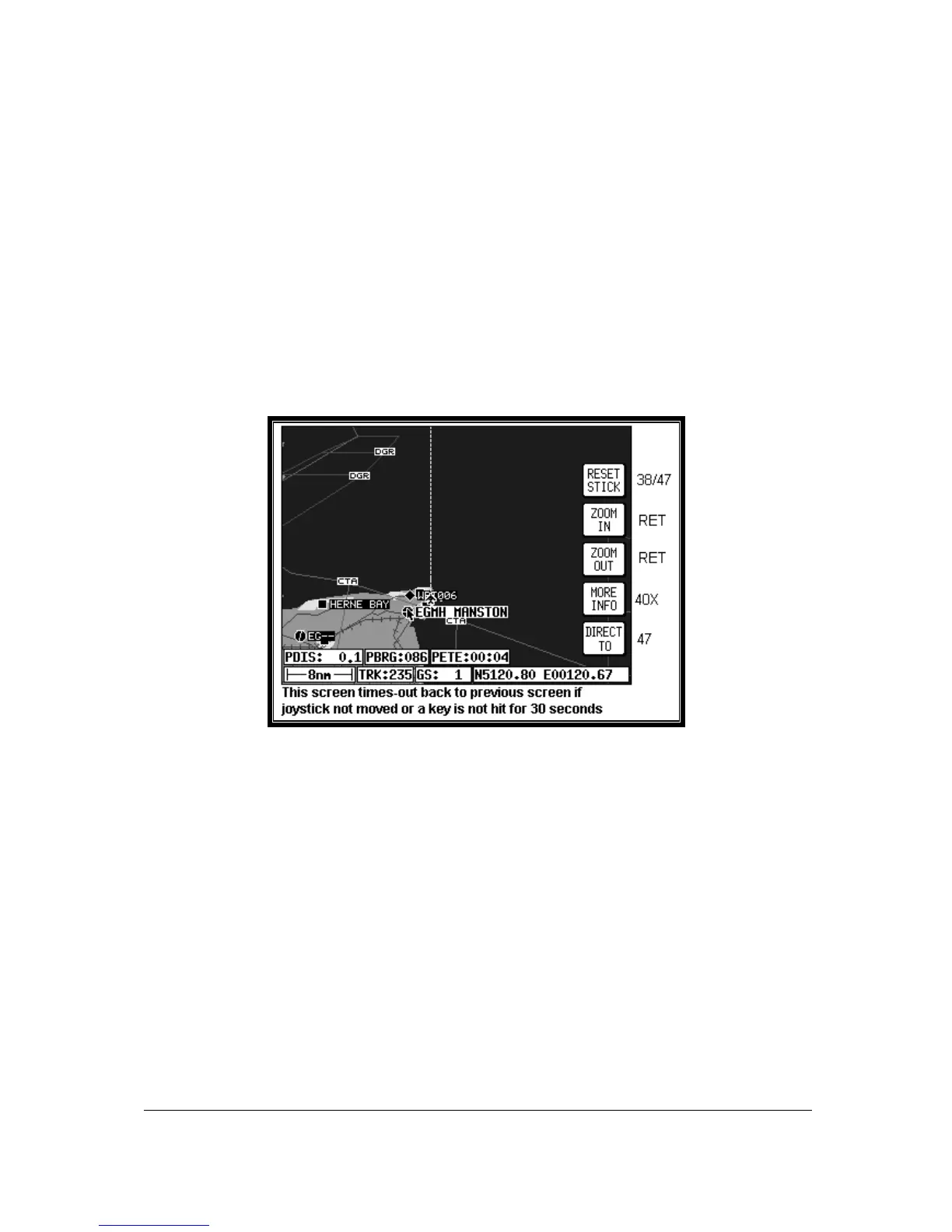
Screen 39: Map Mode with Joystick Active Screen
As soon as you move the joystick while in Screen 38, Map Mode, a Screen similar to the above
Screen 39 will be displayed. The map freezes in its present position with respect to the joystick pointer
and the aircraft symbol indicating your present position starts to move across the Screen. A line
appears between present position and the joystick pointer. (The reason the map is made to stop
moving is that this makes accurate positioning of the joystick pointer much easier for you.)
Simultaneously, you will see the TRK and GS boxes have now changed to PDIS, PBRG and PETE
(where P indicates Pointer). These now show the distance and bearing from present position to the
joystick pointer and the pointer estimated time en-route (PETE). The PETE is calculated on present
GS and would read 00:00 if you were stationary. You can use this function to measure distance,
bearing and estimated time en-route to any point on the map. The window formed by the extremities
of the Screen can be moved around the map by “bumping” the Screen borders left, right, up or down
with the pointer. A PANNING message will be displayed when a border has been bumped in this
manner, while the map screen is redrawn. You can still use Keys 2, ZOOM IN, and 3, ZOOM OUT, to
zoom the map in and out. When you are finished using this Screen press Key 1, RESET STICK, and
the joystick pointer will vanish, your display will return to Screen 38 and the map will be placed back in
its present position at the zoom level it was at prior to activating the joystick. If you don't move the
joystick for 30 seconds, this will have the same effect as pressing Key 1.


 To Next Page