4-5
Editing/Creating A User
Waypoint Manually
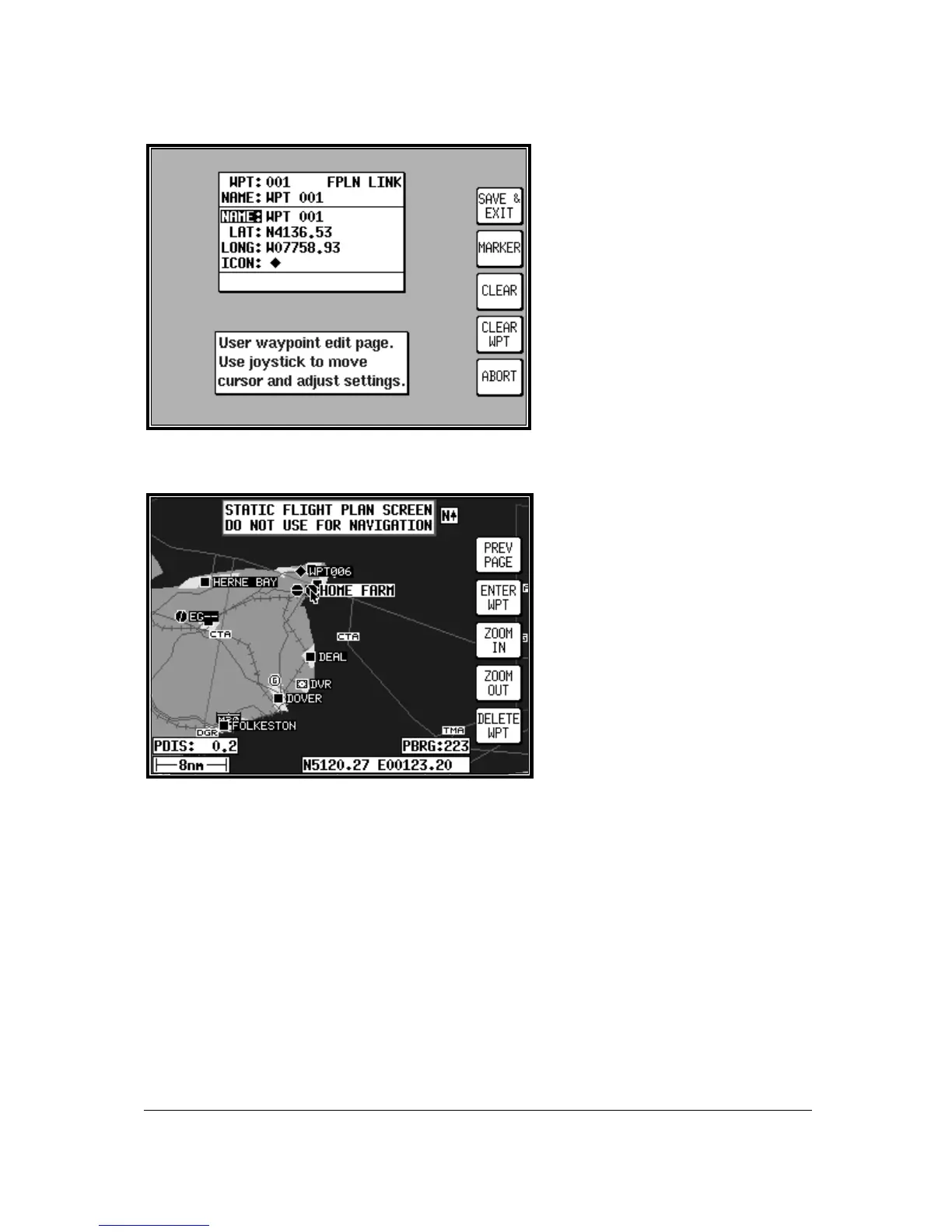
From MAIN MENU select the FLIGHT
PLAN key, followed by USER WPTS.
Use the joystick to select the desired
user waypoint number or name. Then
press the EDIT key and use the joystick
to edit the NAME, LAT and LONG fields.
The entire user waypoint can be deleted
by pressing CLEAR WPT. If you only
wish to delete data in a particular field, as
opposed to the entire user waypoint,
move the cursor over the field label (i.e.
NAME, LAT, LONG) and press the
CLEAR key. To save a user waypoint
press SAVE & EXIT. Use the ABORT
key to return to MAIN MENU without
saving.
Editing/Creating A User
Waypoint Visually
From MAIN MENU select the FLIGHT
PLAN key, followed by USER WPTS.
You may then use the joystick to select a
specific user waypoint (either by number
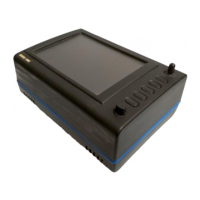
or name). Press the VIEW MAP key and
the adjacent screen will be shown with
the previously selected user waypoint in
the centre of the screen. If the
previously selected user waypoint was
empty your last position will be
displayed. A user waypoint can then be
created as a distance and bearing from
the displayed position or as a
latitude/longitude. Press ENTER WPT
to save the user waypoint to the first
available memory location. An unwanted user waypoint can be removed by moving the pointer over it
and pressing the DELETE WPT key. If the user waypoint that you wish to delete is in a stored flight
plan the message [PRESENT IN FLIGHT PLAN] will be displayed. A second press on the DELETE
WPT key will however remove it, or you can move the joystick to cancel the delete. Use the PREV
PAGE key to return to screen entered from, saving any changes made.
Saving A User Waypoint In Flight
A user waypoint can be saved quickly in flight by pressing NAV MENU in MAP mode followed by
SAVE WPT. You will immediately be returned to MAP mode with your current position saved to the
next available user waypoint memory location.


 To Next Page