4-6
Editing/Creating A Flight Plan
Manually
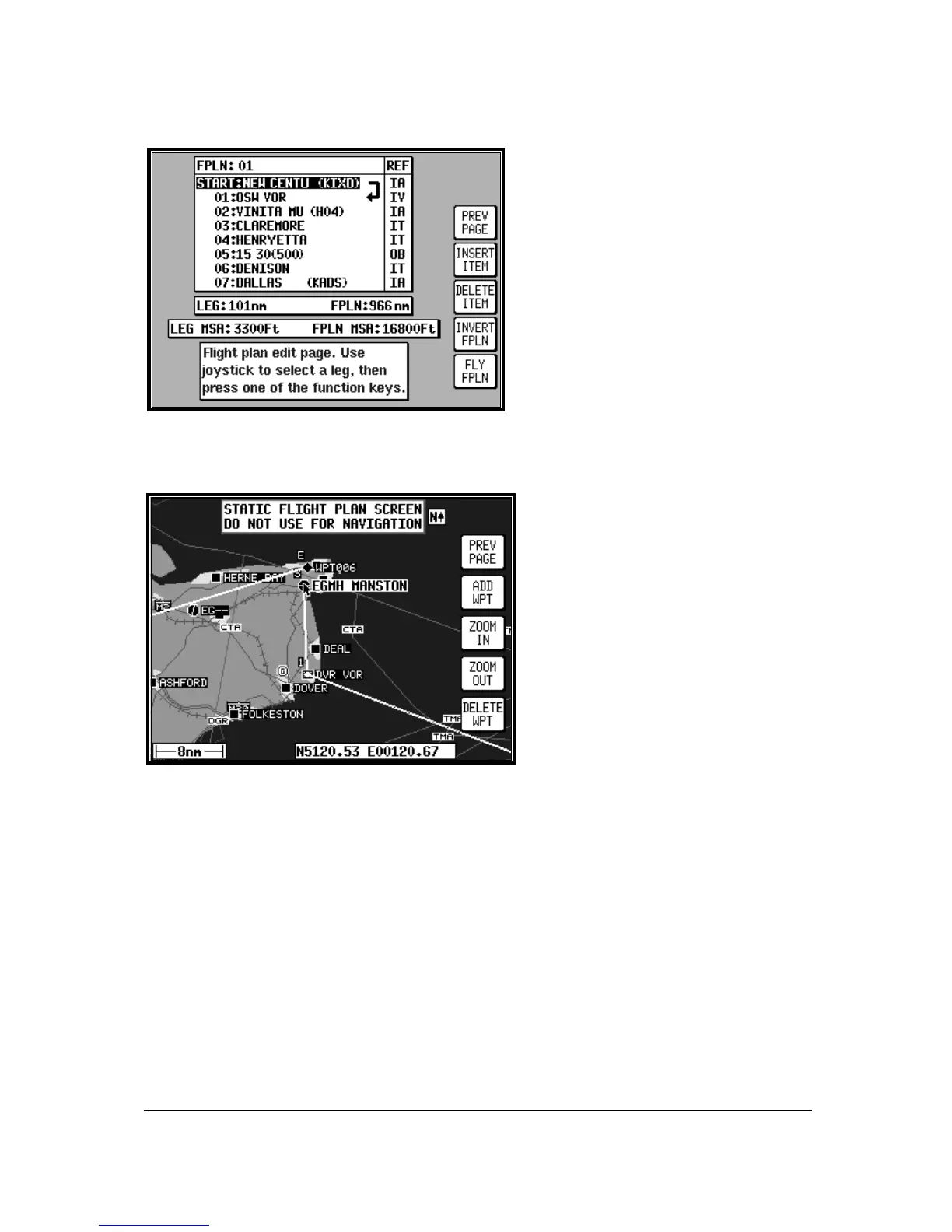
From MAIN MENU select the FLIGHT PLAN
key, followed by EDIT FPLN. Use the
joystick to select the desired flight plan
number and then press SELECT. To insert
an item press INSERT ITEM and follow the
Database Selection process explained earlier
in this Section of the Manual. To remove an
item from the flight plan move the cursor
over the item using the joystick and press
DELETE ITEM. A flight plan can be
systematically built using the INSERT ITEM
key. The flight plan can be inverted by
pressing the INVERT FPLN key. If you wish
to fly the flight plan, ensure that the flight plan arrow (shown on the side of the flight plan list) is
highlighting the leg you wish to fly, the press FLY FPLN. Alternatively use the SAVE & EXIT key to
return to screen entered from, saving any changes made.
Editing/Creating A Flight Plan
Visually
From MAIN MENU select the FLIGHT
PLAN key, followed by EDIT FPLN. Use
the joystick to select the desired flight plan
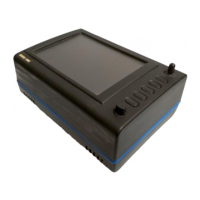
number and then press VIEW MAP. If the
selected flight plan was empty, the adjacent
screen will appear showing your last
position, if it were not, the start point of the
flight plan will be shown in the centre of the
screen. If the desired flight plan was empty
you can use the joystick to move the
pointer to the desired start waypoint and
press ADD WPT (ADD WayPoinT). This
will place an S (for Start) next to the
waypoint. Move the pointer to the next
waypoint and press ADD WPT again. This will place an E (for End) next to the waypoint. In either
case when the ADD WPT key is pressed the unit will try to attach the turning point to a displayed
waypoint. If one is not available it will create a user waypoint in the next available memory location.
To systematically create additional legs, draw a line from the waypoint marked (E), with the pointer, to
the next waypoint and press ADD WPT again. You will notice that the last point in the flight plan will
always be labelled (E). Once you have finished building the flight plan press PREV PAGE, to detach
the pointer from the flight plan. This key, if pressed again will return to the screen entered from,
saving any changes made.
If you wish to add a new waypoint to a flight plan which you have stopped building, whether it is at the
start, the end or the middle of the flight plan, you will need to highlight the appropriate point (i.e.: either
the start waypoint (S), the end waypoint (E) or the leg line in which you wish to add a new waypoint).
As soon as you do this, the ADD WPT or GRAB LINE key will appear. Press the ADD WPT or GRAB
LINE key to join the pointer back to the flight plan line and then move it to the new waypoint (NOTE:
Key 2 reverts to ADD WPT). Once over the new waypoint press ADD WPT, otherwise press PREV
PAGE to cancel this action. Unwanted waypoints can be removed by pointing at them and pressing
the DELETE WPT key. Use the PREV PAGE key to return to the screen entered from, saving any
changes made.


 To Next Page