8-11
Graphical Viewing and Editing of Flight Plans
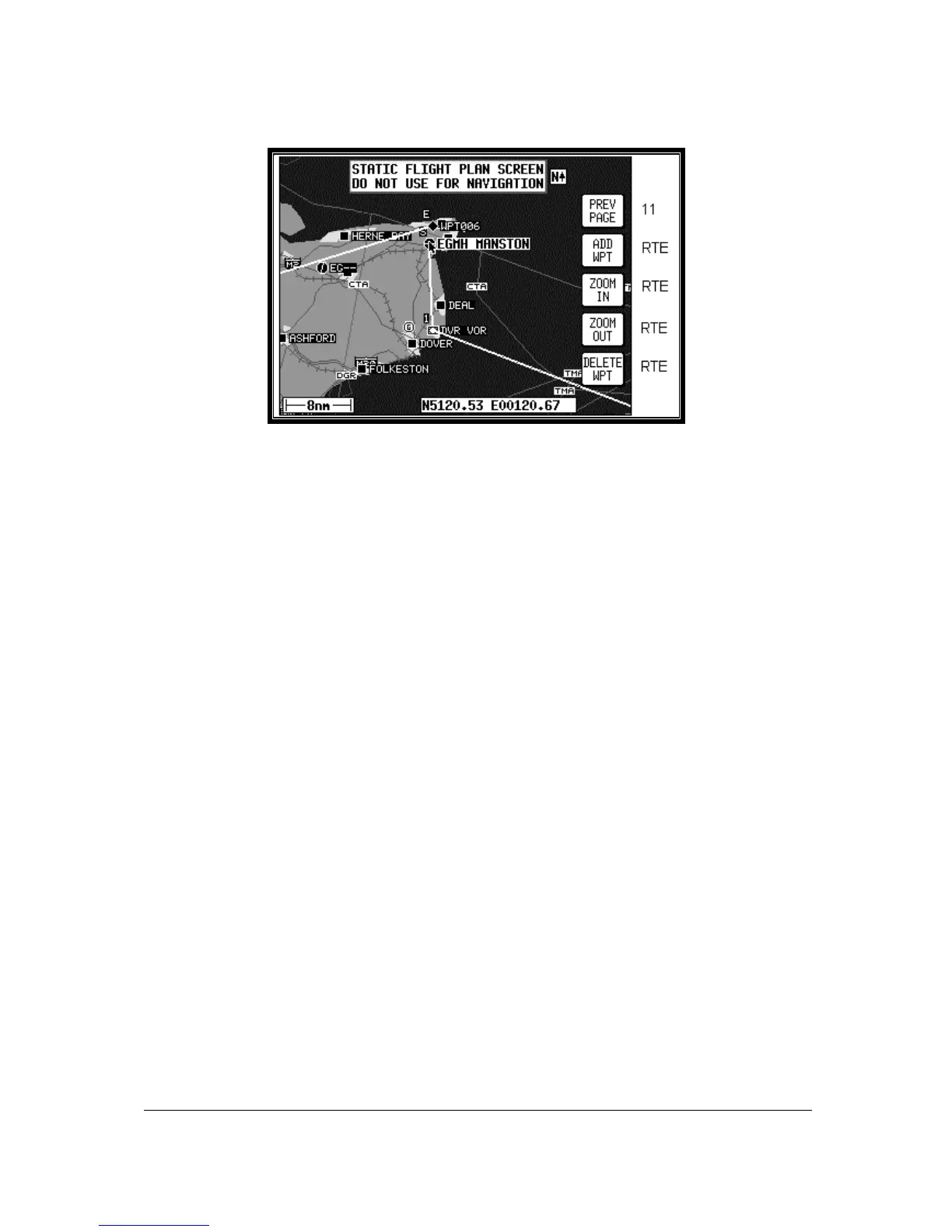
Screen 19: View and Edit Flight Plans On Map Screen
This Screen is accessed by pressing FLIGHT PLAN in Main Menu, followed by EDIT FPLN and Key 5,
View Map, on Screen 11, Flight Plan Selection Screen. Screen 19 is displayed showing the starting
point of the selected flight plan centred in the middle of the display. The legs and waypoints are
shown as in the illustration above.
The joystick can be used to move the pointer. The screen window can be moved around the map by
“bumping” the screen borders left, right, up or down with the pointer. Distance and bearing boxes
below the map show distance and bearing from the last user waypoint in the flight plan to the
pointer. This feature allows you to enter waypoints as a distance and bearing from the previous flight
plan point.
To build a flight plan you simply point at the first item to be included in the flight plan and press Key 2,
ADD WPT (or ADD WayPoinT). This will place an S (for Start) next to the waypoint. If no suitable data
point or user waypoint is available beneath the pointer, a new user waypoint will be created; which can
be given a name later by using Screen 9, Manual User Waypoint Edit Screen.
Now move the pointer to the second item in the flight plan and press Key 2, ADD WPT. This will place
an E (for End) next to the waypoint. To systematically create additional legs, draw a line from the
waypoint marked (E), with the pointer, to the next waypoint and press ADD WPT again. You will
notice that the last point in the flight plan will always be labelled (E). Once you have finished building
the flight plan press PREV PAGE, this will detach the pointer from the flight plan. Press PREV PAGE
again to return to screen entered from, saving any changes made.
If you wish to add a new waypoint to a flight plan which you have stopped building (which is also the
case if you are editing an existing flight plan), whether it is at the start, the end or the middle of the
flight plan, you will need to highlight the appropriate point (i.e.: either the start waypoint (S), the end
waypoint (E) or the leg line in which you wish to add a new waypoint). As soon as you do this, the
ADD WPT or GRAB LINE key will appear. Press the ADD WPT or GRAB LINE key to join the pointer
back to the flight plan line and then move it to the new waypoint (NOTE: key 2 reverts to ADD WPT at
this point). Once over the new waypoint press ADD WPT to insert it, otherwise press PREV PAGE to
cancel this action. Pressing Key 1 PREV PAGE again, returns to the screen entered from, saving any
changes made.


 To Next Page