10-4
You can scroll up and down the list by using the joystick. Once the cursor is lying over the name of the
airport you require, if you press Key 3, MORE INFO, Screen 44 below will appear, giving you additional
information about that airport.
To obtain a DIRECT TO for the chosen airport all you have to do is press Key 5, labelled DIRECT TO,
and you will switch back to (Screen 47) MAP mode with the selected DIRECT TO activated.
Key 1, MAP, returns you to MAP Mode, Screen 38 or 47. Key 2 returns you to the NAV Menu Cover
Screen (Screen 41). By pressing Key 4, NEAR NAVAID, you can switch to Screen 45, Ten Nearest
Beacons, giving information about the ten nearest beacons.
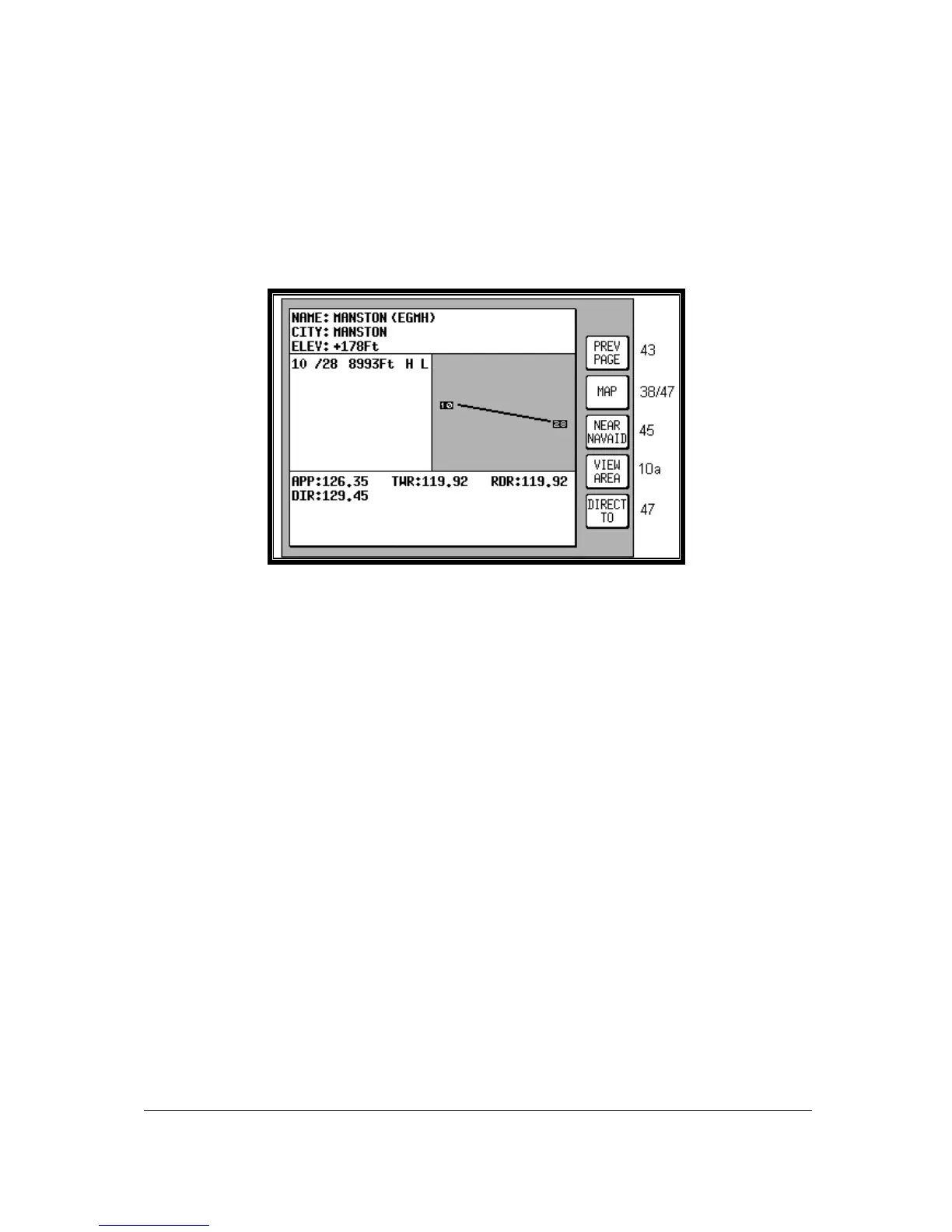
Screen 44: Airport Information Screen
Once you have selected an airport on Screen 43 and pressed Key 3, MORE INFO, the display will
change to Screen 44 above. This gives additional information about runways, frequencies, elevation
etc. for the airport in question.
To return from this Screen to Map Mode (Screen 38 or 47) you simply press Key 2. To select another
airport from the Ten Nearest (Screen 43) you press Key 1 and if you want to see the list of ten nearest
beacons, simply press Key 3, which will take you directly to Screen 45, Ten Nearest Beacons. To
obtain a DIRECT TO for the chosen airport all you have to do is press Key 5, labelled DIRECT TO,
and you will switch back to (Screen 47) MAP Mode with the selected DIRECT TO activated.
If you want to view the area immediately around the chosen airport, press Key 4. This will call Screen
10A which is very similar to Screen 10, the View and Edit User Waypoint on the Map Screen. Screen
10A will revert back to screen 44 after 30 seconds with no key or joystick activity or can be cancelled
by pressing Key 1, PREV PAGE.


 To Next Page