32
Recording/playing back a song
(5) Using the rhythm guide
When you record, it is convenient to use the built-in rhythm
guide.
By using the rhythm guide during recording, you can
use the track editor to edit in units of measures,
synchronize outputs with an external device, and
perform other useful operations. For more details, refer
to “Editing the performance on a track (track editing)”
(p. 50) and “Synchronizing with MIDI devices” (p. 67).
You can also change the tempo or rhythm pattern during
a song. For more details, refer to “Using the Rhythm
Guide” (p. 62).
Playing the rhythm guide
Each time you press [AUTO/ON/OFF] of the RHYTHM
GUIDE, the status changes as shown below.
AUTO: Flashing
When you press [PLAY] to start playback or recording, the
rhythm sounds. When [STOP] is pressed, the rhythm stops as
well.
The rhythm is synchronized with the song.
ON: Lit
The rhythm continually sounds.
The rhythm sounds is the style on the current time that is set
on the pattern.
When the style is set on “BREAK,” the rhythm does not
sound. (p. 62)
OFF: Unlit
The rhythm is turned off.
fig.Q01-22b
The rhythm guide is preset with a wide variety of
rhythm patterns, including the sound of a normal
metronome. For more details regarding the rhythm
patterns of the rhythm guide, refer to “Rhythm Guide
Style/Pattern List” (p. 96).
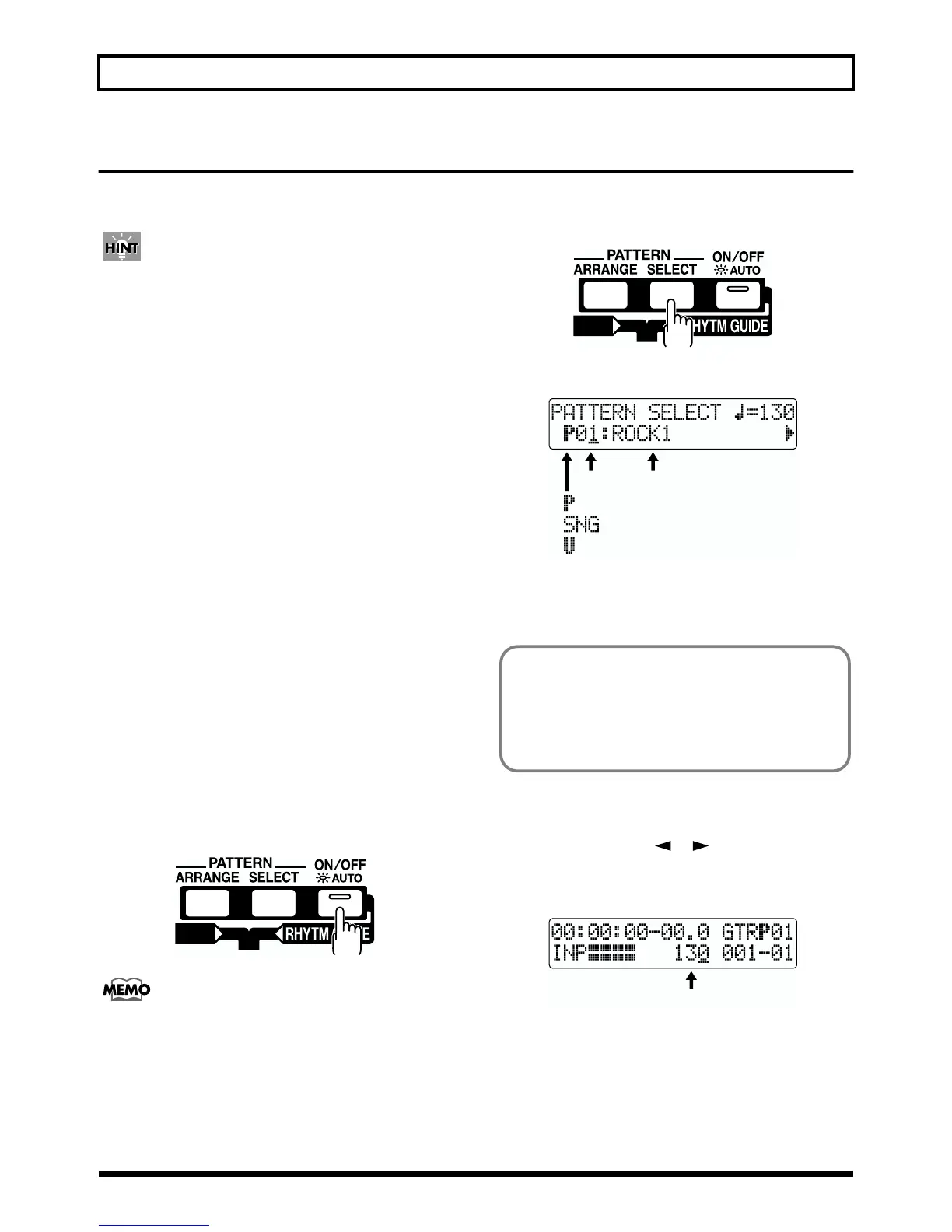
Changing the Rhythm Pattern
1. Press [PATTERN SELECT].
fig.Q01-23a
2. Select the rhythm pattern with the TIME/VALUE dial.
fig.Q01-23b
Changing a Rhythm’s Tempo
1. Press [EXIT] (or [PATTERN SELECT]) to return to the
Play page.
2. Press PARAMETER [ ] [ ] and align the cursor
up with “TEMPO” in the display.
3. Rotate the VALUE dial to adjust the tempo.
fig.Q01-24
(Preset)
(Song)
(User)
Pattern NameNumber
You set rhythm patterns so that the tempo changes to
match the song's progression (p. 63).
Using the following procedure to change the tempo
disables the tempo set in the rhythm pattern, and instead
the performance is played with the altered tempo.
Tempo



 To Next Page