53
Editing the performance on a track (Track Editing)
Advanced Use
Moving recorded data
(Track Move)
Track Move allows you to move a specific portion of
recorded data to a different location.
After the recorded data is moved, the location it was in will
be left empty.
The three types of Track Move are given below.
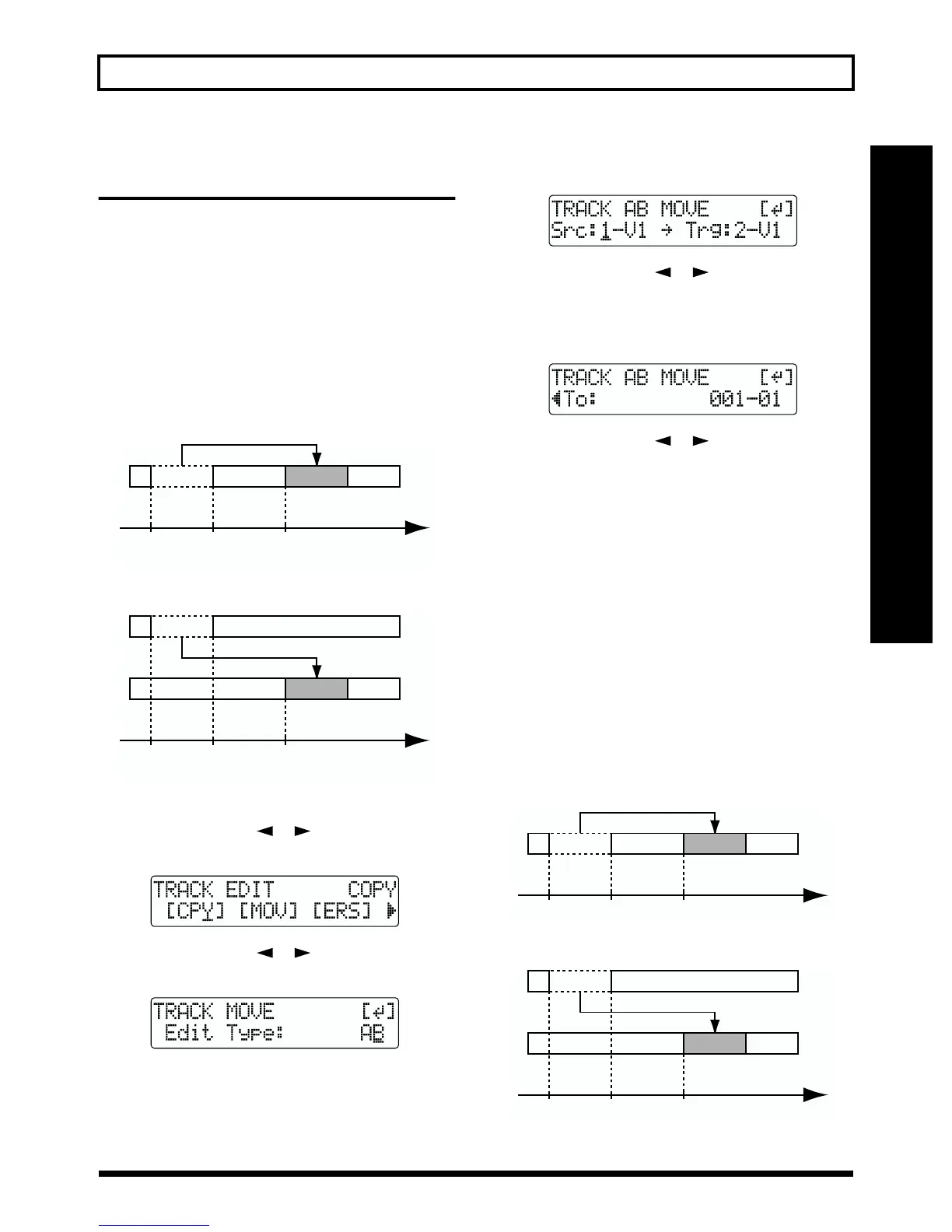
Moving the repeated portion (AB)
Perform the procedure given below to move the portion from
the repeat start (A) to the repeat end (B).
Ex. 1: Moving twice to the same track
fig.R08-12a
Ex. 2: Moving twice to another track
fig.R08-12b
1. Press [UTILITY].
2. Press PARAMETER [ ] [ ] to move the cursor to
“TRK,” and press [ENTER].
fig.R08-02
3. Press PARAMETER [ ] [ ] to move the cursor to
“MOV,” and press [ENTER].
fig.R08-13
4. Turn the TIME/VALUE dial to select “AB” and press
[ENTER].
fig.R08-14
5. Press PARAMETER [ ] [ ] to move the cursor,
and turn the TIME/VALUE dial to select the track/V-
Track to move from, and track/V-Track to move to.
6. Press [ENTER].
fig.R08-15
7. Press PARAMETER [ ] [ ] to move the cursor,
and turn the TIME/VALUE dial to specify the time of
the beginning of the location where you want the data
to be moved.
8. When you are ready to execute the move, press [ENTER].
The display will ask “Are you sure?,” so that you can
confirm the operation.
9. Press [ENTER].
Move Event is executed.
10.Press [EXIT] several times to return to the Play page.
Moving by specifying the time
(TIME/MES)
Perform the procedure given below to move the portion
between specific times.
Ex. 1: Moving twice to the same track
fig.R08-16a
Ex. 2: Moving twice to another track
fig.R08-16b
Repeat
Start (A)
Repeat
End (B)
TO Time
Repeat
Start (A)
Repeat
Start (B)
TO Time
START END TO Time
START END TO Time



 To Next Page