0F40-05K
This section describes the procedure for checking the MAC address of the printer using the Go key on the printer to print
the "User Data List."
You can also use the following procedure to check the MAC address.
Printing Network Status Print from the Printer Status Window
"Checking the Printer Settings"
Starting the Remote UI (
"Starting the Remote UI"), logging in as Management Mode, and checking with the
following page
When checking the MAC address of the wired LAN
[Settings/Registration] - [Network Settings] - [Ethernet Driver Settings] page
When checking the MAC address of the wireless LAN (LBP7110Cw Only)
[Settings/Registration] - [Network Settings] - [Wireless LAN Settings] page
1
Print the "User Data List."
"Printing the "User Data List""
2
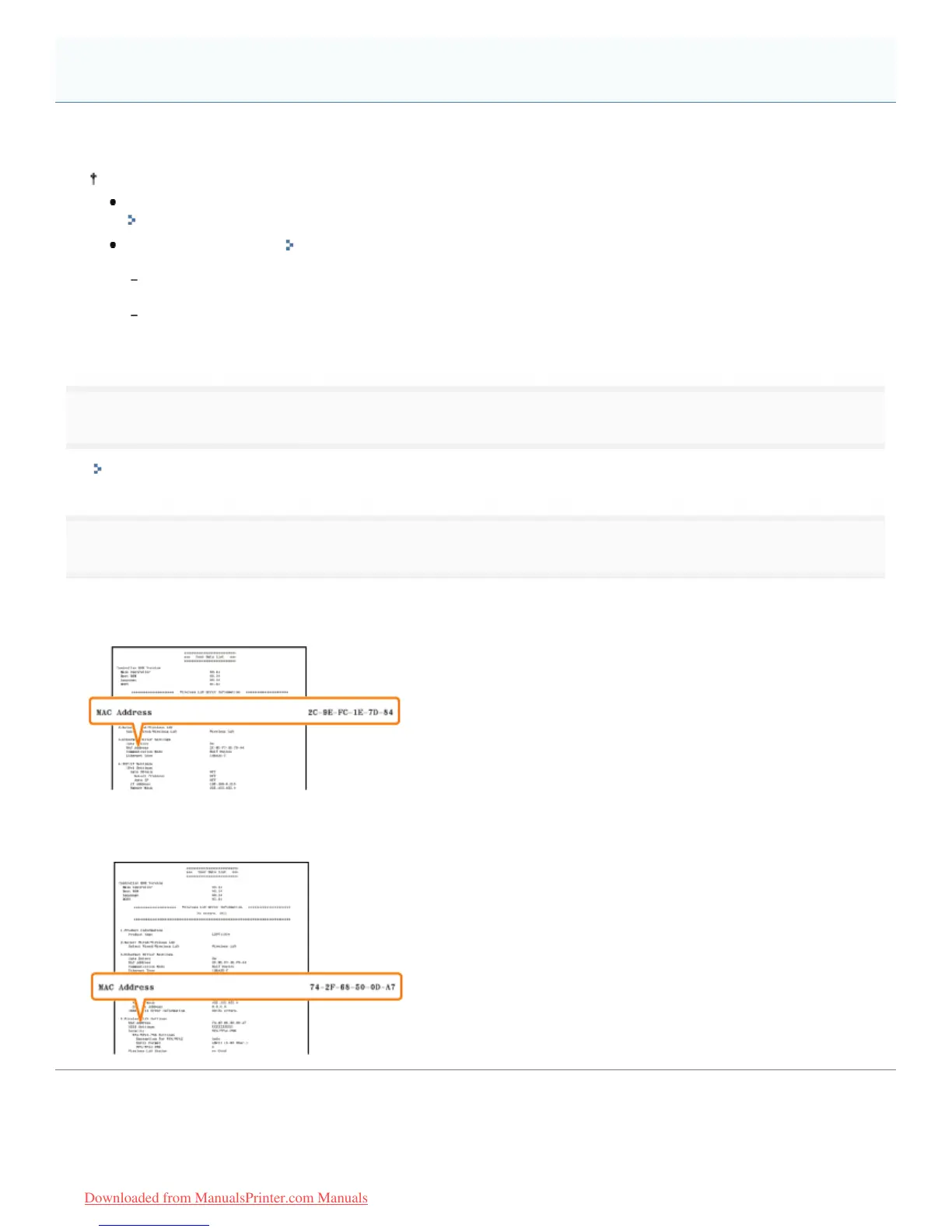
Check the MAC address.
When checking the MAC address of the wired LAN
[MAC Address] in [3.Ethernet Driver Settings]
When checking the MAC address of the wireless LAN (LBP7110Cw Only)
[MAC Address] in [5.Wireless LAN Settings]
Checking the MAC Address of the Printer
㻞㻣㻠㻌㻛㻌㻡㻝㻠
Downloaded from ManualsPrinter.com Manuals



 To Next Page