0F40-065
There are the following two ways to start the Remote UI.
Starting the Remote UI from the Printer Status Window
Starting the Remote UI Directly from a Web Browser
Before starting the Remote UI, see "Attention (Remote UI)."
Starting the Remote UI from the Printer Status Window
1
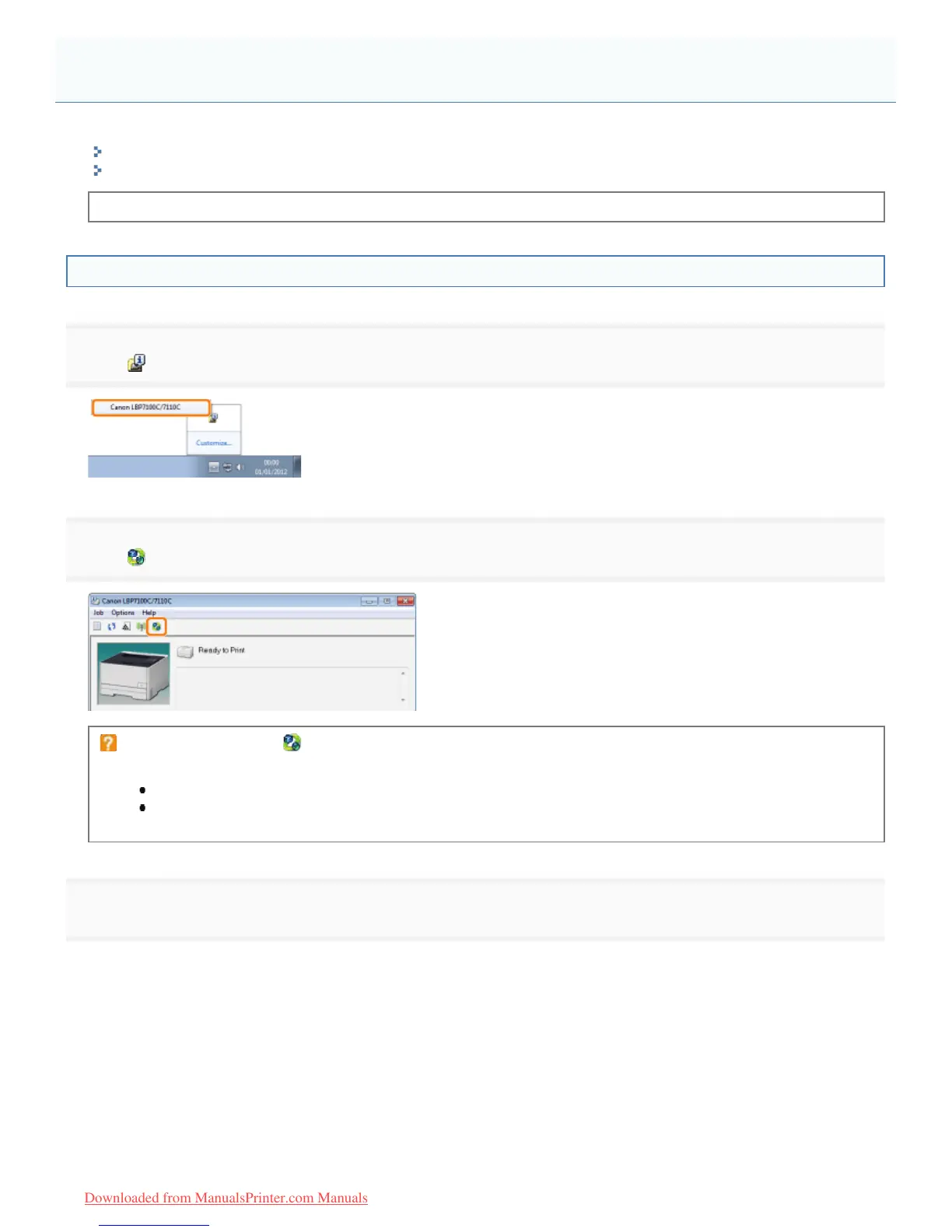
Click [ ] in the Windows task tray, and then select the printer name.
2
Click [ ] (Remote UI).
If you cannot click [ ] (Remote UI)
Check the following points.
The printer and computer are connected properly via a network.
The printer is turned ON.
3
Log in to the Remote UI.
(1) Select the login mode.
(2) Click [Log In].
Starting the Remote UI
㻟㻜㻤㻌㻛㻌㻡㻝㻠
Downloaded from ManualsPrinter.com Manuals



 To Next Page