0F40-08J
Perform one of the following solutions according to the cause.
<Cause 1> The paper is not loaded properly.
Solution
Load the paper properly.
"Loading Paper"
<Cause 2> Damp paper is used.
Solution
Replace the paper with new paper in an unopened package.
"Precautions for Paper"
<Cause 3> Appropriate paper is not being used.
Solution
Replace the paper with that which can be used with this printer.
"Usable Paper"
<Cause 4> There is a foreign object inside the printer.
Solution Remove the foreign object inside the printer.
<Cause 5> When 60 to 74 g/m² paper is printed, depending on the operating environment
(especially in a high-humidity environment), the paper may be creased.
Solution 1
Perform the following procedure in the printer driver.
1. Display the [Paper Source] sheet.
2. Set [Paper Type] to [Thin 2].
If you change the settings, the toner may not fix onto paper well, and the printing may come out
faint.
Solution 2
Perform the following procedure in the Printer Status Window.
1. Display the Printer Status Window.
"Printer Status Window"
2. )URPWKH>2SWLRQV@PHQXVHOHFW>'HYLFH6HWWLQJV@ĺ>$VVLVWLQJ3ULQW6HWWLQJV@
3. Select the [Perform Curl Correction for Output Paper] check box.
[Perform Curl Correction for Output Paper] is enabled only when [Paper Type] in the [Paper
Source] sheet in the printer driver is set to [Thin 1].
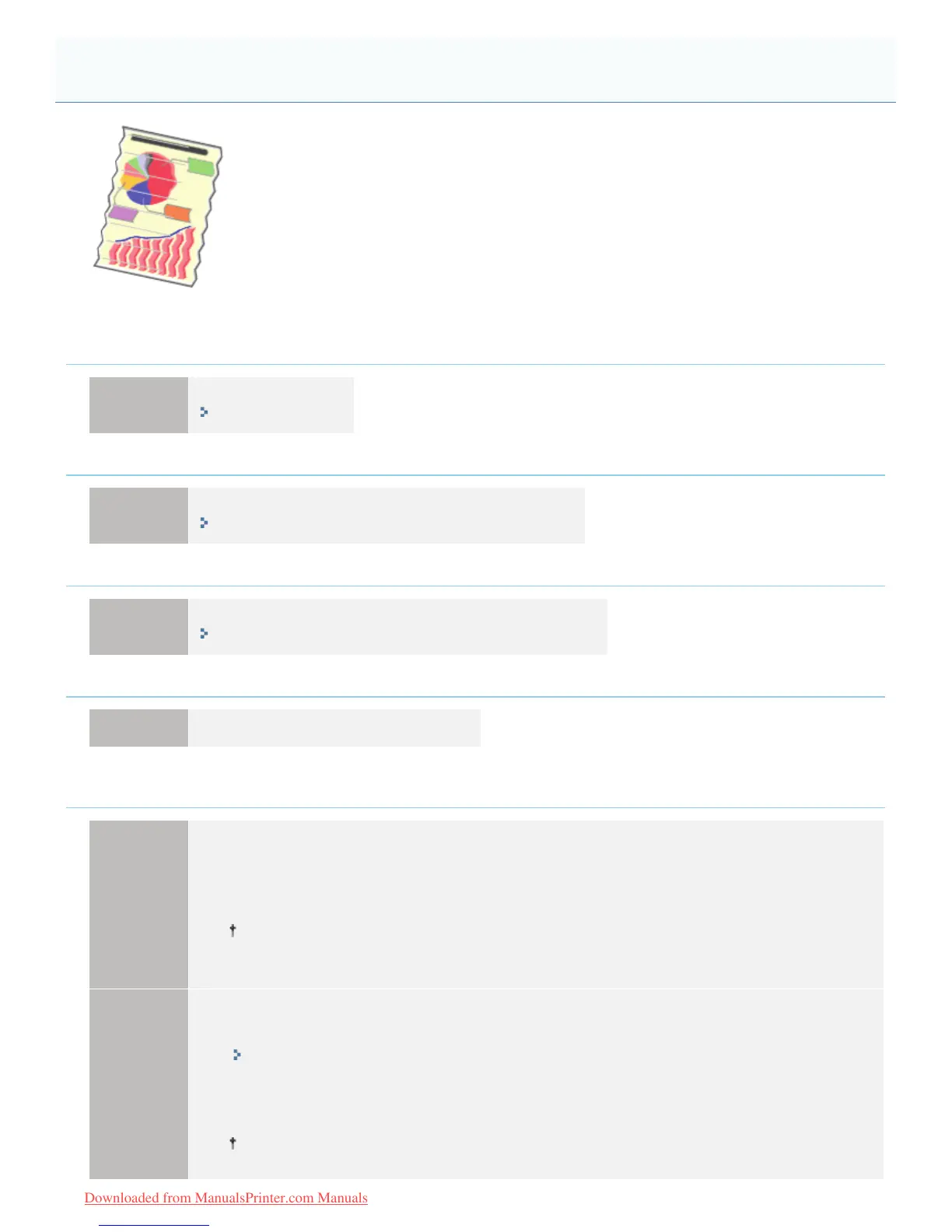
Paper Creases
㻠㻢㻜㻌㻛㻌㻡㻝㻠
Downloaded from ManualsPrinter.com Manuals




 To Next Page