0F40-05J
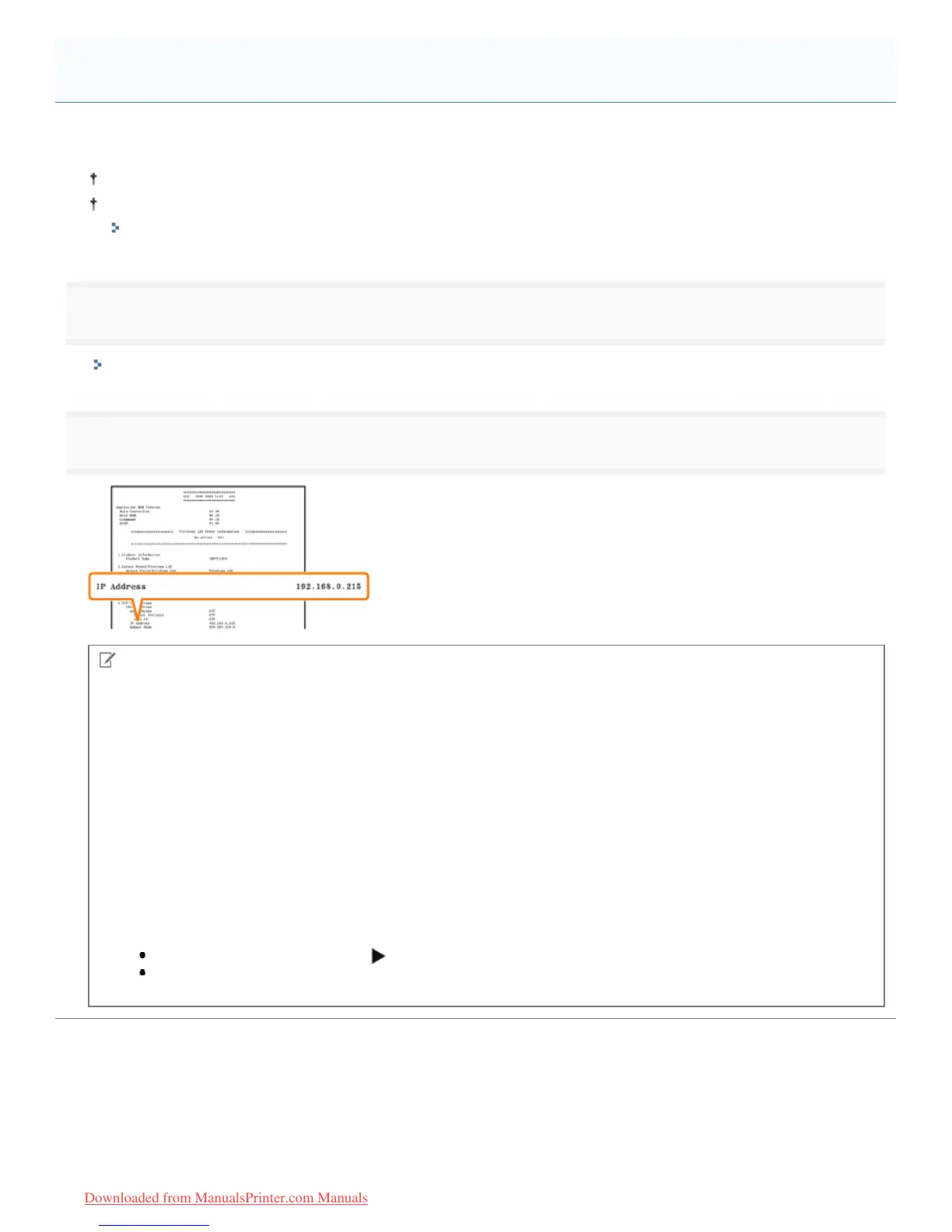
This section describes the procedure for checking the IP address of IPv4 using the Go key on the printer to print the "User
Data List."
You can also print and check Network Status Print from the Printer Status Window.
To check the IP address of IPv6, use Network Status Print.
"Checking the Printer Settings"
1
Print the "User Data List."
"Printing the "User Data List""
2
Check the IP address.
NOTE
About the default setting
This setting is configured to automatically obtain the IP address using DHCP or the Auto IP function.
Checking and configuring the subnet
Use the following procedure to make sure that the computer and printer are on the same subnet.
1. )URPWKH>6WDUW@PHQXVHOHFW>$OO3URJUDPV@ĺ>$FFHVVRULHV@ĺ>&RPPDQG3URPSW@
2. Enter "ipconfig" as a command in Command Prompt.
3. The network setting information of the computer appears. Confirm that the computer and printer are on the same
subnet.
<Example>
Setting in a computer
Subnet mask: "255.255.255.0"
IP Address: "192.168.0.10"
The IP address of the printer needs to be "192.168.0.xxx". (xxx indicates
an arbitrary number.)
Checking the IP Address of the Printer
㻞㻣㻟㻌㻛㻌㻡㻝㻠
Downloaded from ManualsPrinter.com Manuals



 To Next Page