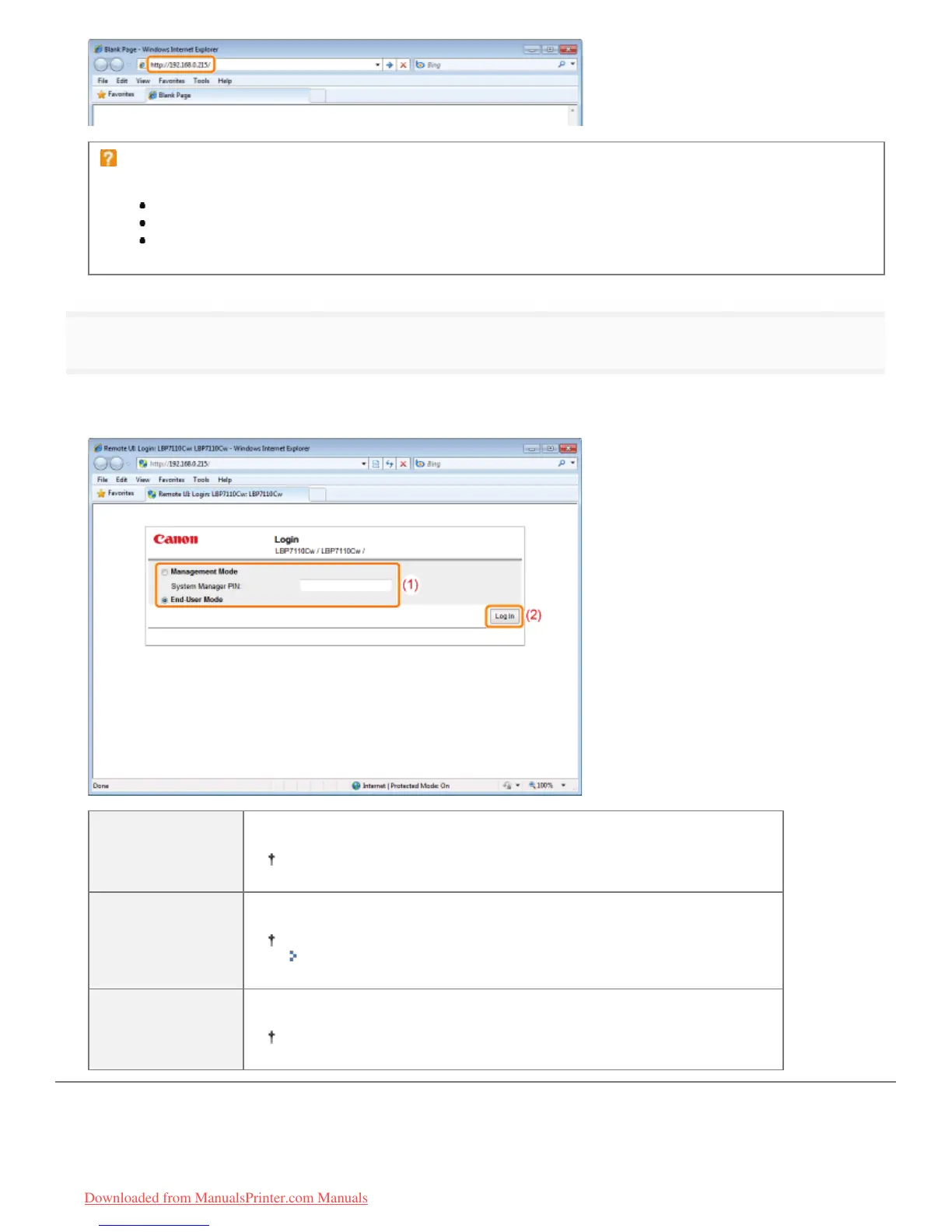
If the Remote UI does not start
Check the following points.
The printer and computer are connected properly via a network.
The printer is turned ON.
The IP address or ["host name"."domain name"] is entered correctly.
3
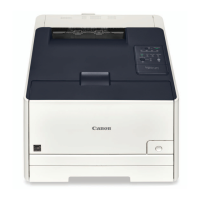
Log in to the Remote UI.
(1) Select the login mode.
(2) Click [Log In].
[Management
Mode]
Select this mode when logging in as manager.
You can perform all operations and specify all settings of the Remote UI.
[System
Manager PIN]
When selecting [Management Mode], enter the PIN.
If the PIN is not specified, you do not need to enter it.
"Specifying the System Manager Information"
[End-User Mode]
Select this mode when logging in as a general user.
You can check the printer status, manage print jobs, and so on.
㻟㻝㻜㻌㻛㻌㻡㻝㻠
Downloaded from ManualsPrinter.com Manuals



 To Next Page