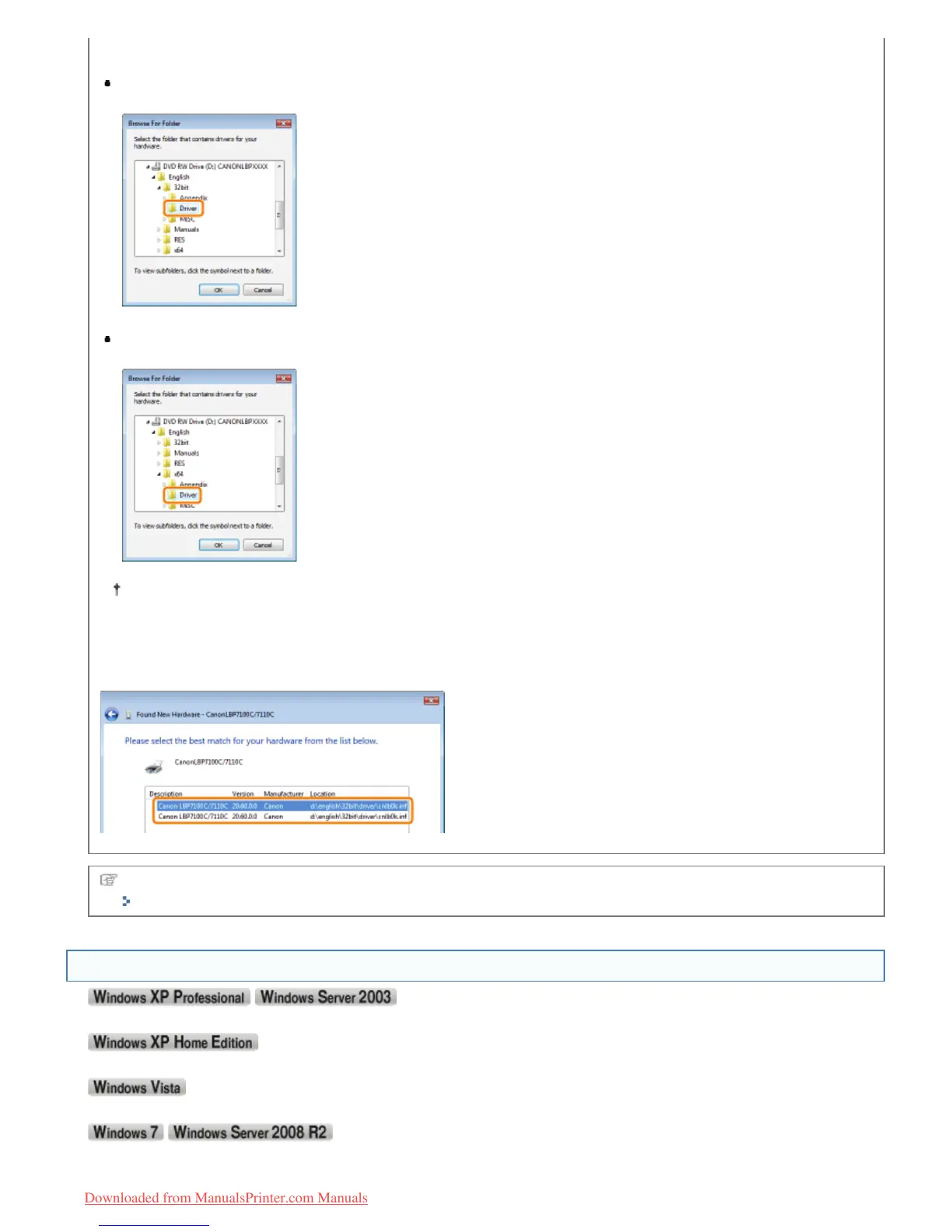
Select one of the following folders.
For a 32-bit operating system
Select the folders in the supplied CD-ROM: [English] - [32bit] - [Driver].
For a 64-bit operating system
Select the folders in the supplied CD-ROM: [English] - [x64] - [Driver].
If you are not sure whether you are using 32-bit Windows Vista/Server 2008 or 64-bit Windows Vista/Server 2008,
see "Checking the Processor Version of Windows Vista, 7, or Server 2008."
If the screen for selecting the printer driver appears
Even if which printer driver is selected, there is no problem with the installation because the same printer driver is
installed.
When the installation is complete, an icon for this printer will be created.
"After Installation"
Displaying the Printer Folder
From the [Start] menu, select [Printers and Faxes].
)URPWKH>6WDUW@PHQXVHOHFW>&RQWURO3DQHO@DQGWKHQFOLFN>3ULQWHUVDQG2WKHU+DUGZDUH@ĺ>3ULQWHUVDQG)D[HV@
From the [Start] menu, select [Control Panel], and then click [Printer].
From the [Start] menu, select [Devices and Printers].
㻡㻜㻤㻌㻛㻌㻡㻝㻠
Downloaded from ManualsPrinter.com Manuals




 To Next Page