EasyManua.ls Logo

Contax TVS DIGITAL - 3, Viewing Images on a PC

Contax TVS DIGITAL
109 pages
Print Icon
To Next Page IconTo Next Page
To Previous Page IconTo Previous Page
Loading...
2.
Connecting
to
a
PC
[Windows
98,
Windows
98SE
and
Windows
XP]
Turn
off
the
camera
and
disconnect
the
USB
cable.
[Mac
OS]
Drag
the
"Untitled"
folder
on
the
desktop
into
the
trash-
Disconnect
the
USB
cable
when
the
“Removing
Safely"
message
appears
or
the
''Unliitled"
icon
Is
no
longer
seen.
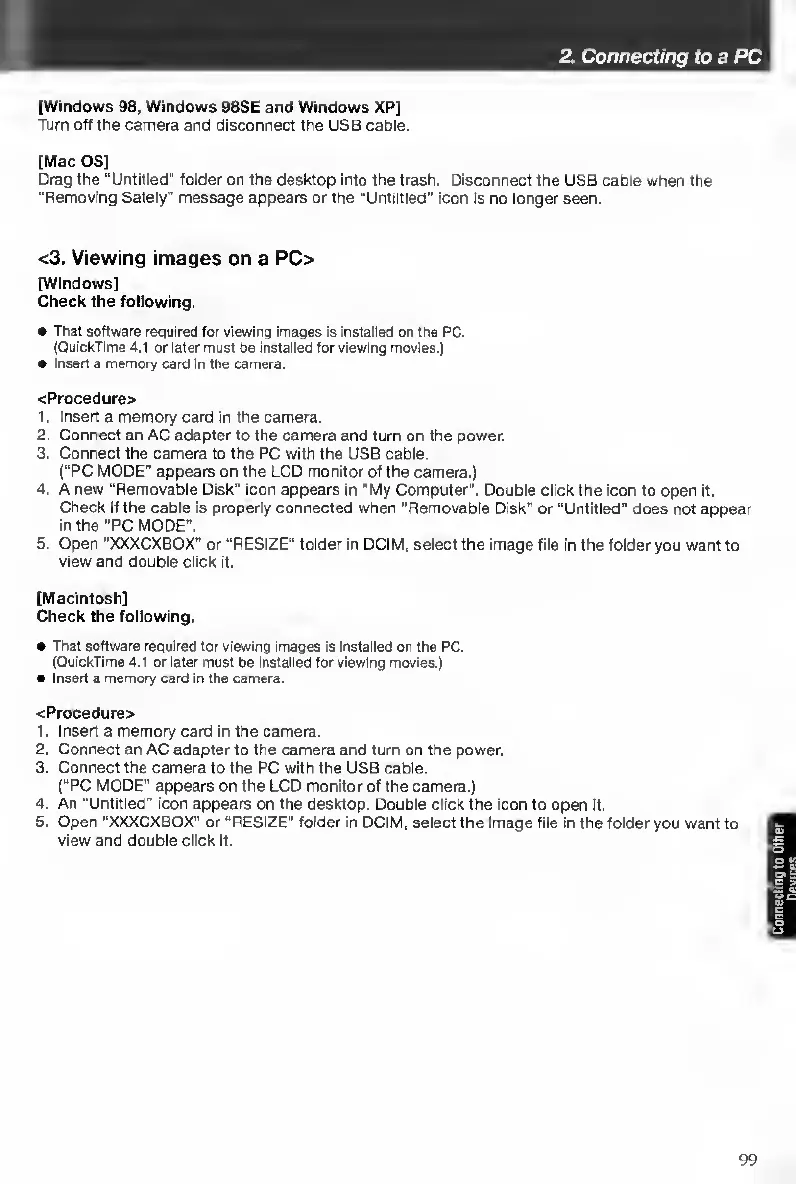
<3.
Viewing
images
on
a
PC>
[Windows]
Check
the
following.
That
software
required
for
viewing
images
is
instailed
on
the
PC.
(QuickTime
4.1
or
later
must
be
installed
for
viewing
movies.)
Insert
a
memory
card
In
the
camera.
<Procedure>
1.
Insert
a
memory
card
in
the
camera.
2.
Connect
an
AC
adapter
to
the
camera
and
turn
on
the
power.
3.
Connect
the
camera
to
the
PC
with
the
USB
cable.
(“PC
MODE"
appears
on
the
CCD
monitor
of
the
camera.)
4.
A
new
“Removable
Disk"
icon
appears
in
"My
Computer".
Double
click
the
icon
to
open
it.
Check
if
the
cable
is
properly
connected
when
“Removable
Disk"
or
“Untitled"
does
not
appear
in
the
“PC
MODE".
5.
Open
“XXXCXBOX”
or
“RESIZE"
folder
in
DCIM,
select
the
image
file
In
the
folder
you
want
to
view
and
double
click
It.
[Macintosh]
Check
the
foliowing.
That
software
required
for
viewing
images
is
installed
on
the
PC.
(QuickTime
4.1
or
later
must
be
installed
for
viewing
movies.)
Insert
a
memory
card
in
the
camera.
<Procedure>
1-
Insert
a
memory
card
in
the
camera.
2.
Connect
an
AC
adapter
to
the
camera
and
turn
on
the
power.
3.
Connect
the
camera
to
the
PC
with
the
USB
cable.
(“PC
MODE"
appears
on
the
LCD
monitor
of
the
camera.)
4.
An
"Untitled"
icon
appears
on
the
desktop.
Double
click
the
icon
to
open
tt.
5.
Open
“XXXCXBOX”
or
“RESIZE”
folder
in
DCIM,
select
the
image
file
in
the
folder
you
want
to
view
and
double
click
It.
99

Table of Contents

Other manuals for Contax TVS DIGITAL

Related product manuals