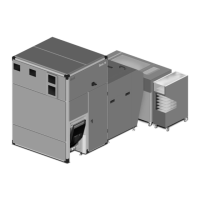
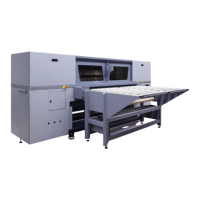
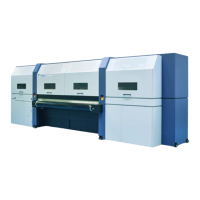
Rho 1012/1030 F Software
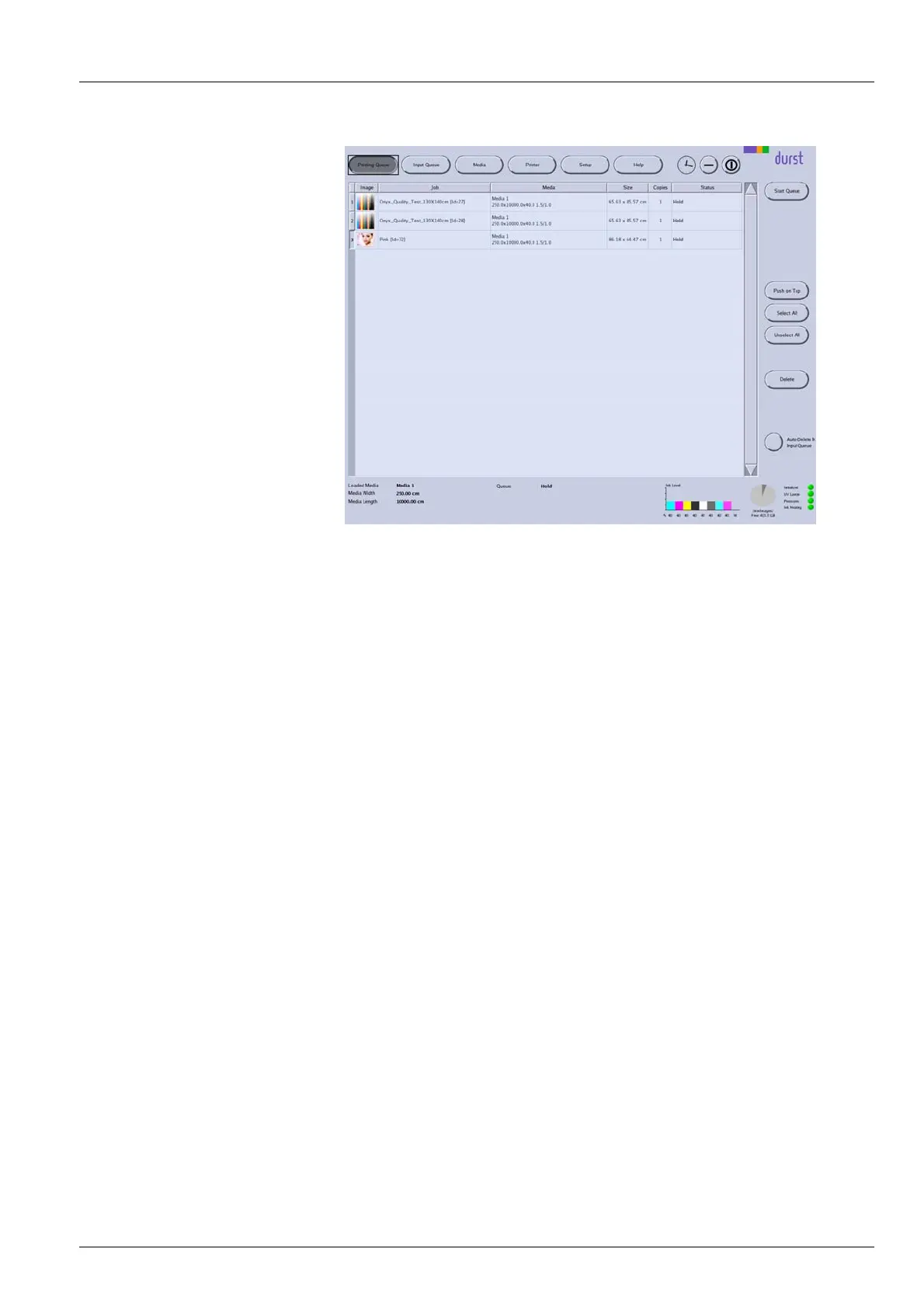
Fig. 74 Printing Queue dialog window
Start Que ue Manag er The printing process is started for the selected job with the Start Queue
button.
Push on To p
The selected job is moved to the front of the queue with the Push on Top
button.
5.2.1 Initiate printing process in the printing queue
✔ If printing occurs over the edge of t
he medium, the conveyor belt is taped
at the edges of the medium.
1. Press Printing Queue.
The Printing Queue dialog window appears.
All jobs in line for printing ar
e displayed in the queue.
2. To print a job, carry out the fo llowing ste ps:
– Select desired job.
–PressStart Queue.
The current print status is displayed on the status line.
2004 – 2013 © Durst Phototechnik AG – www.durst-online.com , Rho 1012/1030 , Issued 07/2013 117 / 147


 To Next Page