DESCRIPTION AND INSTALLATION
2-36 25364 Issue 8 March 2018
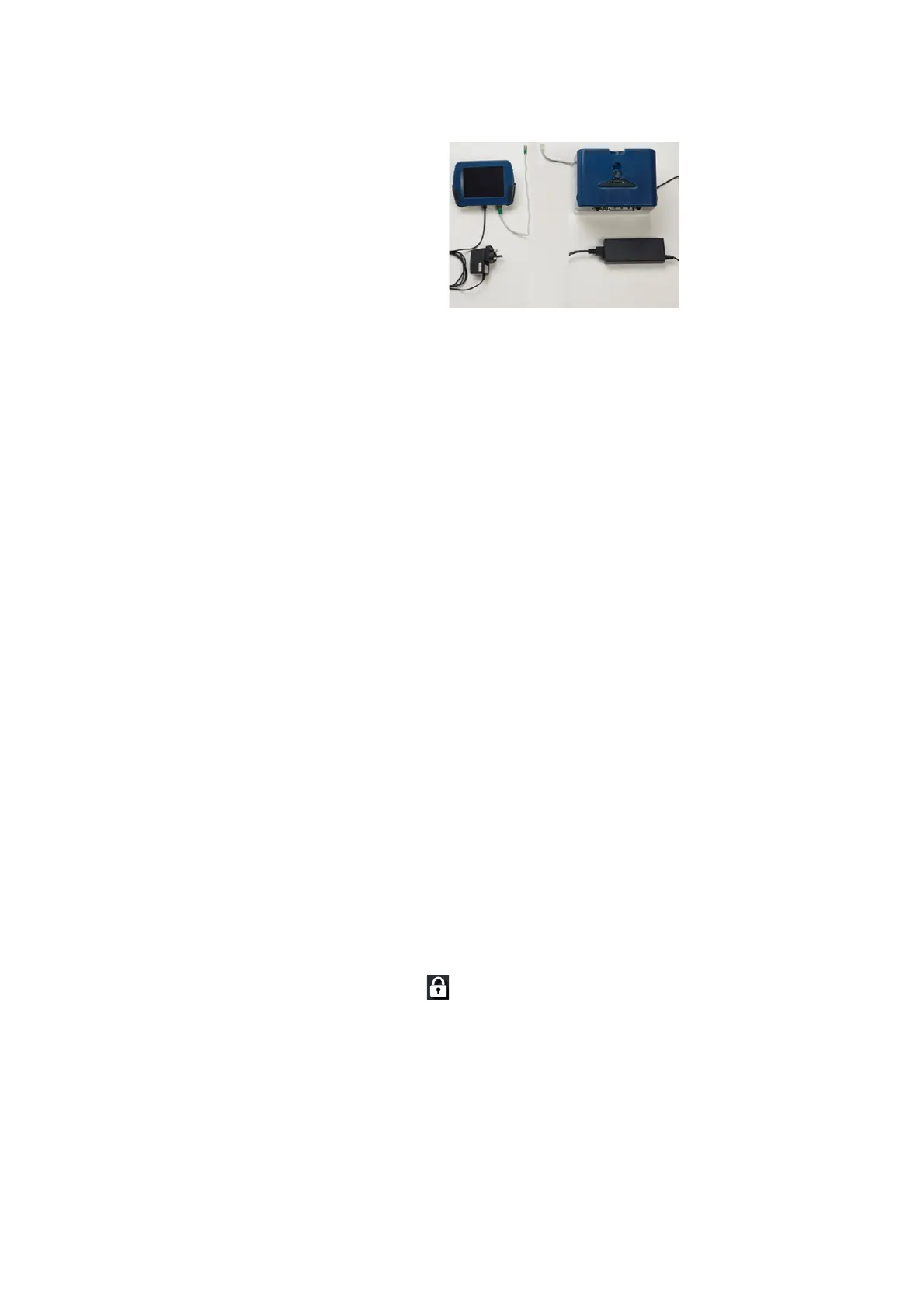
Compact Touchscreen Connection - Networked Printers
- One Compact Touchscreen connects
to many printers at a time
- Extra PSU for Compact Touchscreen
is required
- Network hub and Ethernet
cables are not supplied
CAUTION: If using an Ethernet cable to connect the printer to
the Compact Touchscreen, use STP (Shielded
Twisted Pair) type - rather than UTP (Unshielded
Twisted Pair) type - to comply with EMC regulations.
Note: A USB power supply is available to power the Compact
T
ouchscreen separately to the printer (EPP003934). This will
allow the Compact Touchscreen to control more than one
printer across an Ethernet network. Additional parts such as a
network switch and cables may be required, which will need to
be purchased locally.
Network Set-up
Refer to Printer Network Settings on page 2-38, for details on the printer
network settings.
Connecting to Networked Printers
Refer to the example network diagram on page 2-35.
To log on to a powered-on printer:
(1) Upon powering on the Compact Touchscr
een / Touchscreen, select
the desired printer from the list of available printers.
(2) If displayed, at the Log In scree
n, enter the UserID and password.
(3) Select Log In.
To disconnect the Compact Touchscreen from the selected printer or
switch t
o a different available printer:
(1) From the Log In screen: Select Disconnect - the Connection scr
een
appears, where you can select another printer to connect to or power
down the Compact Touchscreen.
(2) From any other screen: Select
, then select Disconnect from printer
- the Connection screen appears, where you can select another
print
er to connect to or power down the Compact Touchscreen.


 To Next Page