Chapter 3: Operating instructions
50 EST3X Technical Reference Manual
Clearing the alarm history
Caution: This command is for use only by an authorized service technician.
Clearing the panel history file means that all history data for the panel is
permanently deleted.
The alarm history counter keeps track of how many times the control panel has
entered the alarm condition. Clearing the history resets the counter shown on the
LCD screen (see Figure 4 on page 19) and erases the list of events that occurred
on the panel since it was placed into service or the last time the history file was
cleared.
To clear the alarm history:
1. Access the Main Menu, and then click Program.
2. Click Clear History.
3. Click By Panel, and then enter the panel address.
— or —
Click All Panels.
4. Enter the access level password.
Viewing event message details
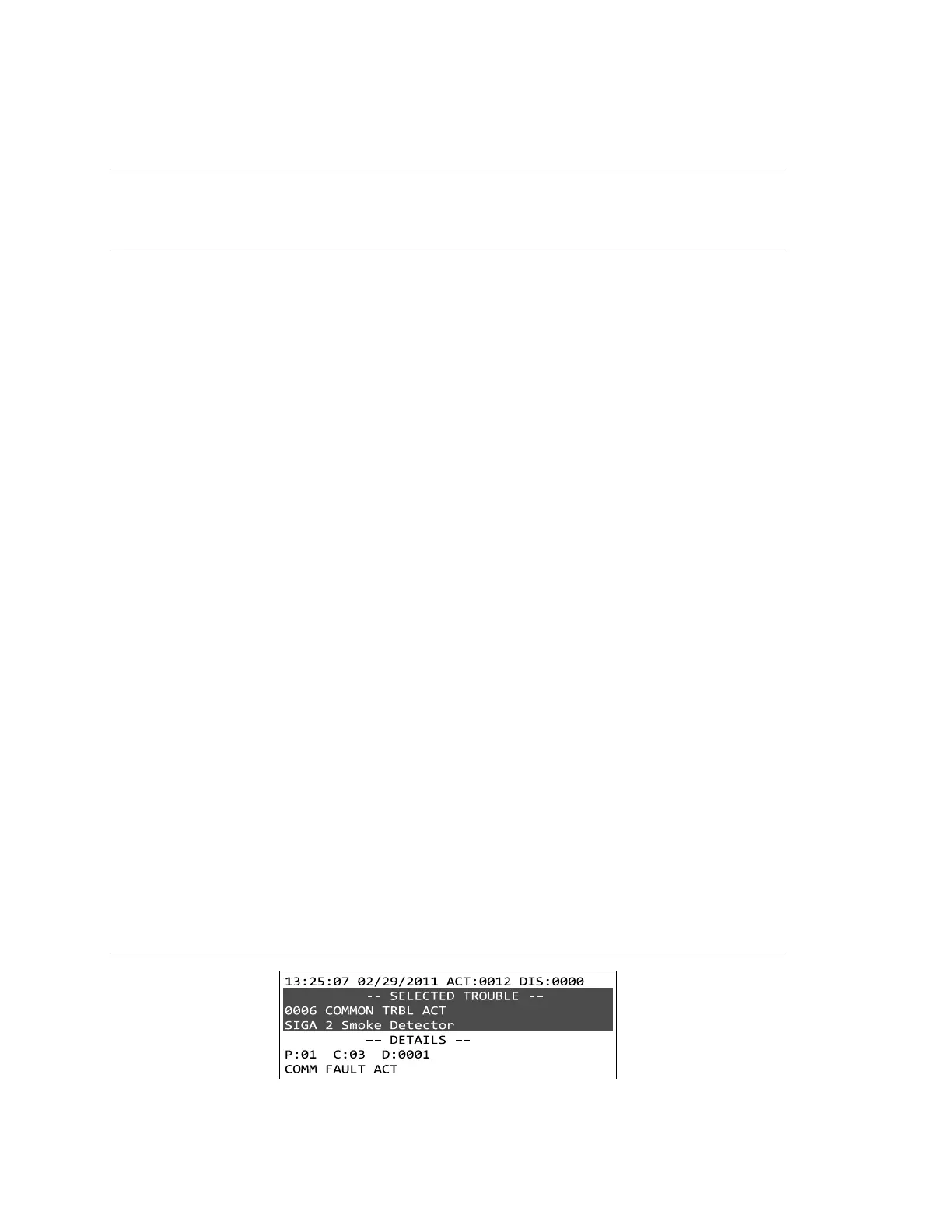
Viewing event details provides the address of the device that generated the
event and, if programmed, the location. Different detail information is displayed
for device, group, guard patrol, and instruction text.
To view the details of an event message:
1. Scroll to the desired event message.
2. Click to display the Queue Menu, and then click Details.
Figure 8: Event message details for a device activation


 To Next Page