Chapter 3: Operating instructions
70 EST3X Technical Reference Manual
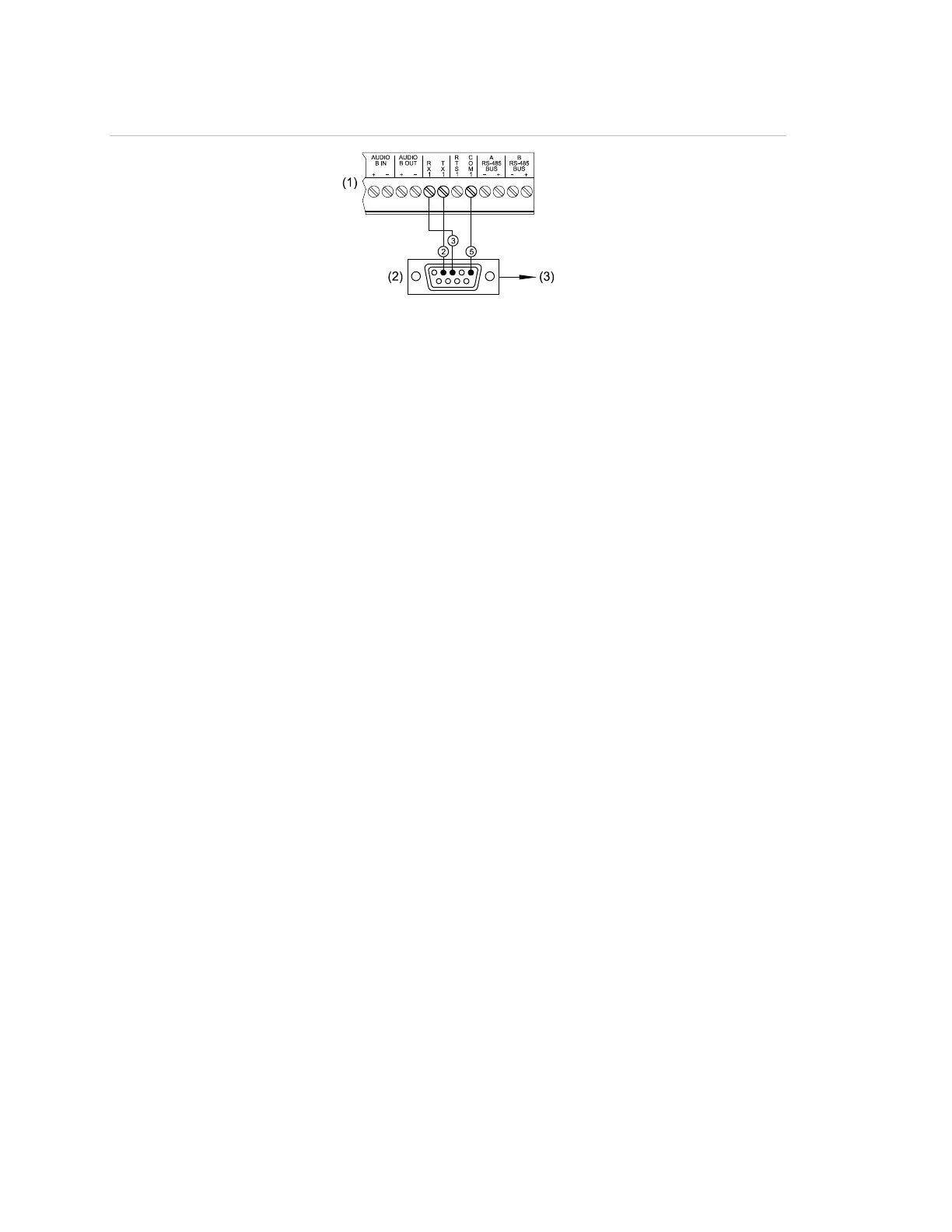
Figure 10: RS-232 terminal block connections to the DB-9 programming cable
(1) SFS1-CPU terminal connector block
(2) Rear view of female DB-9 connector
(3) RS-232 jack of computer
Using a TCP/IP connection to read from the
panel
Use the Remote Read Lock command on the Activate Menu to be able to read
status and diagnostic information from the panel instead of using the RS-232
connection. By default, the control panel is unlocked. See Figure 9 on page 68
for the location of the RJ-45 Ethernet connector on the SFS1-CPU main board.
Notes
• An Ethernet card must be installed and the panel connected to a LAN or WAN
for data uploads from the panel.
• Activating and restoring the Remote Read Lock command does not affect
reading panel status and diagnostic information over the RS-232 connection.
• A “Remote Read Locked” event appears in the Monitor Queue and the buzzer
sounds when the panel is locked. Both are restored to normal after the panel
is restored to its default setting.
To prevent reading from the panel:
1. From the Main Menu, choose Activate.
2. Choose Remote Read Lock.
3. Choose By Panel, and then enter the panel address (PP).
— or —
Choose All Panels.
4. Enter the access level password.


 To Next Page