Setting Up Copper Tests
Copper and G.fast/VDSL2/ADSL2+ Multi-play Test Set 77
Cable Book
To add a new cable entry:
1. Press the up/down arrow keys to highlight the desired parameter.
2. Press the left/right arrow keys to view and select the options.
OR
3. Press on a value to open a list box of options or the alphanumeric
editor screen and use the navigation keys to scroll through.
4. Press to confirm the value.
5. Press the Add function key to append the new cable entry to the end of
the CableBookSettings. If the maximum number of Cable Book
entries has been reached, delete an entry before adding a new one.
Clone Cable
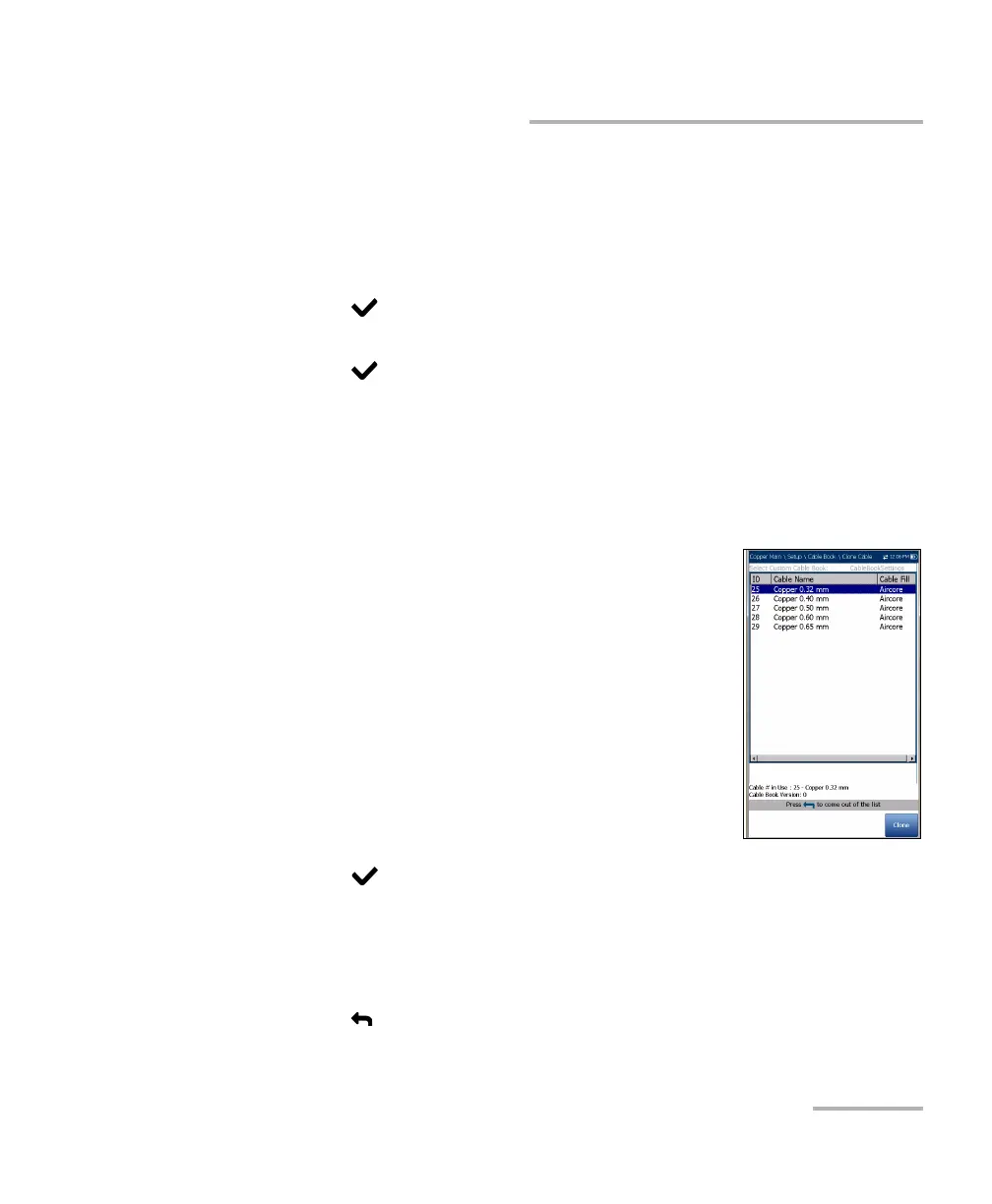
The Clone Cable page allows you to copy the cable
details of an existing entry from the selected Cable
Book to a new cable entry in the CableBookSettings.
The page lists all entries by ID, Cable Name, and
Cable Fill.
Cable # in Use displays the ID number of the
cable in use.
Cable Book Version displays the current edition
number of the Cable Book in use.
To clone a cable entry:
1. Press the up/down arrow keys to highlight the desired entry and
press
.
2. Press the Clone function key to copy the details of the highlighted entry
and append a new ID to the CableBookSettings list.
OR
3. Press to cancel your selection and go back to the Cable Book
menu.






 To Next Page