190-01115-01 G3X™/G3X Touch™ Avionics Installation Manual
Rev. AV Page H-139
Softkeys on the calibration page are used to switch between the normal flight and the ground/taxi
calibration curves. Since the ground/taxi attitude calibration is optional and only availabe when the normal
flight attitude calibration data has been entered, the ‘GROUND’ softkey is greyed out (unavailable) until
calibration points are entered for the normal flight attitude curve.
To perform the Fuel Quantity calibration:
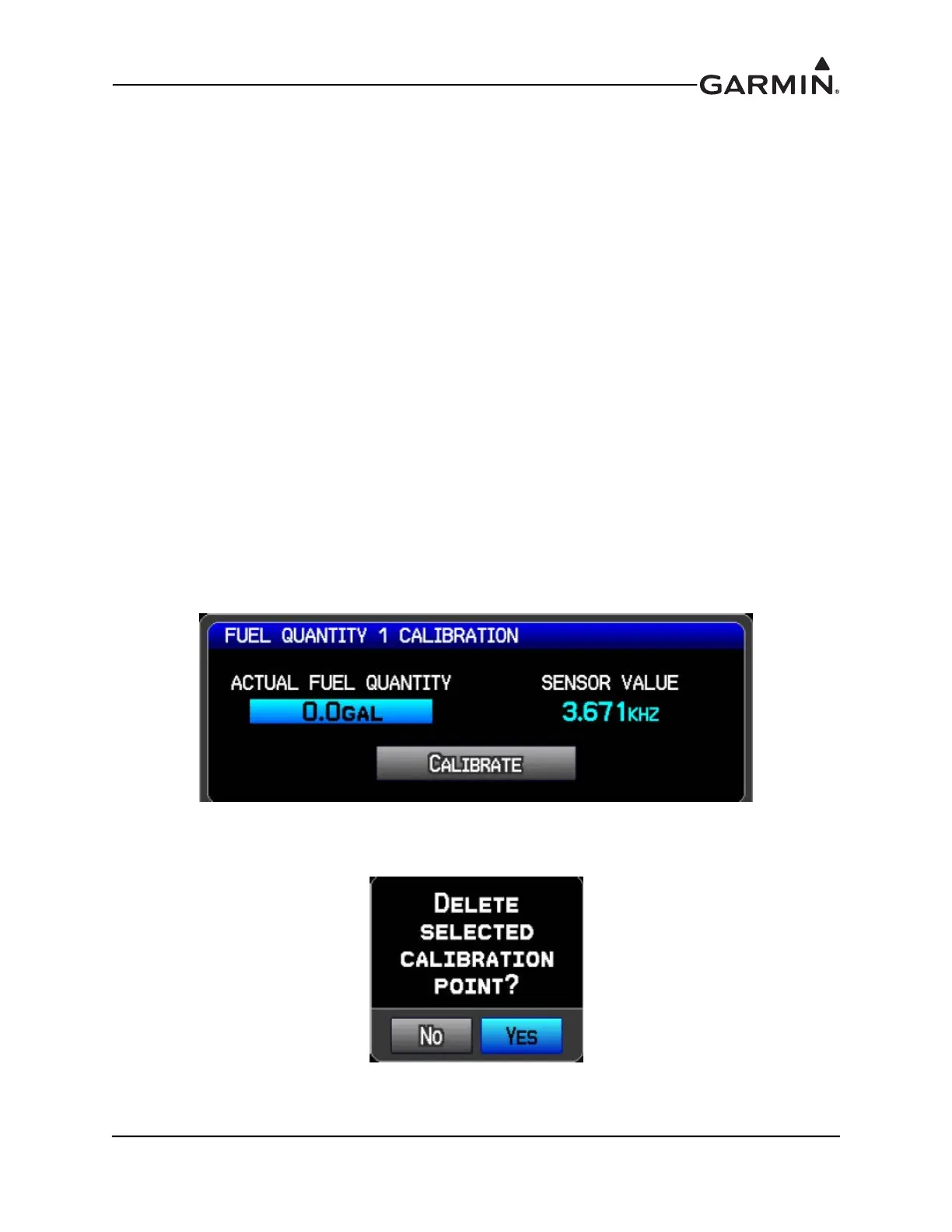
1. Press the Calibrate softkey to display the Calibration Page.
2. Orient the aircraft appropriately for the calibration curve (normal flight or ground/taxi) being per-
formed.
3. Drain all usable fuel from the tank and calibrate at 0.0 gallons.
4. Put a known quantity of fuel (e.g. 5.0 gallons) into the empty fuel tank and enter that same amount
into the Actual Fuel Quantity field.
5. Note the resulting sensor value displayed in the Sensor Value field (the sensor value should change
with each added amount of fuel), wait at least 2 minutes for the reading to stabilize.
6. Highlight and press the Calibrate button.
7. Repeat this process until the fuel tank is full.
The user determines the best interval values of fuel to most accurately calibrate the full range of the tank.
The greater number of calibration points that are used (maximum of 50 points), the more accurate the
calibration will be. A yellow line on the graph indicates potentially incorrect/invalid info.
The Digital (frequency) Fuel Inputs are calibrated in the same manner as the resistive fuel inputs, except
the resulting frequency (in kHz) from the sensor is displayed instead of the voltage. Frequencies up to 50
kHz are supported.
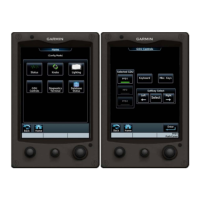
To delete a calibration value, highlight the desired data point in the list and press the CLR Key. Then
highlight Yes on the pop-up window, and press the ENT Key, the calibration data is removed.



 To Next Page