Operating menu
Main menu [Menu]
5
1009.25B0
IFU 1009.25 EN 01
45 / 92
5.3.5.2 Locking the OR table [LOCK]
NOTIC E
Carry out the adjustment functions of the OR table only with the swivel castors re-
tracted (LOCK).
If an adjustment function is performed without retracting the swivel castors (UN-
LOCK), depending on the connected OR table a message appears on the display
of the control device indicating that the swivel castors must be retracted.
OR01-14
CANCEL
OK
LOCK OR TABLE
OR Table Lock
Table Top Lock
Wheel Lock
disabled
External Control Lock
Unlock
Lock
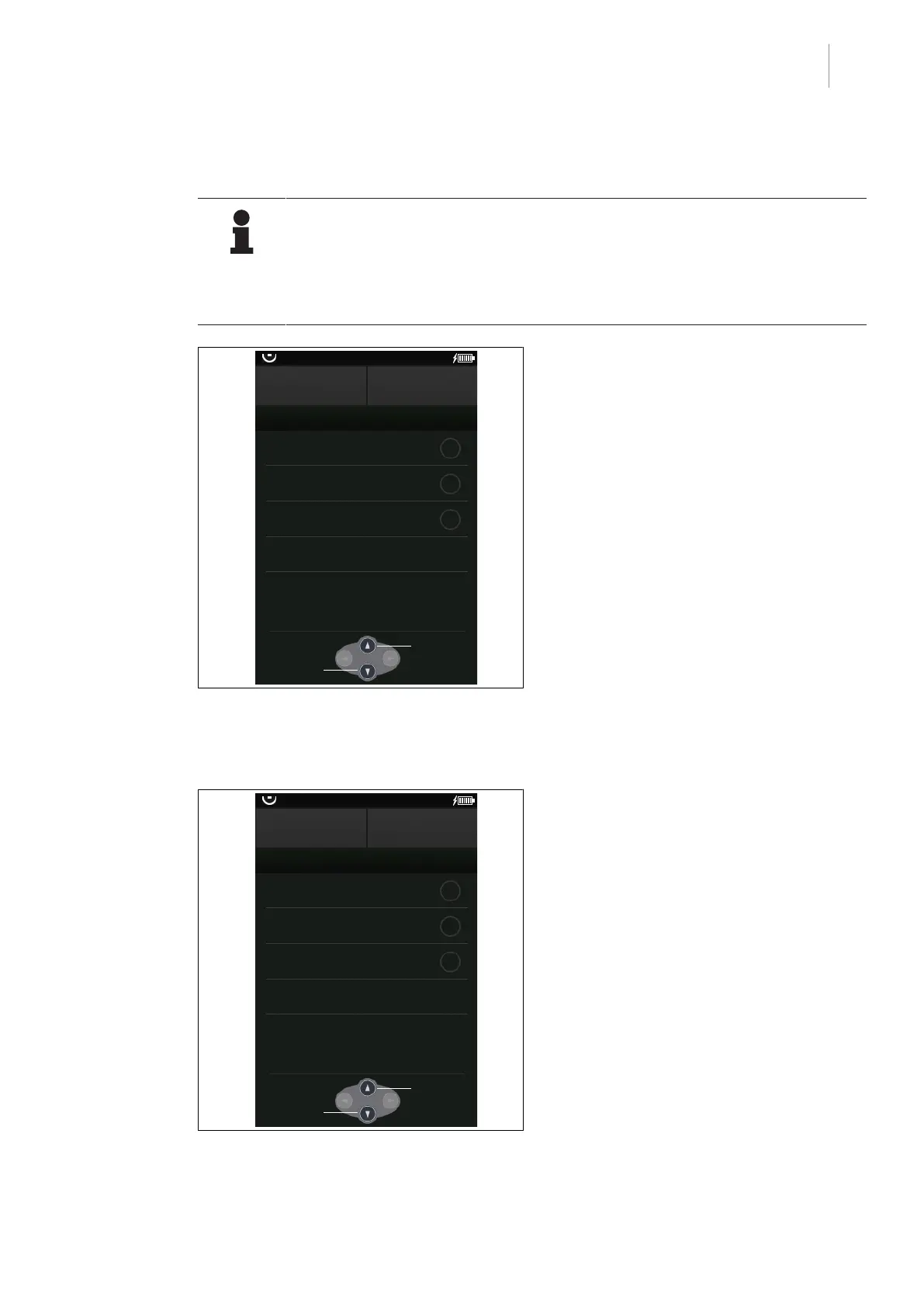
Fig.42: Locking the OR table [LOCK]
Prerequisites:
• The Lock OR table menu is open.
1. Press and hold the [Multifunction button
down].
Ø The swivel castors retract automatic-
ally.
Ø The LED below the [LOCK] button on
the override control panel on the OR
table lights up.
Ø The OR table is locked.
Ø The display in the menu Lock OR table
switches to Wheel Lock enabled
Ø The OR table can be adjusted.
5.3.5.3 Lock / unlock activation via external devices
OR01-14
CANCEL
OK
LOCK OR TABLE
OR Table Lock
Table Top Lock
Wheel Lock
disabled
External Control Lock
Unlock
Lock
Fig.43: Locking the operating table [LOCK]
The operating table can be activated via other
devices in the same network or other IR
devices (except for the control device /
SENSOR DRIVE). The setting External
Control Lock can be used to activate / deac-
tivate the function.
Lock activation via external devices
Prerequisites:
• The Lock OR table menu is open.
• The function is deactivated.
1. Touch the External Control Lock button.
Ø The status display will be illuminated or-
ange.



 To Next Page