5
Operating menu
[OR table positions] menu
54 / 92
1009.25B0
IFU 1009.25 EN 01
STORE
POSITION
OR01-14
USER-DEFINED POSITIONS
EDIT
Folder "01"
Dr. Kruger_03
Dr. Kruger
Dr. Kruger_02
BACK
1
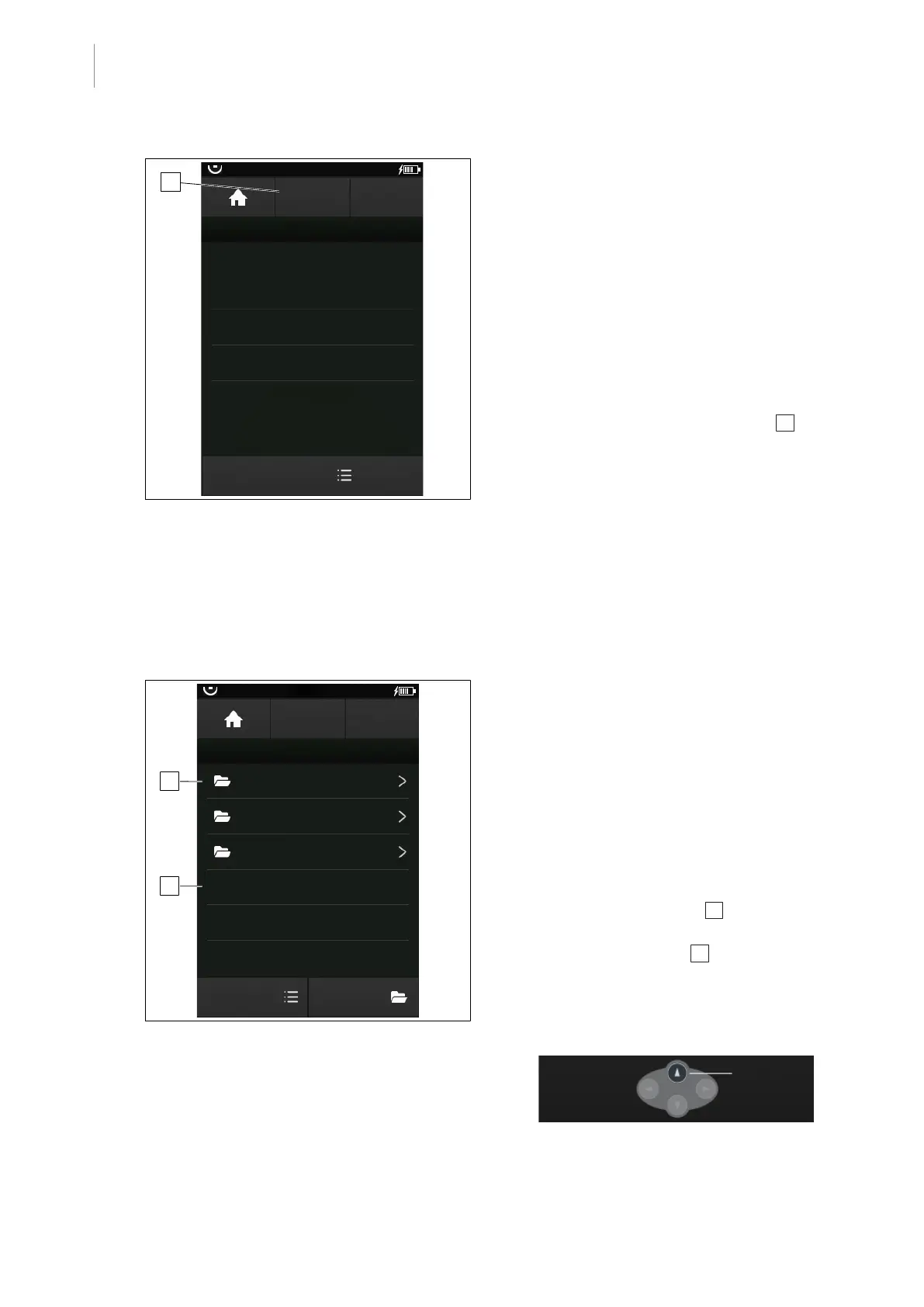
Fig.54: Save a new position in a folder
Save a user-defined operating table
position in a folder
Prerequisites:
• The USER-DEF. POSITION menu is
open.
• The folder is created [8Page51].
1. Touch the corresponding folder.
Ø The folder is opened.
Ø Previously saved user-defined OR table
positions are displayed.
2. Touch the STORE POSITION button 1 .
Ø The window for naming the new OR
table position is opened.
3. Enter the name of the new OR table posi-
tion.
4. Touch the OK button.
Ø The new user-defined OR table position
is saved in the selected folder.
5.5.2.3 Selecting and approaching a user-defined OR table position
OR01-14
STORE
POSITION
BACK
USER-DEFINED POSITIONS
EDIT EDIT
Folder 01
Folder 02
Folder 03
1
Dr. Kruger
Dr. Kruger_02
2
Fig.55: Move to a user-defined OR table posi-
tion
Prerequisites:
• The USER-DEF. POSITION menu is
open.
• The patient orientation is the patient ori-
entation for the selected operating table
position.
• The configuration of the tabletop module is
the configuration for the selected operating
table position.
1. Touch the desired position 1 .
- or -
Touch the desired folder 2 and select the
position in the next window.
Ø The Move to position window and the
following operating notification are dis-
played.


 To Next Page