68 Connection
HBM QuantumX
5.2.12 FireWire setup
• Integrate the FireWire PC adapter into your computer.
• Install the ”t1394bus_installwizard.exe” driver Wizard provided by HBM from the
QuantumX system CD or from the catman
AP CD (target directory, for example,
c:\Programme\HBM\FireWire). Double−click to start the program.
NOTE
For trouble shooting purposes you can switch to the original FireWire driver with the
tool “t1394bus_installwizard.exe”. You can find the tool after having installed the
driver on your hard disc.
• After installation and configuration, connect the FireWire cable first to the PC adapter and
then to the first module. Activation is confirmed acoustically by Windows.
Whenever you connect a new module via FireWire to your computer, the operating system
will prompt you to register the module. Always refer here to the driver “hbm1394.sys”.
• Install and then start the latest QuantumX Assistant on your PC.
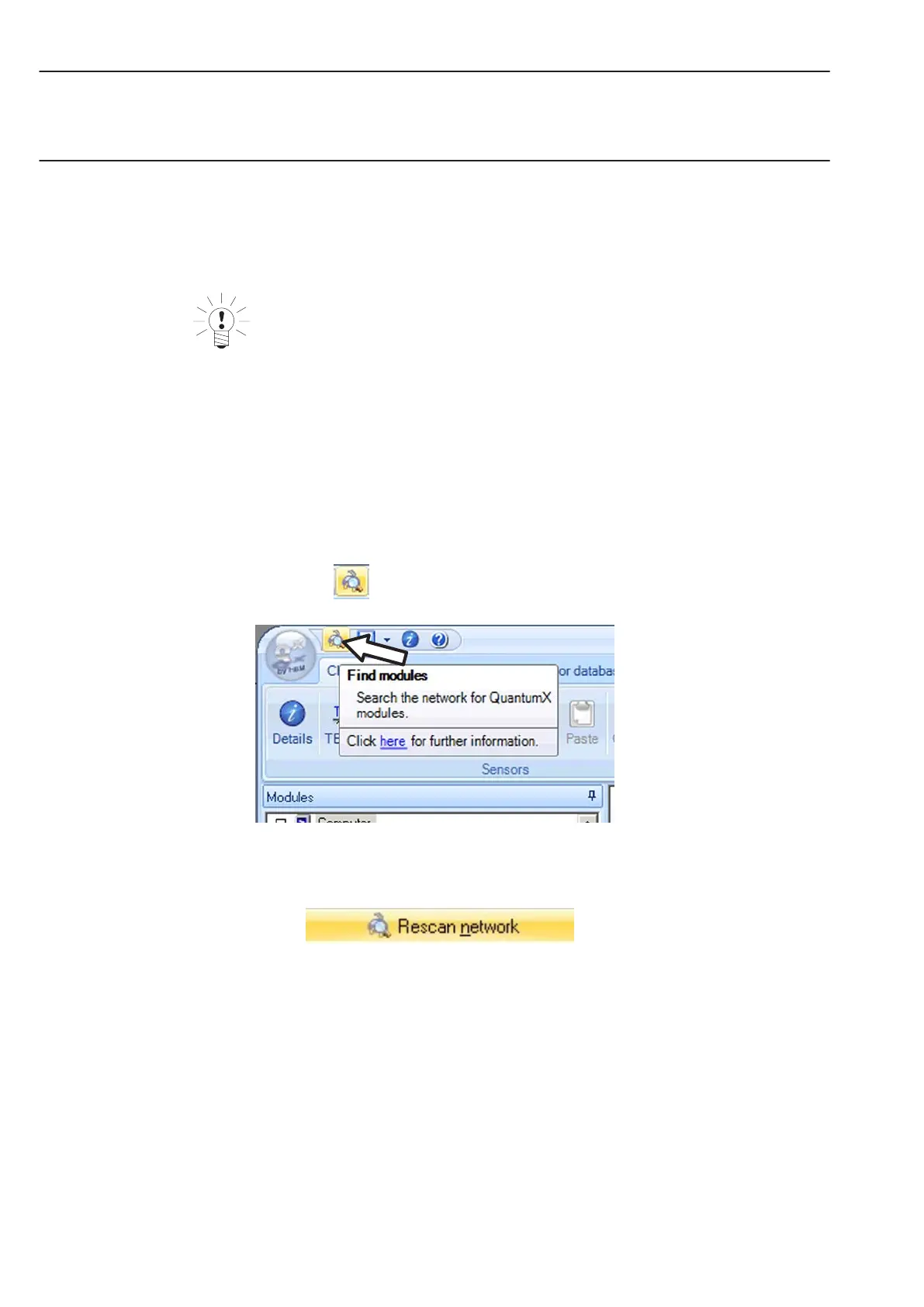
• Click on the icon
(Find modules) or press the function key F4.
The field ”Modules found” displays all modules connected via FireWire.
• If your modules are not yet displayed, mark ”Search the complete network” and click
again on the button.
• Mark the relevant modules by checking the relevant checkbox
• Confirm with ”OK”
This completes the settings for your connection. Connect your transducer now, connection
information can be found in the ”QuantumX operating instructions”.
Information about further channel configuration can be found in the online help of the HBM
software you are using.



 To Next Page