Radar Field Analyser - RFA641 Edition Date: 28-Feb-18
3. UF24 specific interrogation fields
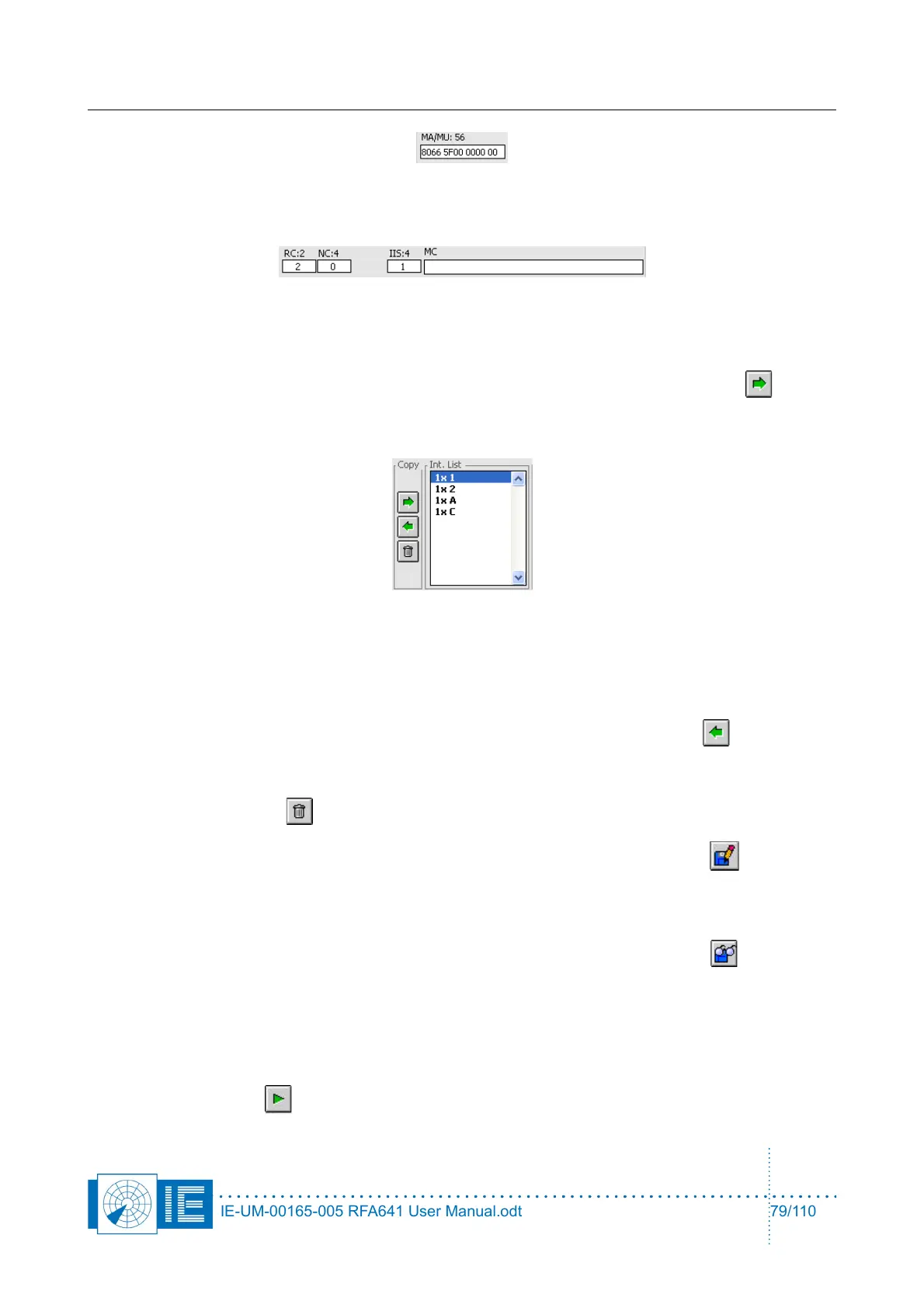
5. Now build an interrogation list. A number of controls and related fields are present to allow the user
to create an Interrogation List. Once the general parameters, the Interrogation type, format and
field data are entered, the interrogation can be entered in the Int. List by clicking the In button.
The interrogation type and number of interrogations are entered in the list, the details of the selected
interrogation are copied to the Int. Details, Delay, and Repeat fields.
To enter an additional interrogation into the list, setup the interrogation parameters and click the In
button again. The interrogation will be added after the last interrogation. If the interrogation is
selected (highlighted) in the Interrogation list, pressing the In button will replace the old interrogation
with the new one.
A selected interrogation can be copied to the interrogation controls using the Out button. Both
general fields (repeat, delay) and interrogation fields (in case of a Mode-S Interrogation) will be
copied.
Pressing the Delete button removes the selected interrogation from the list.
6. Once a list of interrogations is entered it can be saved to disk by clicking the Save button and
recalled whenever needed. The file will be saved in the Interrogations subdirectory of the active
campaign folder. This way a number of interrogation lists can be created for each specific test you
want to perform.
7. When using the tool a next time, the interrogation list can be loaded with the Load button.
A file dialog is presented, pointing to the Interrogations directory of the active campaign folder,
listing the interrogation files already created. Select a file and click OK to load the required
interrogation list.
8. An important function of the transponder interrogation tool is sampling, visualising and (when a
logfile is selected) logging of the transponder replies. First of all you can play the interrogation list by
clicking the Start button. For each interrogation in the list the data is sampled and displayed in
IE-UM-00165-005 RFA641 User Manual.odt 79/110



 To Next Page