www.javad.com Maxor Operator’s Manual 4-13
OPERATION
Checking an OAF
Checking an OAF
Tip:
For a complete list of options and their details, visit the
JNS website.
You can check the status of your receiver's options, and load any new OAFs,
using the RS232 cable, a computer, and PCView. Refer to the PCView Software
Manual for a more complete description of the PCView software.
1. Connect your receiver and computer. See “Connecting the Maxor and a
Computer” on page 2-9 for this procedure.
2. Start PCView.
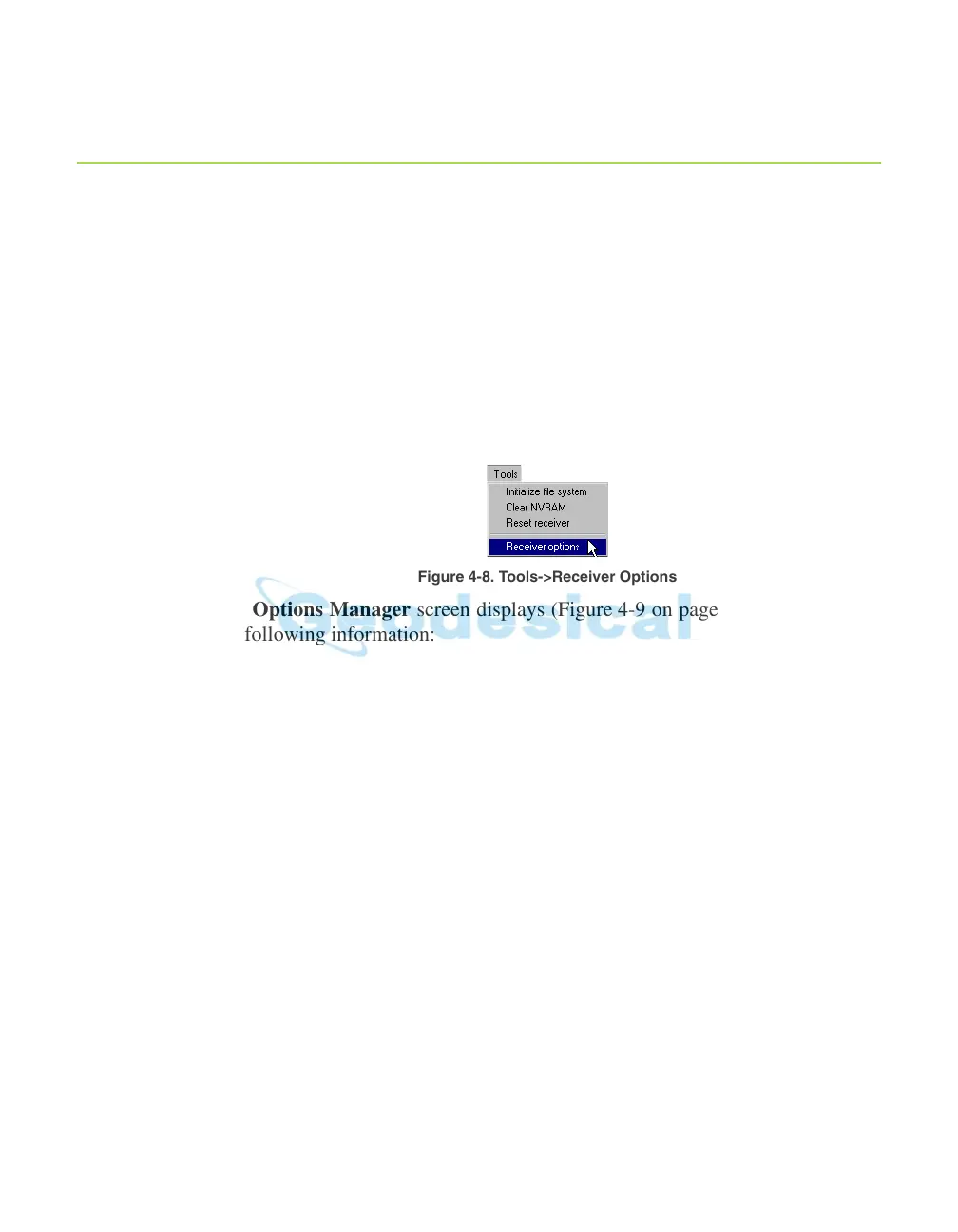
3. Click Tools->Receiver Options (Figure 4-8).
Figure 4-8. Tools->Receiver Options
The Options Manager screen displays (Figure 4-9 on page 4-14) and contains
the following information:
• Option name – a name/description of the opt
ion.
• Current – the current status of the option.
• Purchased – if the option is purchased or
not.
• Leased – if the option
is leased or not.
• Expiration date – the date the option will be disabl
ed, if applicable.
Since Options can be both purchased and leased, the "Current" status of the
option displays the currently effective value. Option values can be:
• -1 or "-----" – the
firmware version does not support this option.
•
0 – the receiver option is disabled.
• positive integer – the option is enabled.


 To Next Page