5-8 Maxor Operator’s Manual www.javad.com
TROUBLESHOOTING
Bluetooth® Problems
5
Bluetooth® Problems
The following are some of the most commonly encountered error messages.
BTCONF reports the error messages in the status bar.
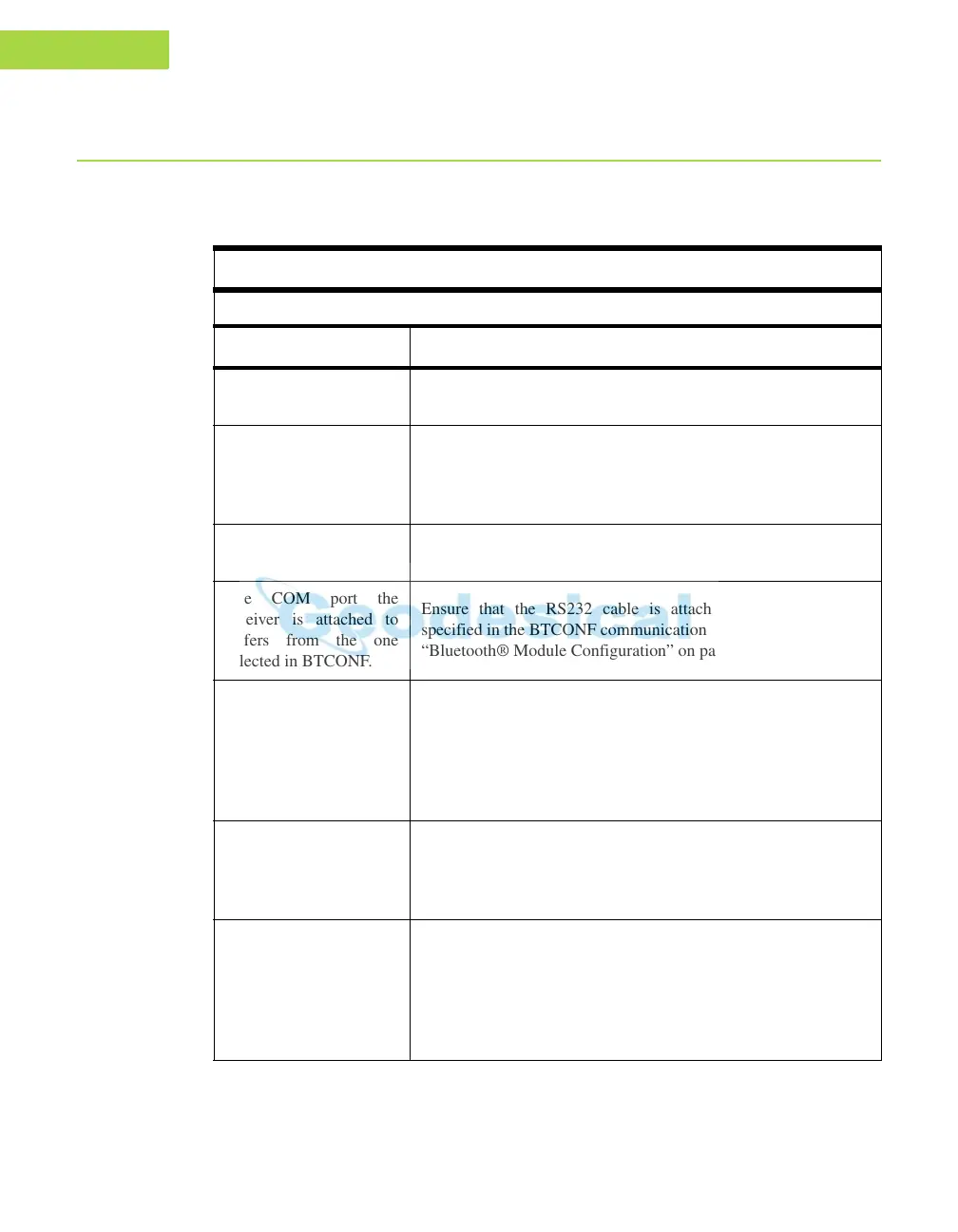
Error Message
Can’t find receiver.
Causes Solutions
The receiver is turned
off.
Ensure the receiver has power and is turned on.
If using a cable, the
ca
ble’s conn
ectors are
improperly attached.
Check that the cable connector is attached to the correct serial
port.
Unplug the cable, then securely a
nd properly reconnect it to the
receiv
er.
If using a cable, the cable
is damaged.
Use an undamaged cable.
Contact your Dealer to purchase a new cable.
The COM port the
rec
eiv
er is attached to
differs from the one
selected in BTCONF.
Ensure that the RS232 cable is attached to the COM port
specified in the B
TCONF communication port dropdown list. See
“Bluetooth® Module Configuration” on page 2-40 for details.
The receiver port used
for connection is not in
Command mode.
Connect your receiver and a computer using a free port
(see“Connecting the Maxor and a Computer” on page 2-9) and
start PCView.
Click Configuration->Receiver->Ports.
Change the Input for the serial po
rt used for connection to
Command.
The settings for Port B
may have
been changed.
The settings for Port B are: 115200 baud rate, 8 data bits, 1 stop
bit, no parity, and no handshaking.
Try enabling RTS/CTS handshaking for Port B. Do not change
other settings
.
The corresponding
receiver options may be
disabled or e
xpired.
See “Checking an OAF” on page 4-13 for details on checking
current options.
Enable, or prolong, the corresponding receiver options. Contact
yo
ur dealer to order an O
AF with desired receiver options.


 To Next Page