10 Creating your own styles | 115
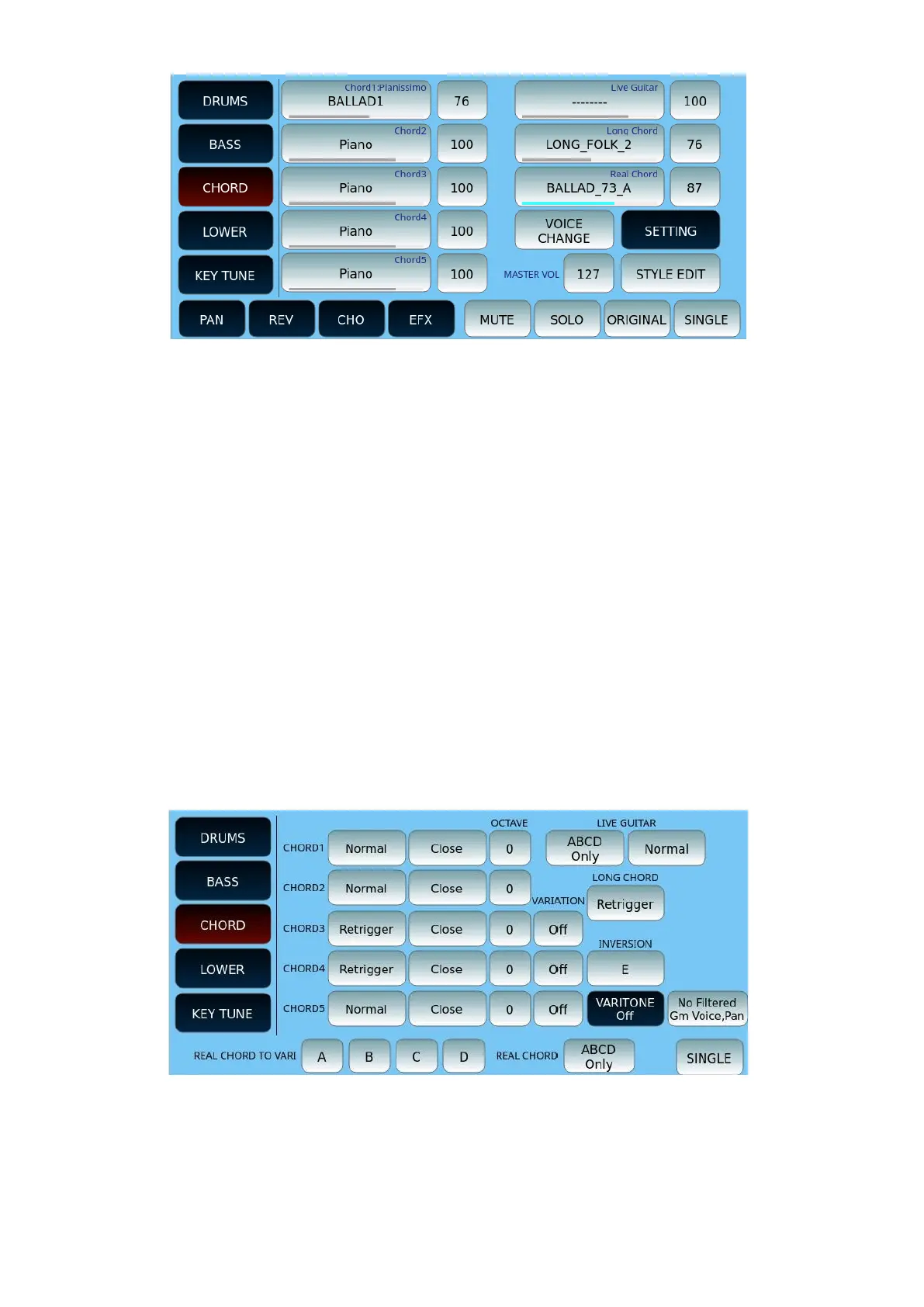
On this page, you can customize the CHORD part of the style:
• On the left, you can assign a different MIDI pattern to each of the five tracks that
make up the CHORD part.
• On the right, you can do the same for the tracks Live Guitar, Long Chord and Real
Chord (audio).
• Each part is shown with the volume level icon next to it. This is also represented by
the blue line (track contains data) or grey line (track is empty) below the part
name.
• Touch an option and then press the UP/DOWN buttons to open the search page
among the many available patterns in each category.
• The VOICE CHANGE button gives you the possibility to change the voice for the
MIDI parts on the left. After activating it, touch MIDI part and this time, instead of
selecting the pattern, you can select the assigned sound.
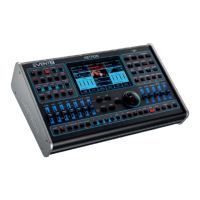
Below is an example of the SETTING page of the CHORD part (all other on-screen buttons
are illustrated in the general description above).
Options, for each CHORD part of the style (1-5):
• Set:



 To Next Page