13 Global menus and settings | 173
Video
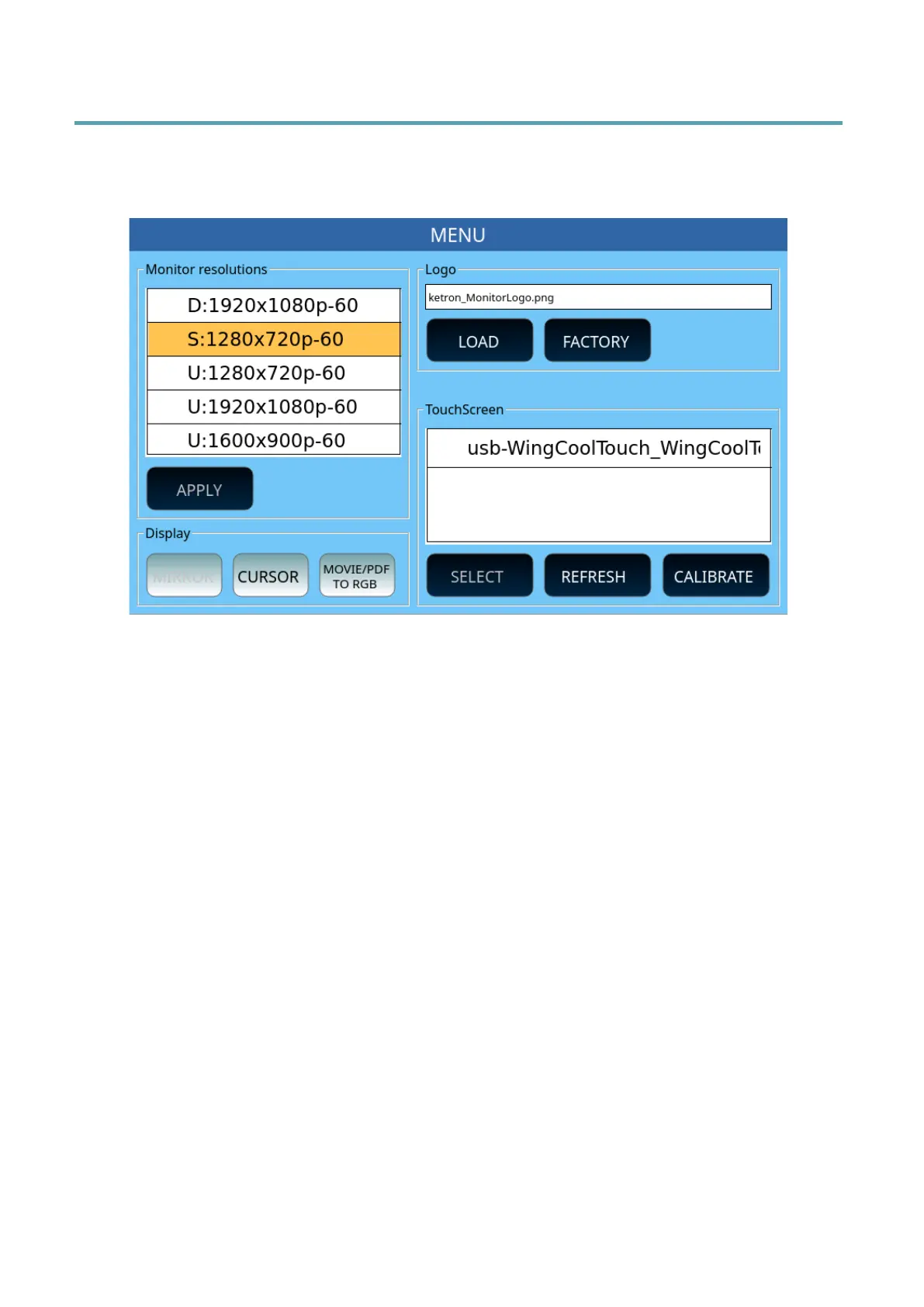
Touch VIDEO button on the MENU page to access the configuration of the external video
displays.
Display options:
• Monitor Resolution: Here you can adjust the resolution of the external monitor.
Use the UP/DOWN buttons to set the desired resolution. Touch the APPLY icon
to confirm. A pop up dialog screen appears in the centre of the screen: touch YES
to apply the changes and restart the instrument.
• Display:
o The MIRROR function is disabled on EVM.
o CURSOR: This button activates the display of the mouse cursor (when
connected to USB port) on the screen. You must restart the EVM to apply
the change. It can be saved as a CUSTOM STARTUP. If you connect a mouse
when the instrument is off, the mouse cursor is automatically displayed on
the screen after power on.
o MOVIE/PDF TO RGB: Displays the content of PDF files, images, and videos
on the external monitor. This option is not available if the control screen is
connected via HDMI connection.
• Logo: press the LOAD button to upload a custom background image to use as the
external monitor background; or press FACTORY to keep the KETRON logo.
Touch Screen options: If the connected external monitor is Touch Screen, EVM can recognize
what is happening in MIRROR mode on the external monitor. The connected monitor
appears in the Touch Screen list at the bottom right.



 To Next Page