186 | 14 Inputs and Outputs
• FOOTSWITCH: Optional multi-switch pedal connection, compatible with KETRON
FS6/FS13.
• MIDI: MIDI IN1 (GM), MIDI IN 2 (KEYBOARD), MIDI OUT and MIDI THRU ports.
• OUTPUT: Pair of jack sockets (unbalanced) for the general audio output of the
• instrument.
Technical data: Before connecting any instruments to the inputs or outputs, deactivate all
units. Adjust all volume levels to a minimum and then turn them up progressively until you
reach the listening volume. Reset the volume to a minimum before turning off components
and turn off devices before unplugging them.
Connection Mode for EVM Control
Unlike most musical instruments, the EVM user interface is not physically located on the
device, but you can access to it by an external monitor connected via HDMI cable or via a
VNC (Virtual Network Computing) connection.
To access EVM via VNC, you need to install special software, called VNC client, on the device
(PC, Mac, iPad) with which you want to control the tool. On the net there are various
software, both free and paid, for all the most popular operating systems.
The following are the diverse ways you can access the remote interface of EVM.
Method 1 (recommended): Touch screen via HDMI
Use a monitor with 1280x720 or 1920x1080 resolution. These are the only resolutions
supported.
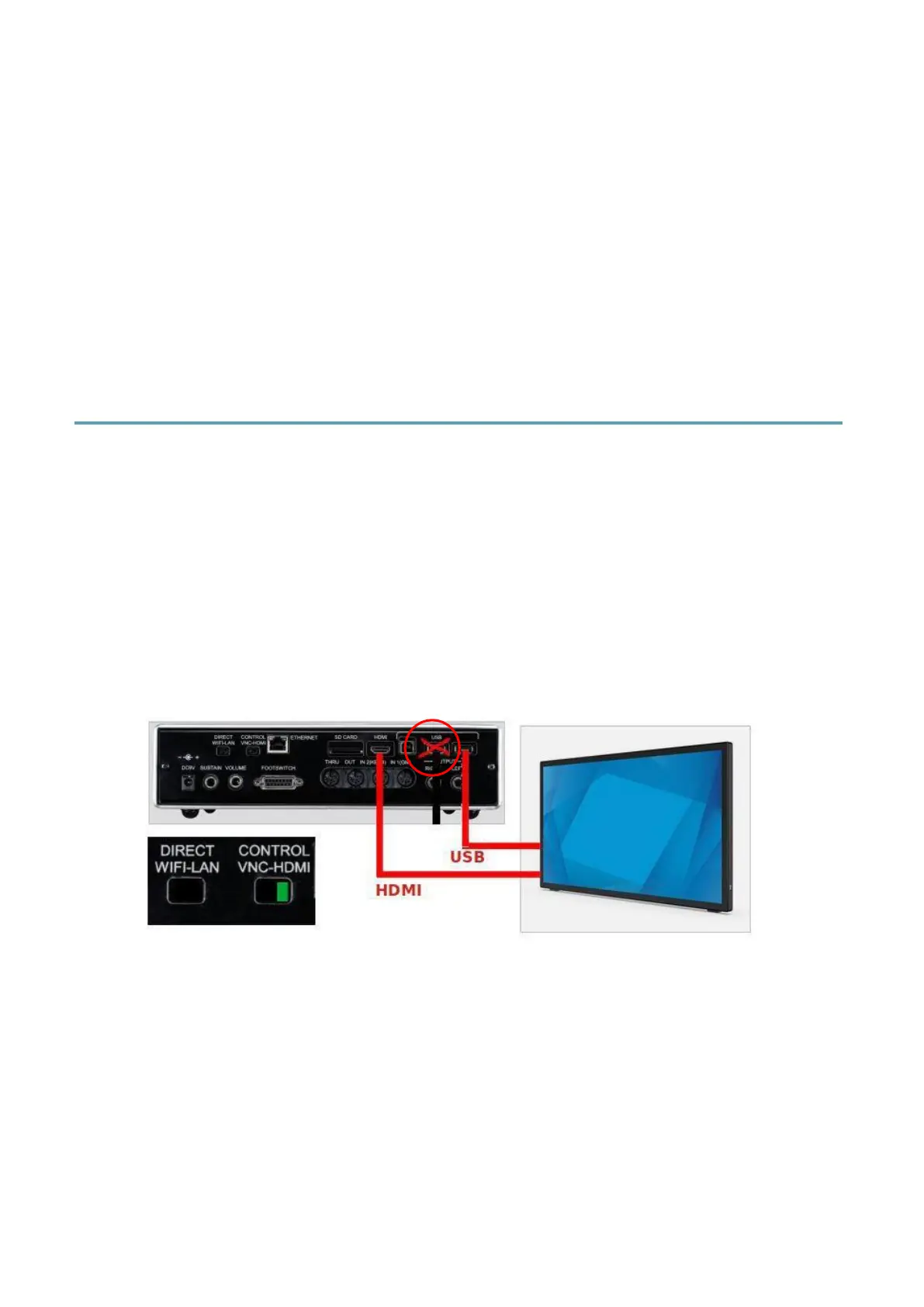
1. Connect the HDMI cable to the HDMI port on the instrument.
2. Connect the USB cable to the rightmost USB port on the instrument. This is
important because, in PC-CONNECT mode, the central USB port stops working.
3. Set the VNC/HDMI switch to HDMI. The position of the switch
4. WIFI/LAN is not relevant.



 To Next Page