196 | 15 Media
4. Now unplug the device from the USB port.
Please Note! The internal SSD disk (UserFS) cannot be disconnected.
Connecting to PC/Mac
Activate connection sessions
The physical connection via cable is described in the paragraph Connecting a PC/Mac.
Pay attention! When you enable the PC-CONNECT mode, the central USB-port stop
working and therefore it is important you connect your input devices (as mouse and
touchscreen displays) to the USB port closer to the external side.
You can leave the USB cable always connected but the connection must always be activated
manually, from time to time, when needed:
1. Touch the MEDIA button on the panel.
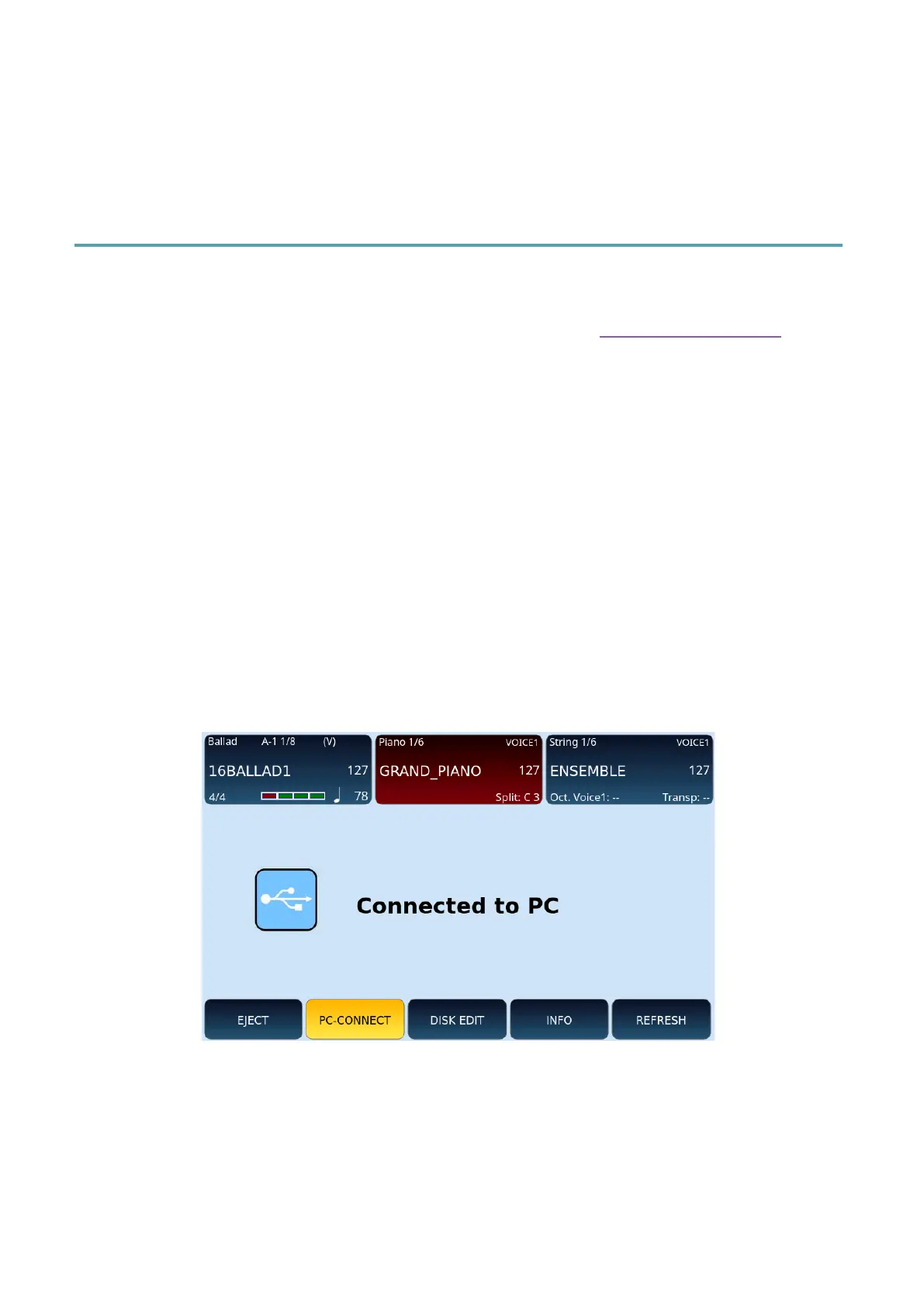
2. Press PC-CONNECT button on the screen.
3. EVM goes into connection mode and the screen displays the message "Connected
to PC".
4. At the same time, a USBACK shared folder appears on the PC/Mac.
Operations during active linking
During the connection mode, the possibilities of use such as accompaniment styles, VOICE
management and PLAYERS are inhibited on the instrument.
You can browse EVM folders from your PC/Mac, copy, create, rename, and delete files and
folders. This is what the root and internal disk folders on a PC look like, as an example.



 To Next Page