Section 4 Windows Driver 4-11
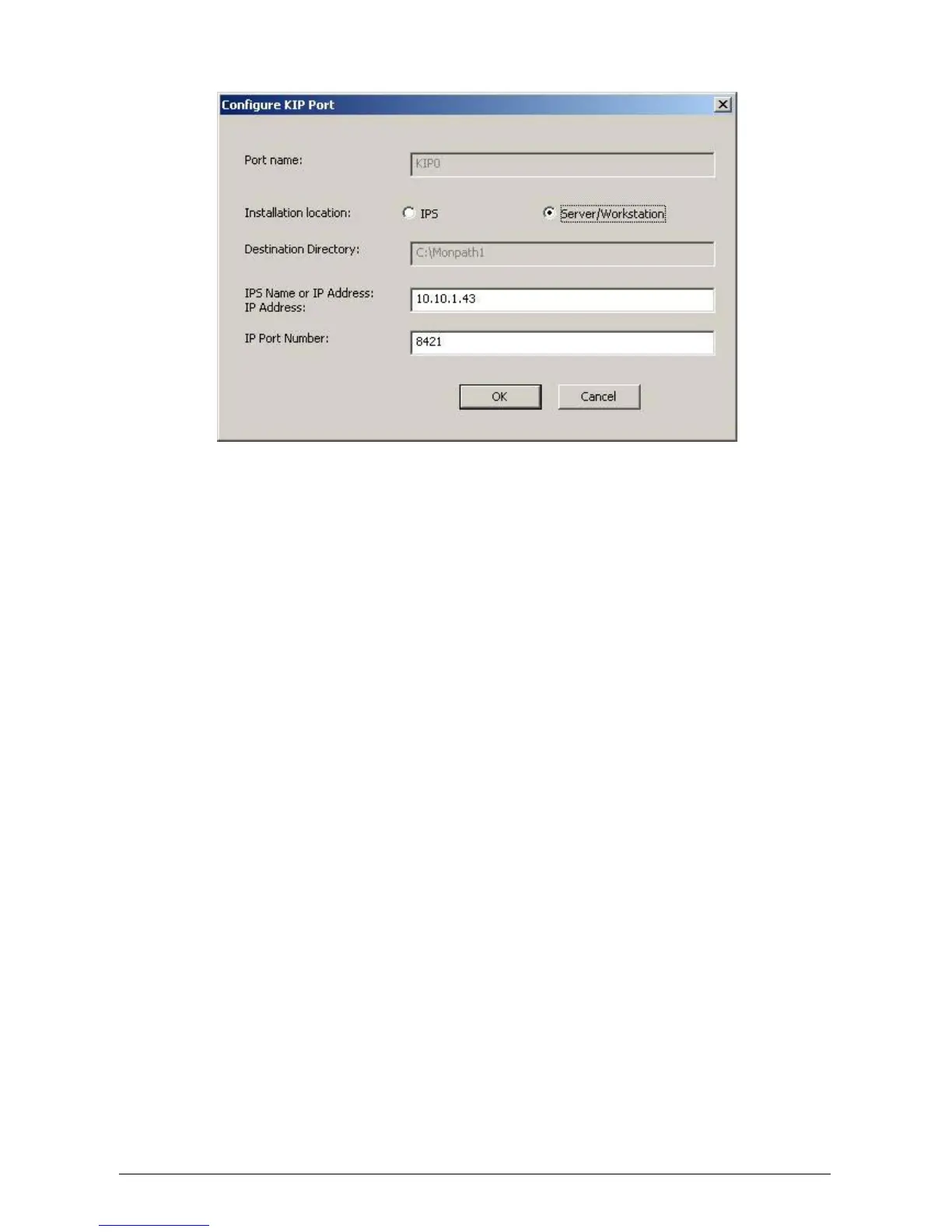
The following screen will appear.
e) Do not change Port Name.
f) Choose Server/Workstation from Installation Location.
g) Do not change Destination Directory.
h) Provide the IP address OR hostname of your KIP printer for IPS Name or IP
Address. It is important to add EITHER the hostname OR the IP address. Do not
add both. This is the destination address.
i) Do not change IP Port Number.
j) Click OK. The selected KIP Printer Driver is added to the system and assigned to
the Printer Port monitor (KIP0).
k) The installed printer can now be accessed from the Microsoft Printer Control Panel.
If printer is not seen, press F5 to refresh the printer list


 To Next Page