Section 5 AutoCAD Driver
5-7
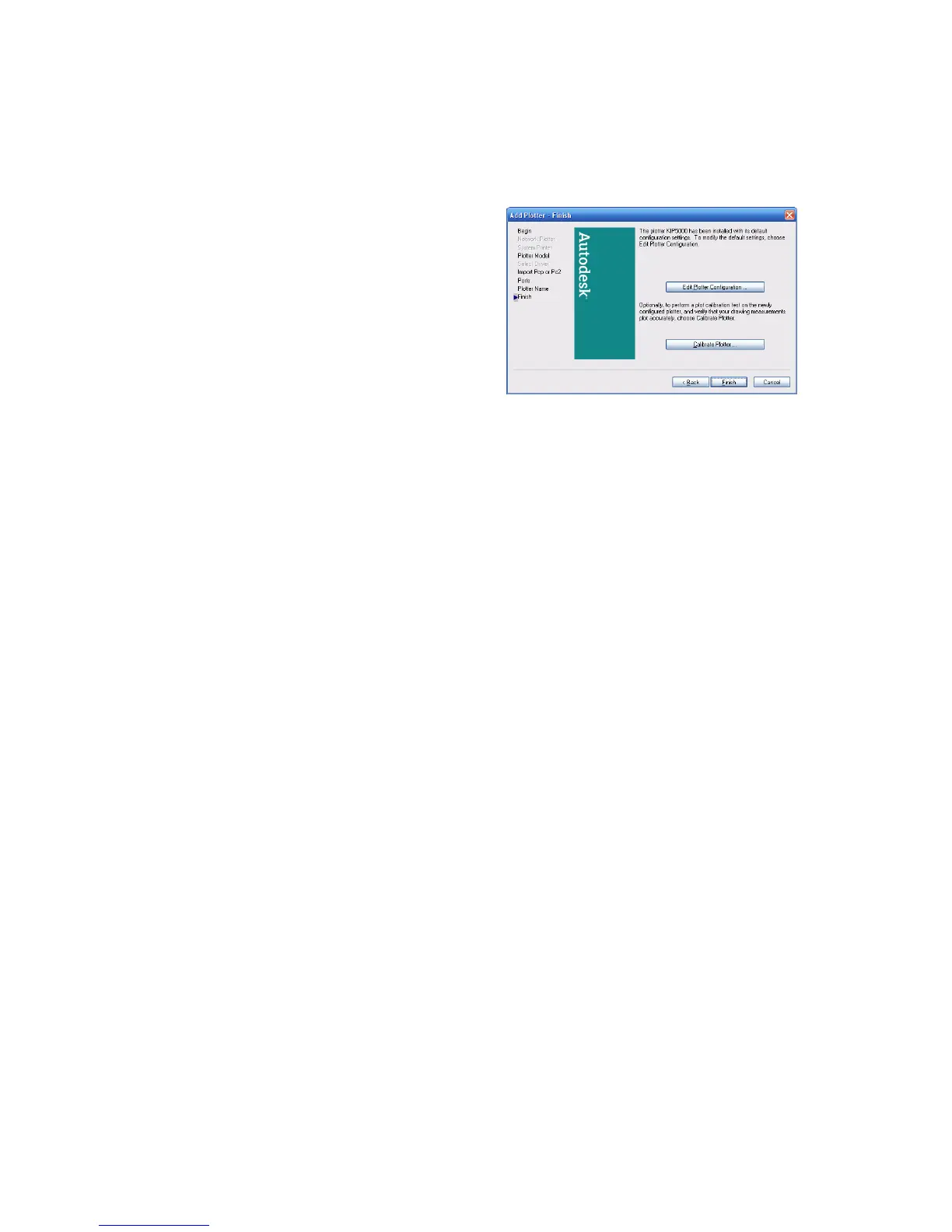
9) To complete the installation, click the
Finish button. Printer configuration will be
done later and there is no need to
“Calibrate Plotter” as the KIP printer was
calibrated during installation by the
technician.
10) Once the installation is complete, please
note the creation of the KIP 5000.pc3 file in the
ACAD/Plotters folder.


 To Next Page