Section 5 AutoCAD Driver
5-11
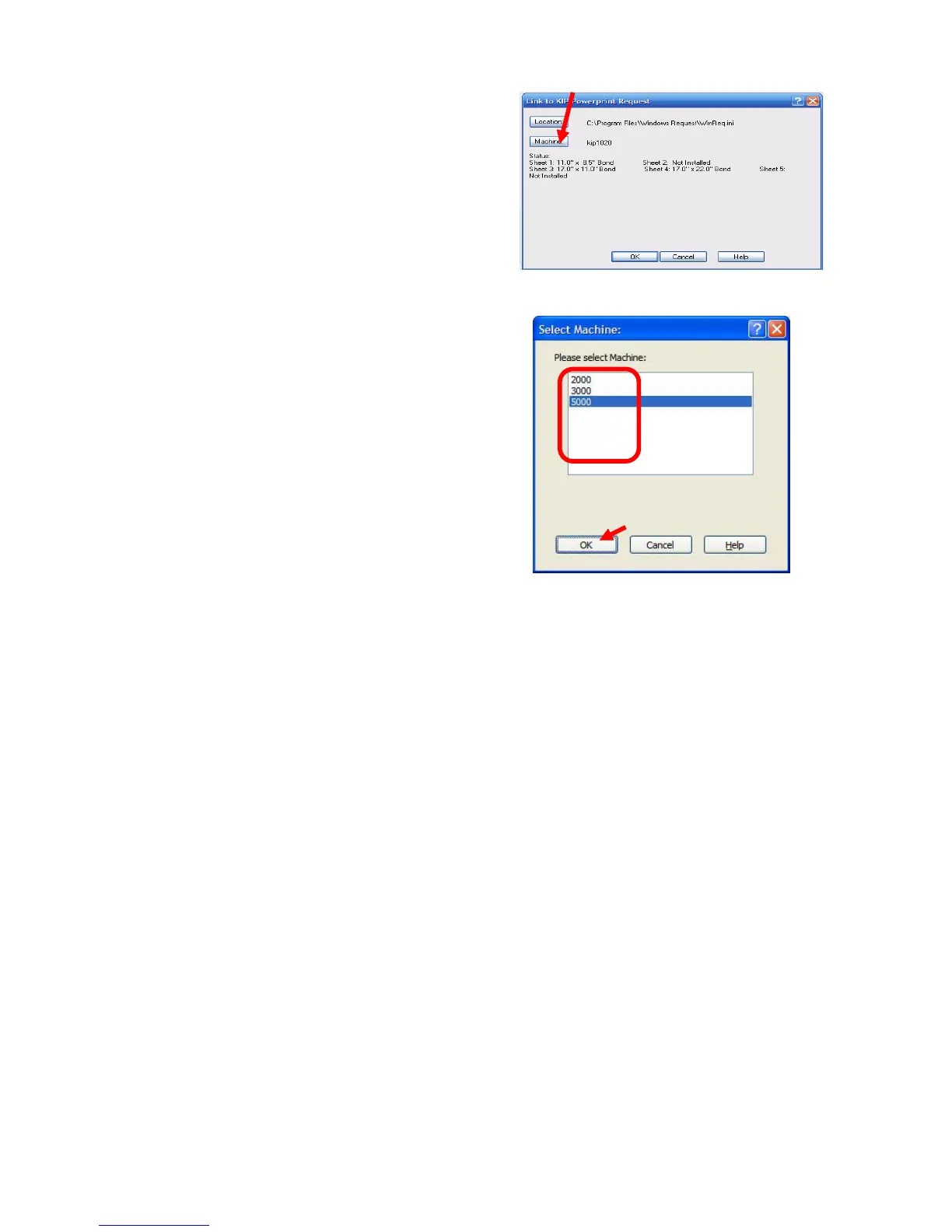
7) Click the Machine button, to list of
all of the machine models connected
in Request and select which
machine to link. Please note that the
models listed are dependent on
those used in Request.
8) Select “OK” to finish linking the KDI to KIP
Request.
9) The KIP custom settings dialog box should display “Real Time Status” from the KIP
printer. Users have the ability to track printing from the AutoCAD application by
Requester, Job Number, and Description. Users also have the ability to add a
stamp to their document from the KIP HDI driver.


 To Next Page