7-3 Section 7 KIP Print Net
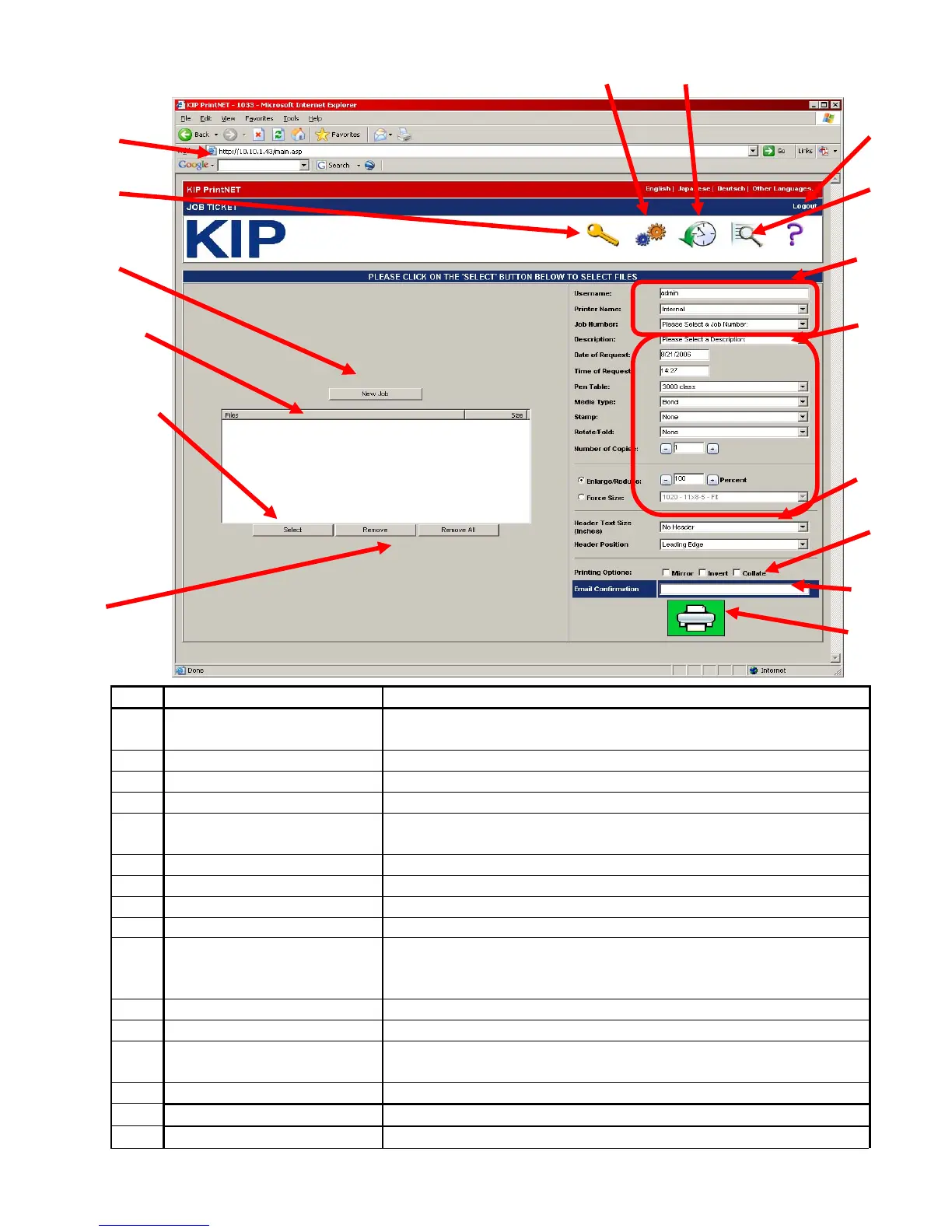
1.1 Main Screen
No. Name Function
1 Host Address
Type in the URL of the Server / PC that hosts KIP PrintNET
(password protected )
2 Logout Logout from the KIP PrintNET session
3 Admin Setup Administrative feature setup if logged on as administrator
4 Queue Management Manages the job queue on the printer.
5 Accounting Region
Selection for Name of Operator, Printer type, Project
number, Time and Date of requested Job,
6 New Job Clear all previous setting to start a new print submission.
7 File Selected Area Displays file names and the file size of selected files
8 Select Browse to select the file(s) for printing from the PC / LAN
9 Remove / Remove All Deleting one or all files from the job list.
10 Job Settings
Pen table selection, Media type selection, Stamp selection,
Rotate / Fold selection, number of copies selection and print
/ image size.
11 Header / Header Position Inserting a Header and position of the Header on the print
12 Printing Options Provides Mirror, Invert and Collation capability
13 Email Communication
Add an email address to send auto response for job
acceptance
14 Job Submission Send a job / files
15 History Queue View and Re-Submit Jobs
16 Printer Configuration Change Printer Settings
3
1
4
11
10
12
13
2
5
6
7
8
9
14
16 15


 To Next Page