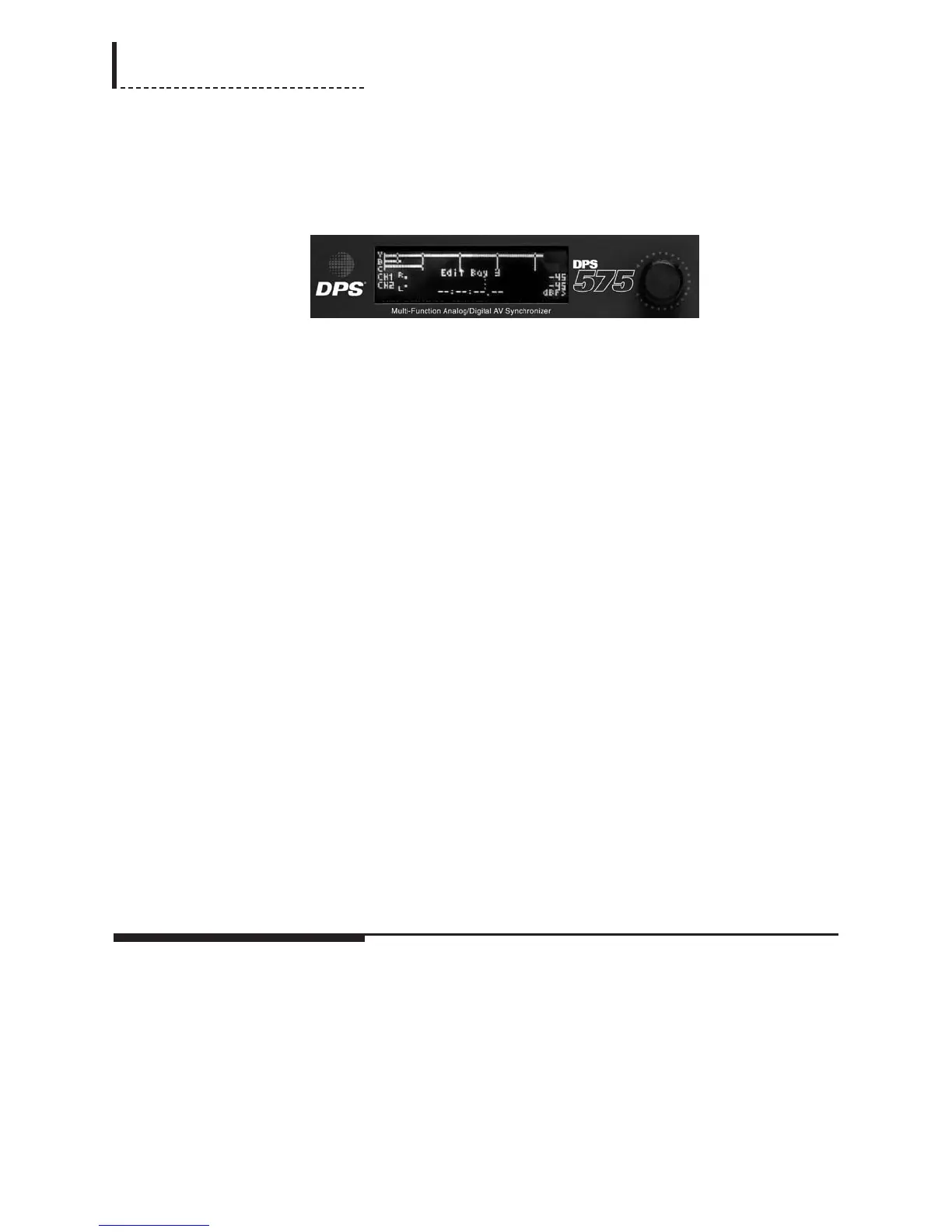
Menu options, selections, and feedback are shown on the Vacuum Fluorescent
Display (VFD) display panel. When the unit is first powered-up, the display will first
show the DPS logo and product information, which will then be replaced by the Idle
Screen:
The Idle Screen is a real-time status screen which provides feedback about various
parameters of the currently selected inputs. The Idle Screen is shown when the user is
not adjusting parameters or browsing the menus.
The first three lines of the Idle Screen provide real-time feedback of the Luma, Black,
and Chroma levels of the currently selected video input source.
On DPS-475AV and DPS-575AV units , and DPS-475 and DPS-575 units that have
the Audio Synchronizer Module installed, the next two lines of the display show real-
time feedback of the channel 1 and 2 audio input levels.
On units with the DV I/O Module installed, the bottom line of the Idle Screen
displays the current DV Time Code reported by the connected DV device, and just to
the left of this, the current DV transport state.
The Machine Name specifed in the System Config menu (see Chapter 12) is also
shown on the Idle Screen. On units without DV or audio capability, the Idle Screen
will display the current measured video delay through the unit.
Note that at regular intervals, the display will “invert” itself. In the initial state,
text and information appears lit, over an “unlit” background. In the inverted
state, the background will be lit, with the text and information appearing “unlit”
(black). THIS PERIODIC INVERSION IS NORMAL; it does not indicate any
kind of problem nor status. The inversion is done to preserve the lifespan of the
display panel (leaving the display in a single state can cause display pixels to
burn out prematurely).
Resetting the Unit
In the Video Input Selection section of the front panel, just to the right of the CAV
and SDI indicators, is a small hole. This hole provides access to the RESET button,
which will reset the DPS-475/575 unit. This is equivalent to power-cycling the unit.
Menu Controls
All options and parameters for the DPS-475/575 are accessed through configuration
menus, which appear on the display panel. Selecting and using any of the menu and
sub-menu options follows the same general procedure. See Chapter 4, “Menu
Overview and Feature Cross-Reference,” for a chart of the menu structure.
Moving Through the Menus
1. With the Idle Screen displayed, press the Enter button. (If the Idle Screen is not
displayed, press Exit repeatedly until it is.) The display panel will show the Main
Menu options.
12
DPS-475/575 Service Manual



 To Next Page