The User Interface
94
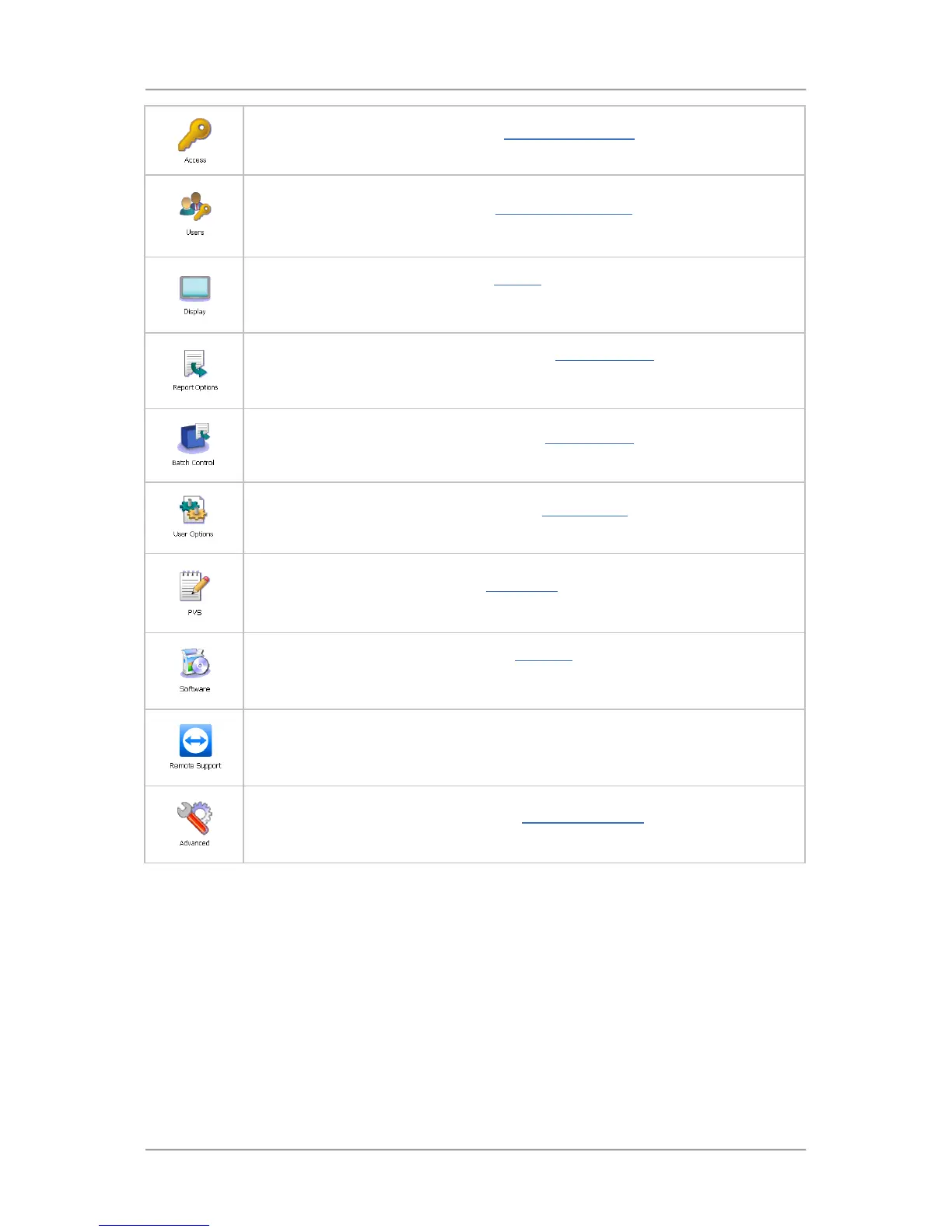
Tap on the Access icon to display the Select Access Level screen to log in to the
metal detector system or change your login level.
Tap on the Users icon to display the User Accounts Setup
can add, edit and delete user accounts.
Tap on the Display icon to show the Display screen whcih provides access to other
screen for setting up the system time and date, the display appearance, the system
language and other general settings.
Tap on the Report Options icon to display the Report Options screen through which
you can enable some system features and select the report types to be included for
viewing.
Tap on the Batch Control icon to display the Batch Control screen for setting up the
batch units, start and length setting and enable the traceability feature if required.
Tap on the User Options icon to display the User Options screen through which you
can enable several features including Tracker and PVS.
Tap on the PVS icon to display the PVS Setup screen where you can set the type
and frequency of the testing.
Tap on the Software icon to display the Software screen which shows the versions
of the currently installed software. An option button is also included to allow you to
exit the software.
Tap on the Remote Support icon to enable the metal detector for remote access
through a VNC connection.
Tap on the Advanced icon to display the Advanced Settings screen which provides
access to service, diagnostics, auto-learn and network connection screens.


 To Next Page