The User Interface
105
Clean Screen
Purpose
You may wish to clean the touch screen from time to time with a damp cloth or sponge but touching
the screen whilst it is active could inadvertently change a setting.
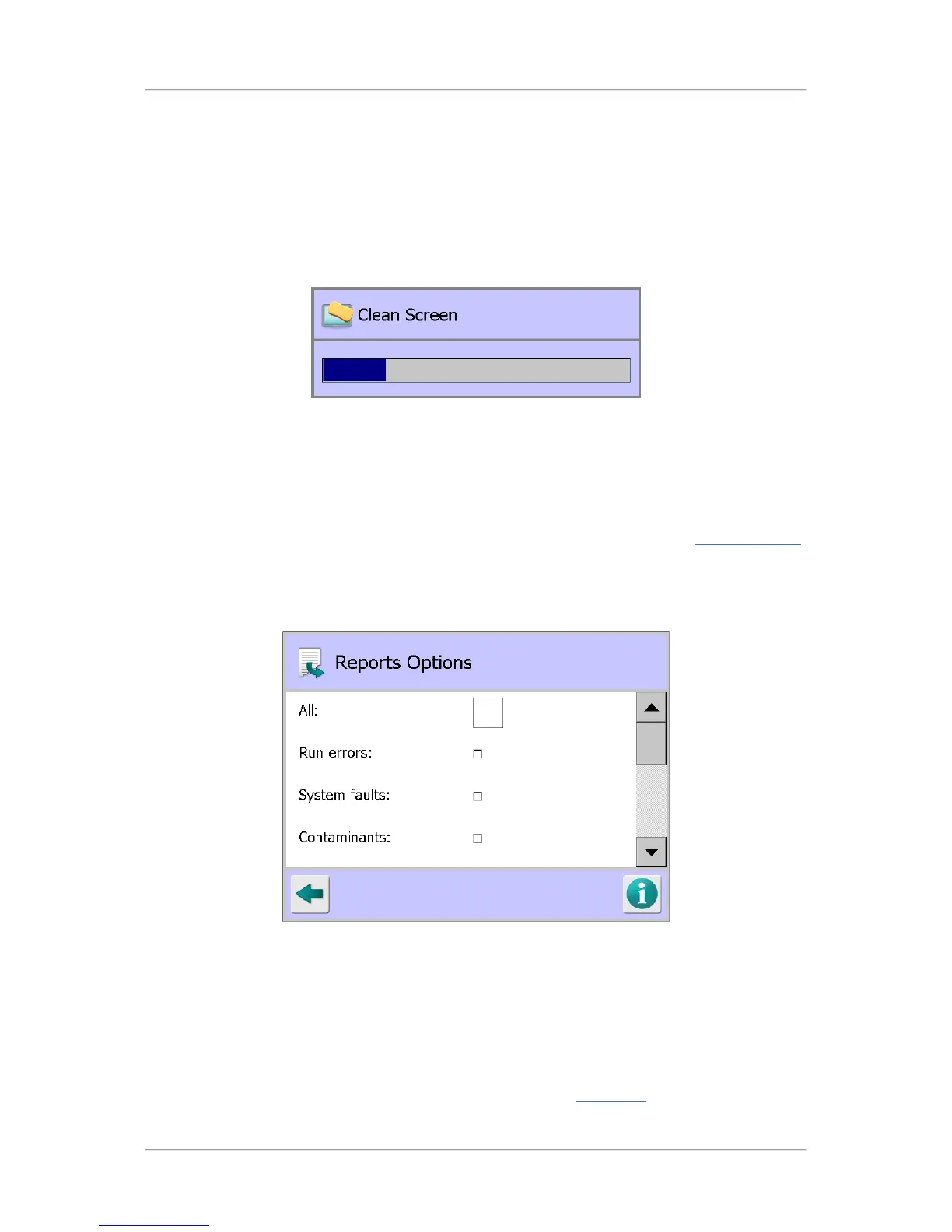
To resolve this issue the Clean Screen feature disables the touch screen for a defined period of time,
shown in a progress bar, during which you can clean the screen without affecting anything.
Tapping on the Clean Screen icon immediately disables the touch screen and displays the progress
bar as shown below.
Screen Contents
The Clean Screen progress bar is displayed. Once the time period is reached the screen closes and
the touch screen becomes active.
Report Options
Purpose
The Report Options screen is displayed by tapping on the Report Options icon in the System Settings
screen.
The purpose of the screen is to select some of the logs and reports that are displayed for selection in
the Logs/Reports screen, to enable them for exporting to a printer, over LomaEnet or to another
external device. You can also enable the Batch feature by selecting this option in the screen.
Screen Contents
The screen contains the following report options for selection:
■
All
Tapping in this option check box selects all of the report options available in the screen. It is
recommended that this option is selected.
■
Run errors
Tapping in this option check box will enable exporting of the Run Errors
Log.


 To Next Page