The User Interface
69
Keyboard
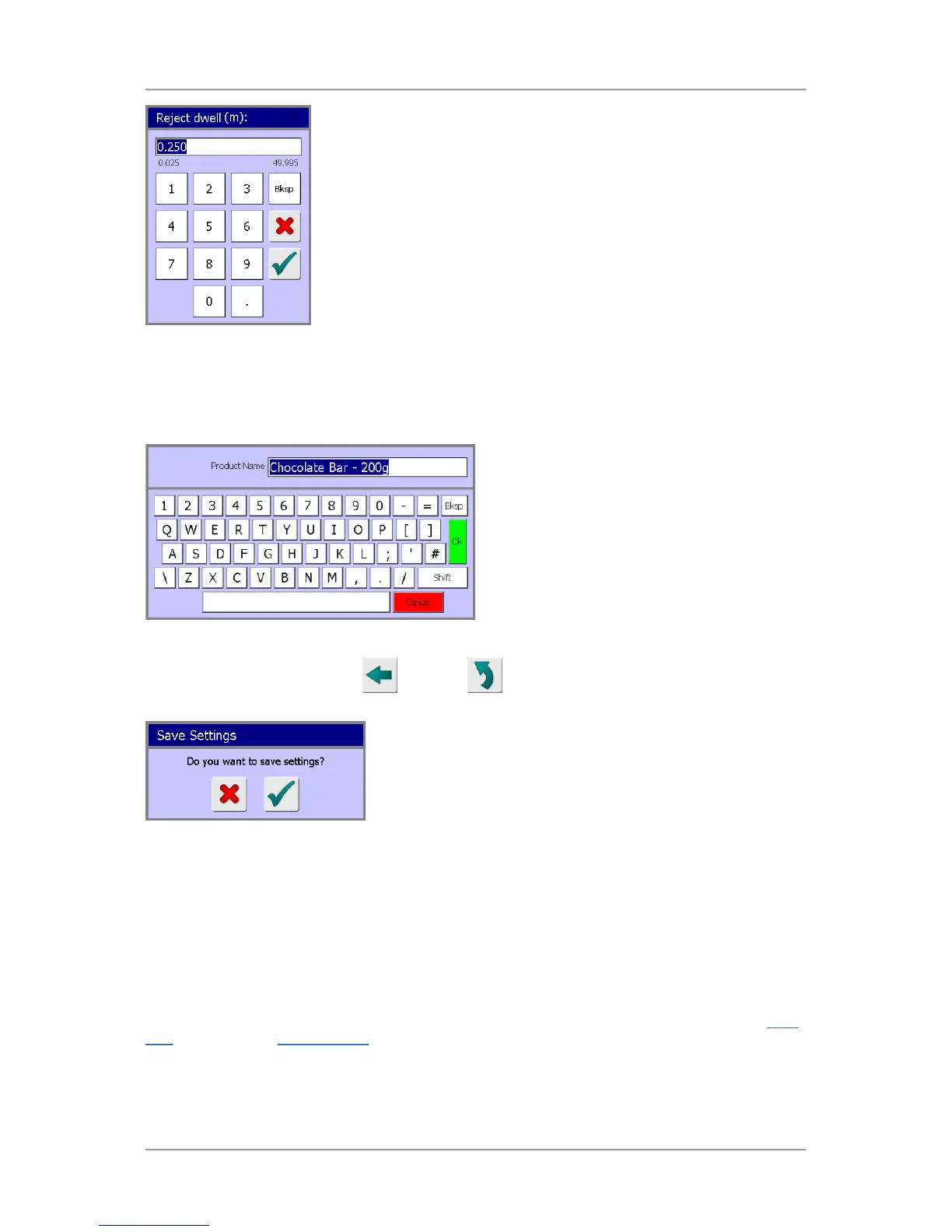
When you tap into a field in which you can enter characters and numbers a keyboard will be displayed
in a pop-up screen.
You can enter characters and numbers by tapping on the keyboard buttons. Then tap on the green
OK button to close the screen and save the entry into the selected field.
Saving Settings
When tapping on either the Back or Go To button to exit a screen in which you have
made some setting changes the Save Settings pop-up screen is displayed.
Tapping on the green tick will save the changes and close the screen. Tapping on the red cross will
close the screen without saving the changes.
Screens
The user interface provides a hierarchy of screens that are presented in a logical sequence for setting
up the machine for inspecting products and accessing system and inspection information.
Although you will quickly learn how to navigate through the screens to access the ones you want, this
section provides some assistance for you to get started.
There are two main screens provided from which all other screens are accessed. These are the
Main
Run screen and the System Setup screen. Tables are provided below to show the hierarchy of
screens that are accessible from them.


 To Next Page