The User Interface
75
A product may be chosen for inspection by selecting the row containing the product name and
then selecting the Run option in the Product Options screen when it is displayed.
Other standard navigation features available in the screen are described in the General Navigation
section.
Product Options
Purpose
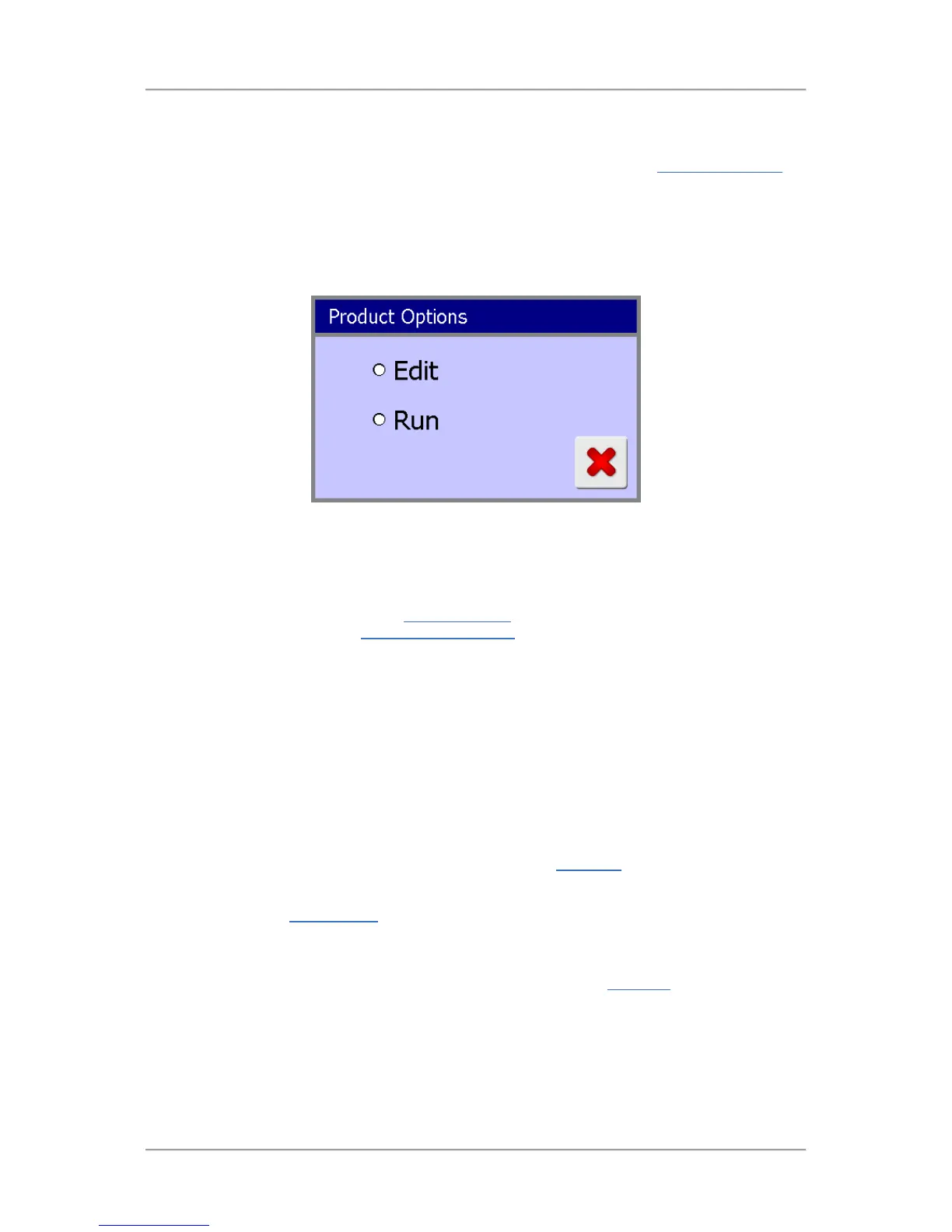
The Product Options screen provides you with options for running inspections for a selected product,
editing its settings or entering settings for a new product.
Screen Contents
The screen contains the following contents for displaying information and providing navigation to other
screens:
■
Edit
Choosing this option displays the Product Settings
screen so that you can edit the settings for
the product selected in the Select Product to Setup screen.
You should also choose this option if you are creating a new product, after selecting a blank row
in the Select Product to Setup screen.
■
Run
Choosing this option recalls the settings for the selected product and sets up the machine to
start inspecting it.
A pop-up message is briefly displayed to advise you that the current product settings are being
changed to those for the selected product.
If a Learn process has not yet been carried out for the product, a pop-up message will be briefly
displayed advising you of this and you should carry out a Full Learn
process before starting
inspections.
If you are using Batch Control to identify batches of product being inspected, as you are
effectively starting a new batch a keyboard screen will be displayed so that you can enter a
Trace Code for the new batch.
The Product Options screen is then automatically closed and the Main Run screen is displayed.
You are now ready to start inspecting the selected product.
Selecting the red X control at the bottom of the screen at any time will close the screen.


 To Next Page