The User Interface
141
O Aperture dimension in the range of 150 - 200mm - depending upon the band selected,
use the 300kHz upwards range.
O
Aperture dimension in the range of 225 - 300mm - depending upon the band selected, use
the 203kHz upwards range.
O
Aperture dimension in the range of 325 - 550mm - depending upon the band selected,
use the 111kHz upwards range.
Subsequent change to the value after the Search Head Setup screen is exited will change all
product memories back to the new value selected. Therefore it is advised not to revisit this entry
unless necessary.
■
Ferrite frequency
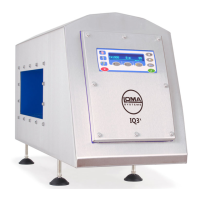
The IQ
3
+ Metal Detector uses a product called “Ferrite” to provide a pre-set compensation value
that the detector can recall to use with any product that when learnt exhibits no signals when
passed through the detector aperture.
Irrespective of whether banding is used or not the „Ferrite“ product has to be set up using the
“Tune for resistive” clear plastic wand found with in the control box area. Learning the wand is
the same as learning a product and can only be done when the PEC enable option in the
Conveyor Setup screen has been disabled.. Once Ferrrite has been learnt then further access
should be denied to prevent accidental use. To do this, navigate to the Service Options
screen
and un-tick the Access ferrite option check box.
Factory frequency setting for ferrite is selected from the smallest aperture dimension and will be
the same as the default frequency. Therefore, depending upon the band selected, it will be from
the same range listed above. Should there be a change to the set band then the ferrite memory
would have to be re-learnt using a frequency from the new band used.
The ferrite frequency is normally set to the same value as the default frequency. Tap the arrow
to the right of the field to display the drop down list of available frequencies and select the
frequency to be used.
■
Alarm sense
This option allows you to set the electrical state for the alarm circuit, which will affect the fault
and run error outputs. Options of Energise and De-Energised are available with the default
being Energise.
Tap the arrow to the right of the field to display the drop down list of available options and select
the one to be used.
■
Lamp type
This option allows you to select the lamp type that you are using so that the software can
integrate with it correctly. Options of Tower and Dome are available for selection.
Tap the arrow to the right of the field to display the drop down list of available lamp type options
and select the one to be used.
■
Noise filter
This option allows you to select the type of low-level filter to use to convert raw signals into a
resultant signal. Options of Off, Low and High are provided for selection.
Tap the arrow to the right of the field to display the drop down list of available noise filter level
options and select the one to be used.
■
Coil gap
The coil gap required can be found on the serial number plate located within the control panel.


 To Next Page