Printer Operation
2-6
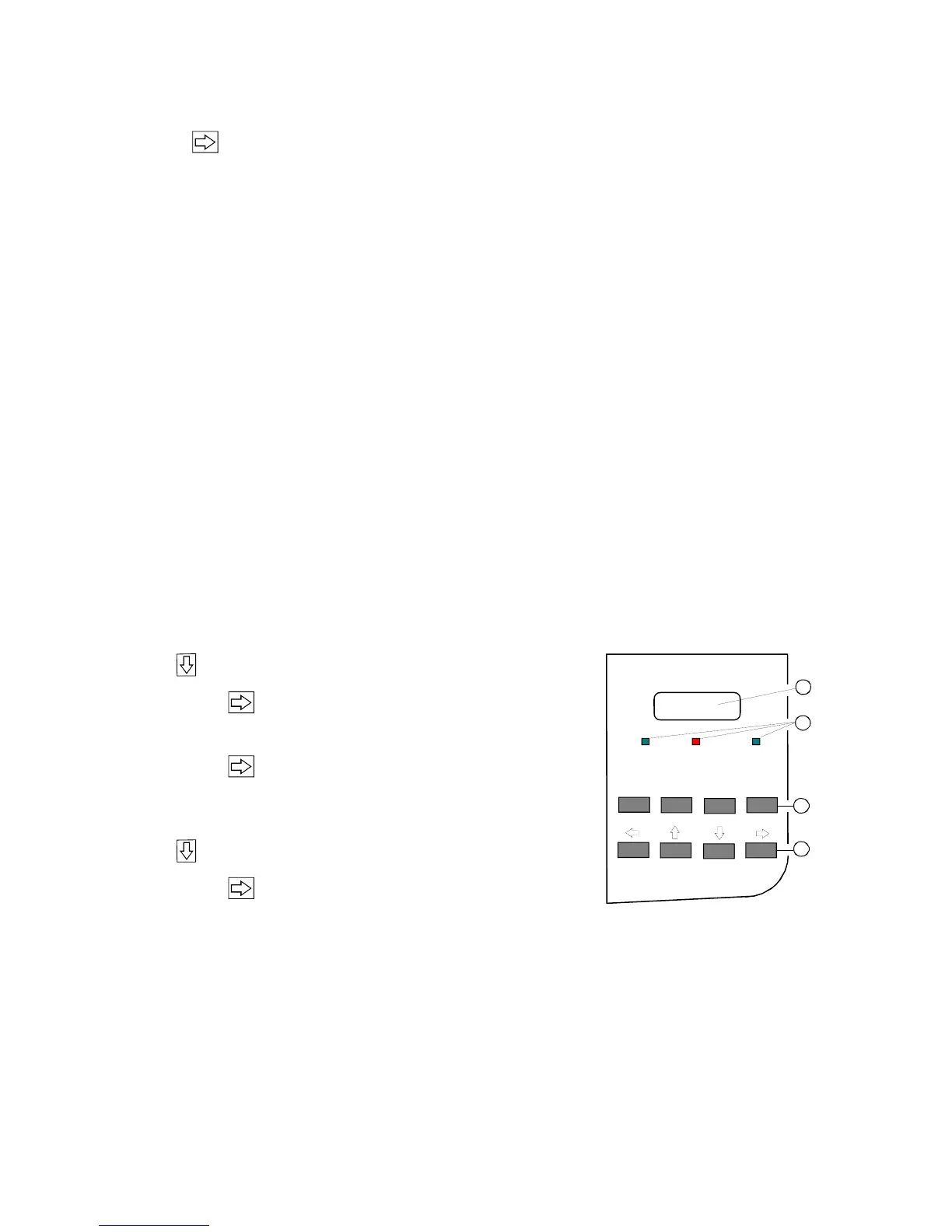
ONLINE
FORM FEED
MENU CANCEL
READY
ERROR DATA
1
3
2
4
2.3.2 Confirm a new Selection
Press confirmed value is displayed with an asterisk (*) in the last position as
shown in the picture before.
Note: All new values will be saved at once!
The Menu mode is left by pressing the [ONLINE] key.
Note: All actual parameter settings can be printed with the function SELF TEST in
the TEST MODE.
2.3.3 Example to Start a Self Test
Panel keys are now used and associated display messages are shown for the next
steps. The following example demonstrates how to do so:
Note: The number in brackets behind ONLINE or OFFLINE indicates the selected
Profile.
Key Display
1. Switch the printer ON ONLINE (1) (after initialization)
2. Press [ONLINE] OFFLINE (1)
3. [MENU] key OFFLINE (1)
TEAR OFF FORM
4. Repeatedly pressing the OFFLINE (1)
Button to select TEST MODE
5. Press TEST MODE
TEST MENU
6. Press TEST MENU
PANELTEST
7. Repeatedly pressing the TEST MENU
Button to select SELF TEST
8. Press to activate TESTMENU
SELF TEST
The printer starts with the SELFTEST printout. When printing is completed, the
following message will be displayed
10. TEST MENU
SELF TEST
11. Press [ONLINE] ONLINE (1)
The printer returns to the operating mode after pressing the [ONLINE] key.


 To Next Page