DICOM 11-9
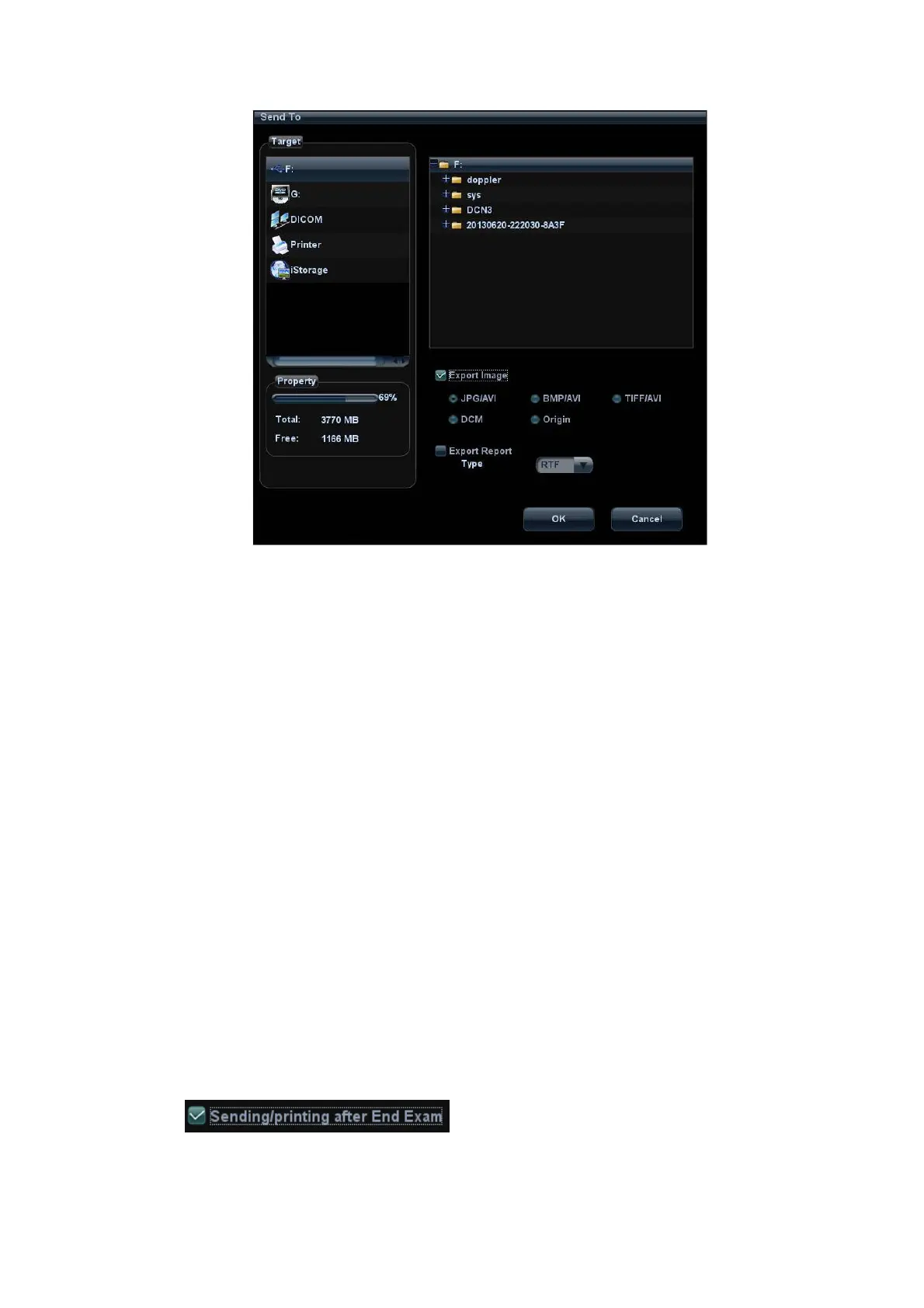
(3) Click to select “DICOM” in the Target box on the left side, and then select the DICOM
storage server in the Storage Server box on the right side.
(4) Click [OK] to start the sending.
To send images by shortcut key
You can save single frame image or multi-frame images to DICOM server while saving to hard
drive by shortcut key. Procedures are described as follows:
(1) Define the key:
a) Open Key Config page via “[Setup] (F10) → [System Preset] → [Key Config]”.
b) Assign functions to the desired keys: in Key Config page, select a free key or
footswitch at the left side, then select the corresponding key on the right side.
h Save Image to Hard Disk and Send to DICOM Storage
h Save Cine (Retrospective) to Hard Disk and Send to DICOM Storage.
h Save Cine (Prospective) to Hard Disk and Send to DICOM Storage.
c) Click [Save] to confirm the preset and exit.
(2) Set a default storage server:
a) Enter the DICOM Service Preset screen via “[Setup] (F10) → [DICOM Preset] → [Set
DICOM Service]”.
b) Select a storage server in the Service List and click [Default]; you can see “Y” is
marked in the Default column.
c) Click [Exit] to exit the page and return to Setup menu, then click [Save] on the Setup
menu to make the preset to take effect.
(3) Press the key to send DICOM storage.
To send image for storage after an exam ends
(1) Open “[Setup] (F10) → [System Preset] → [General]”, and then check
in the Exam Setup area.
(2) Set a default storage server.



 To Next Page