52 Océ 9300 User Manual
Océ step size
The Océ 9300 offers four different step sizes: 12.5
µ
m, 25
µ
m, 50
µ
m and
100
µ
m (see figure 22). Be careful when choosing the step size: the wrong step
size will negatively affect the scale of your drawing. The default is 25.
For example: Drawing A was printed with 50
µ
m step size as defined in the
software. The scale is correct.
Drawing C shows the same drawing printed with 100
µ
m step size. The print
is twice its normal size.
Drawing C shows the same drawing printed with 25
µ
m step size. The print
is half its normal size.
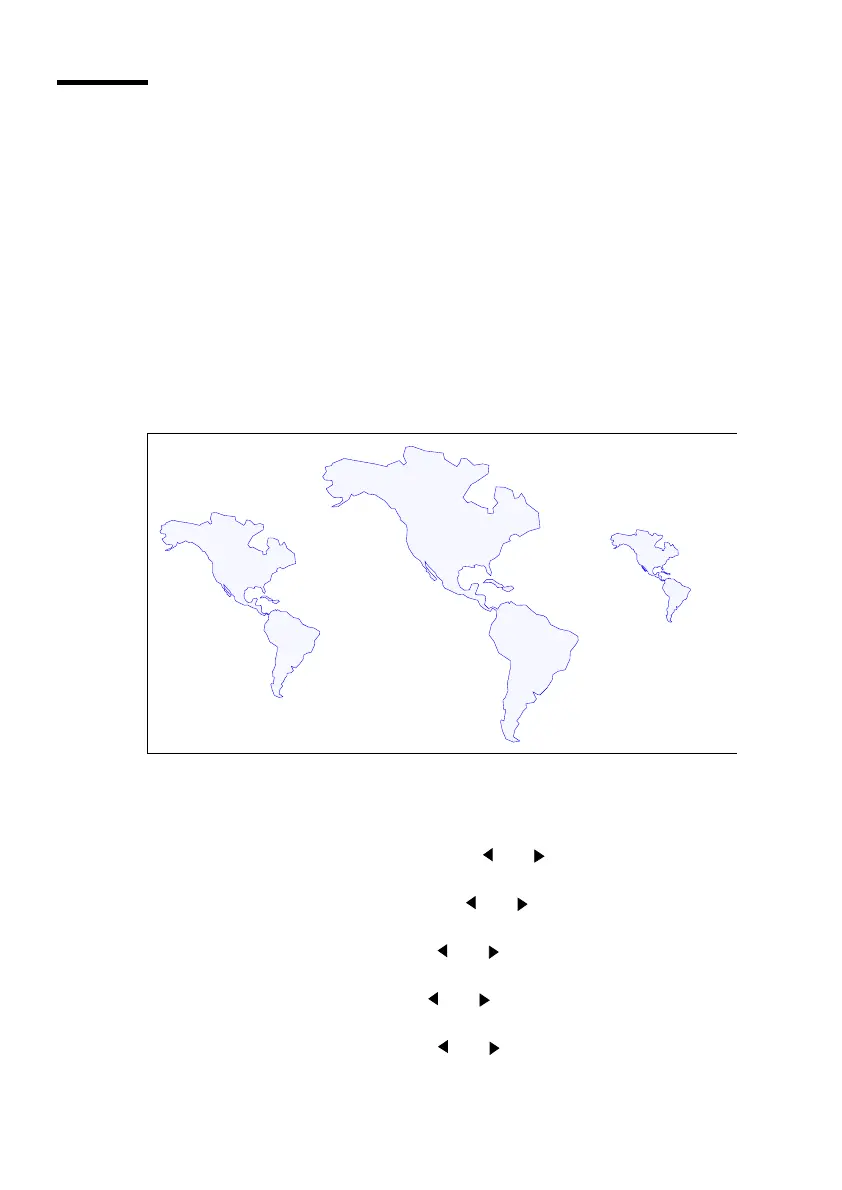
[22] Step size
▼
▼▼
▼
Defining the step size
1
Press ‘Program’ to enter the main menu.
2
Select the ‘C
ONFIGURATION
’
item using the or button.
3
Press ‘next/select’ to enter the ‘C
ONFIGURATION
’
menu.
4
Select the ‘
DATA
FORMAT
’
item using the or button.
5
Press ‘next/select’ to enter the ‘
DATA
FORMAT
’
menu.
6
Select the ‘
OCE
SETUP
’
item using the or button.
7
Press ‘next/select’ to enter the ‘
OCE
SETUP
’menu.
8
Select the ‘
STEP
SIZE
’
item using the or button.
9
Press ‘next/select’ to enter the ‘
STEP
SIZE
’ menu.
10
Select the required step size using the or button.
A
B
C



 To Next Page