76 Océ 9300 User Manual
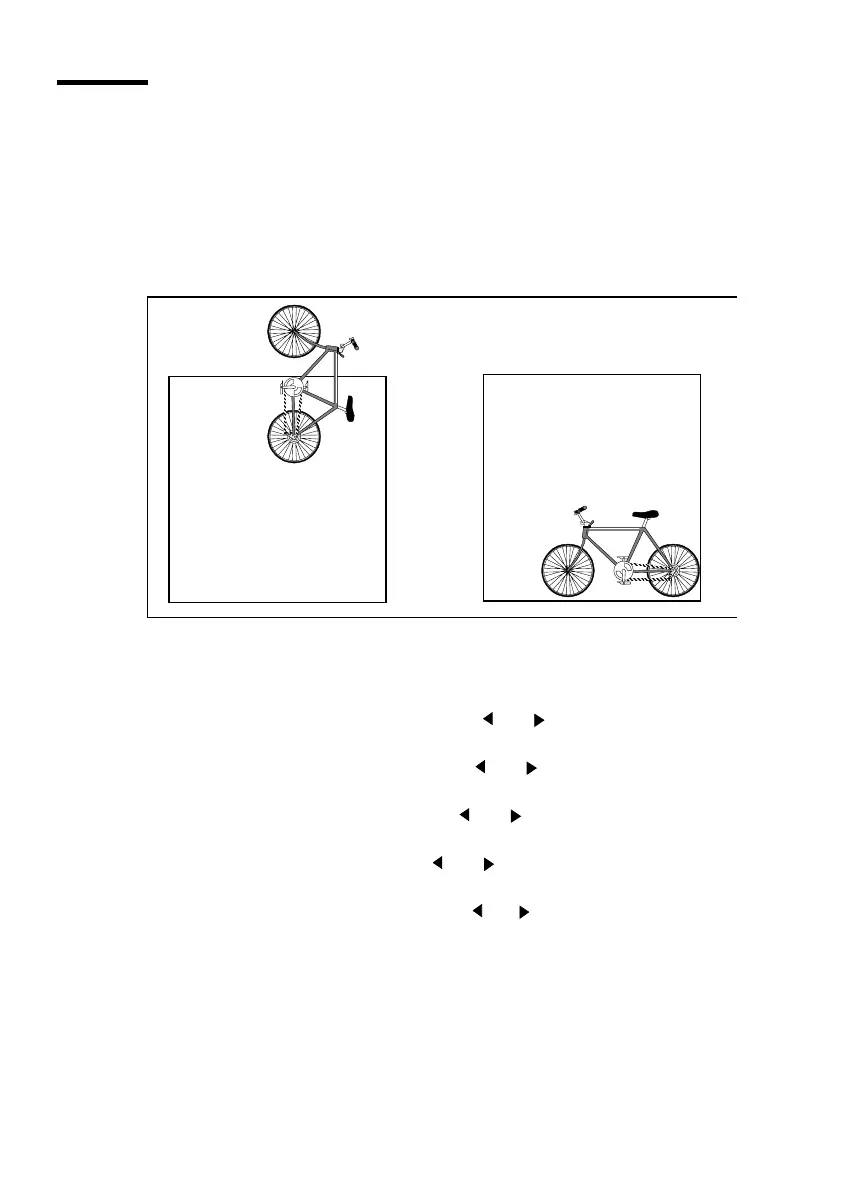
Autoposition
This option ignores the origin contained in the print file and automatically
shifts the print data to the lower right-hand corner of the media. If necessary,
prints are rotated 90 ° to make better use of the available media.
The autoposition feature helps eliminate the need to clip prints and reduces
media waste.
[24] Autoposition to save media
▼
Selecting autoposition
1
Press ‘Program’ to enter the main menu.
2
Select the ‘C
ONFIGURATION
’
item using the or button.
3
Press ‘next/select’ to enter the ‘C
ONFIGURATION
’
menu.
4
Select the ‘
PLOT
MANAGER
’
item using the or button.
5
Press ‘next/select’ to enter the ‘
PLOT
MANAGER
’
menu.
6
Select the ‘
MEDIA
SAVER
’
item using the or button.
7
Press ‘next/select’ to enter the ‘
MEDIA
SAVER
’
menu.
8
Select the ‘
M
/
S
MODE
’
item using the or button.
9
Press ‘next/select’ to enter the ‘
M
/
S
MODE
’
menu.
10
Select the ‘
AUTO
POSITION
’ item using the or button.
11
Press ‘next/select’ to select the required setting.
12
Press ‘Program’ to exit the main menu.
▼
De-selecting the media saver
1
Use the above procedure and select media saver OFF.



 To Next Page