Menu Tables
166
FQ-CR2 User’s Manual
Run Mode
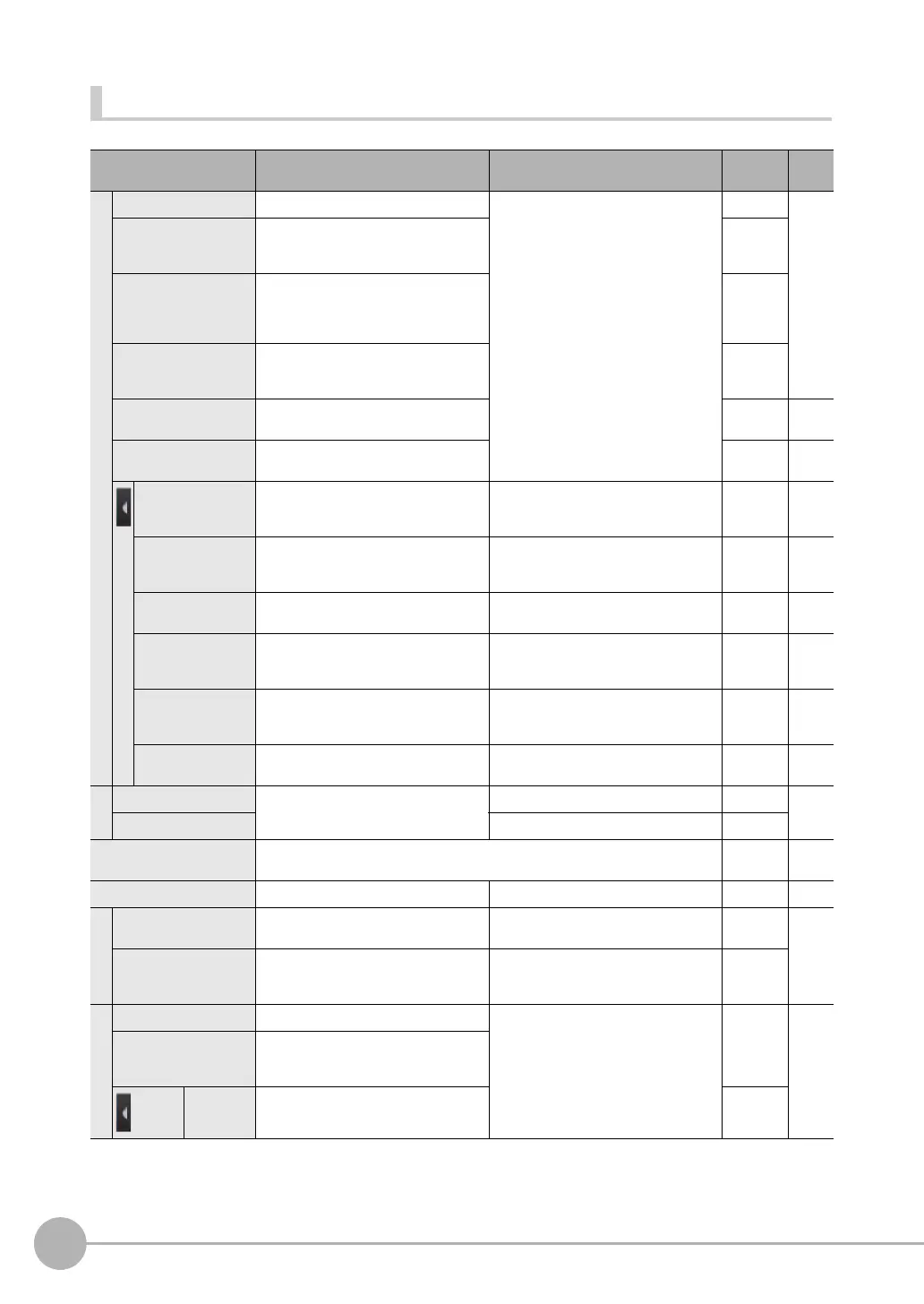
Menu command Description Setting range Data Refer-
ence
Select display
Graphic Displays the input image. --- --- p. 62
Graphics + Details Displays the inspection item individual
judgement results and measurement val-
ues.
---
Statistical data Displays the total number of measure-
ments and the total number of NG overall
judgements and the NG ratio from when
the power supply was turned ON.
All results/Region Displays the inspection item individual
judgement results for all inspection
items.
---
Trend Monitor Displays the individual judgement results
saved in the Sensor in a trend monitor.
--- p. 64
Histogram Displays the individual judgement results
saved in the Sensor in a histogram.
--- p. 65
Auto display
(trend monitor and
histogram only)
Automatically sets the display range
according to the measurement results.
OFF or ON (default) --- p. 64,
p. 65
Display range
(trend monitor and
histogram only)
Changes the display range of measure-
ment values.
-999,999,999 to 999,999,999 p. 64,
p. 65
Number of data
(trend monitor only)
Changes the number of displayed mea-
surement values.
200, 400, or 1,000 (default: 200) p. 64
Number of data
(histogram only)
Changes the number of displayed mea-
surement values (i.e., the vertical display
range of the histogram).
5 to 1,000 --- p. 65
Clear results
(graphic or graphic +
details list)
Clears the measurement results of the
inspection items.
--- --- ---
Delete status (total
data)
Clears the total results of the inspection
items.
--- --- ---
Logging
Image logging Starts and stops logging in external
memory.
ON: Start or OFF: Stop --- p. 76
Data logging ON: Start or OFF: Stop ---
TF settings The same as for Setup Mode. (This does not apply to the PC Tool.)
The resolution of the measurement image can be set on the PC Tool.
--- p. 89
Sensor setting Switches to Setup Mode. --- --- p. 60
Sensor monitor
Multi sensor Simultaneously displays the images for
multiple connected Sensors.
--- --- p. 62
NG sensor From multiple connected Sensors, dis-
plays the image of only the Sensors with
NG results.
--- ---
Switch sensor
Select Switches to the selected Sensor. --- --- ---
Connections Displays the name of the Sensor
detected by the Touch Finder and the
connection status.
Auto
connect
Automatically detects and connects the
Sensors that are connected.
FQ Sensor User Manual.book 166 ページ 2011年7月8日 金曜日 午後2時30分



 To Next Page