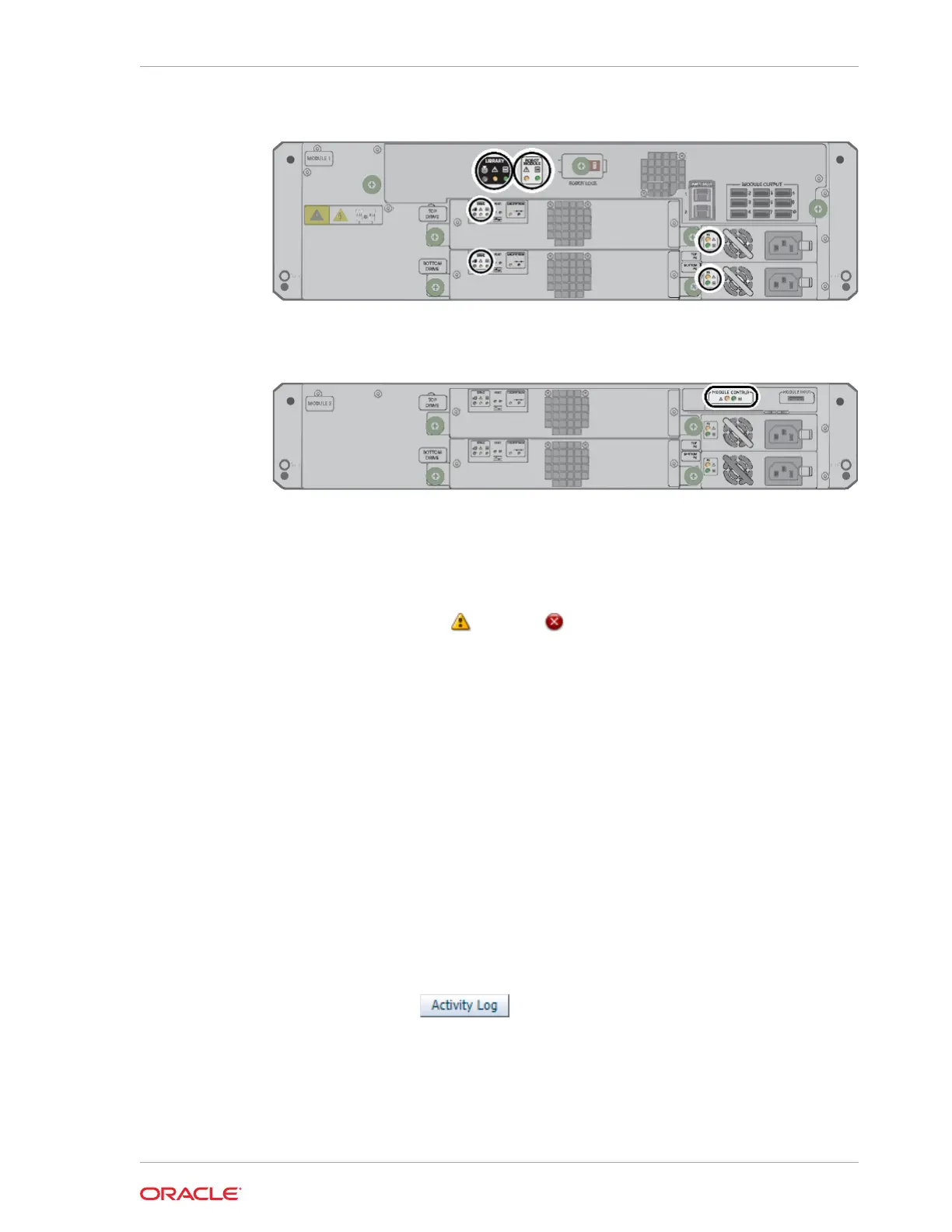
Figure 8-2 LEDs on Rear of Base Module
Figure 8-3 LEDs on Rear of the Expansion Module
Determine the Possible Cause of a Degraded or Failed Library State
Click the library health in the status bar to display a list of faults.
1. Click on the Degraded or Failed health state in the status bar.
2. Use the Library Health pop-up to view the list of library faults. Look through
the suspected components and recommended actions lists to determine how to
correct the faulty library state.
Related Topics
• View the Library State
The status bar at the top of the interface displays library health, which represents
the combined state of every component in the library.
• Diagnose a Library Problem
The health table, health log, and self-tests help diagnose library problems.
• Troubleshoot the Library
Troubleshoot common user interface and library problems.
View User and Host Activity
The activity log displays recent user and host activity.
1. Click Activity Log near the top-right of the screen.
2. Click either the User Activity tab or Host Activity tab to view the library activity.
Chapter 8
View User and Host Activity
8-3










 To Next Page